Category Archives: Software development

VS2015 Preview: Coloured Tooltips

Visual Studio 2015 brings a wealth of IDE enhancements. One of these is an improvement to the user experience of tooltips thanks to the addition of a touch of colour.

For instance, here’s what you get when you hover over a type:

vs2015-new-type-tooltip

…and this is the tooltip you get from intellisense:

vs2015-new-intellisense-tooptip

How about this tooltip showing a preview of a collapsed method:

vs2015-new-collapsed-tooltip

Or this tooltip showing a preview of XML documentation:

vs2015-new-xmldoc-tooltip

So that’s a nice touch of colour in several different tooltips.

Not impressed? Let’s take a look at what these looked like in Visual Studio 2013:

vs2015-old-type-tooltipvs2015-old-intellisense-tooptipvs2015-old-collapsed-tooltipvs2015-old-xmldoc-tooltip

OK, so you’ll realise that this new feature in Visual Studio 2015 won’t change your life, but it’s a great improvement in user experience from what we had before.

Meet .NET Native

.NET Native is an upcoming technology that can make .NET applications run with the performance of C++ applications. This preview technology is currently limited to Windows Store and Windows Phone 8 apps and can only be used on Windows 8.1 while targeting x64 or ARM architectures.

Normally, applications are compiled into MSIL and then JIT-compiled into native code at runtime. If .NET Native is enabled, then an additional step takes place which compiles the MSIL into native code through the Visual C++ optimizer.

You can download .NET Native from the .NET Native homepage; after that, enabling .NET Native compilation is simply a matter of ticking the “Compile with .NET Native tool chain” checkbox in the project’s Build properties.

As I mentioned earlier, .NET Native only applies to a very limited set of application types. Let’s hope that in future its benefits might be extended to a wider range of applications (e.g. desktop applications).

If you want to know more, check out Shawn Farkas’ 4-minute intro, or the longer Inside .NET Native video.

Dependency Injection in WCF Services with Ninject

Implementing dependency injection in a WCF service can be a little tricky since you don’t directly control the lifetime of the class that implements the interface. However, it is a simple matter to get it working with Ninject. This article by Aaron Stannard and this article by Tony Sneed were pretty useful to find the right direction; however they are a little out of date and the APIs have changed a little.

Part 1: Setting up a test scenario

Create a new WCF Service Application.
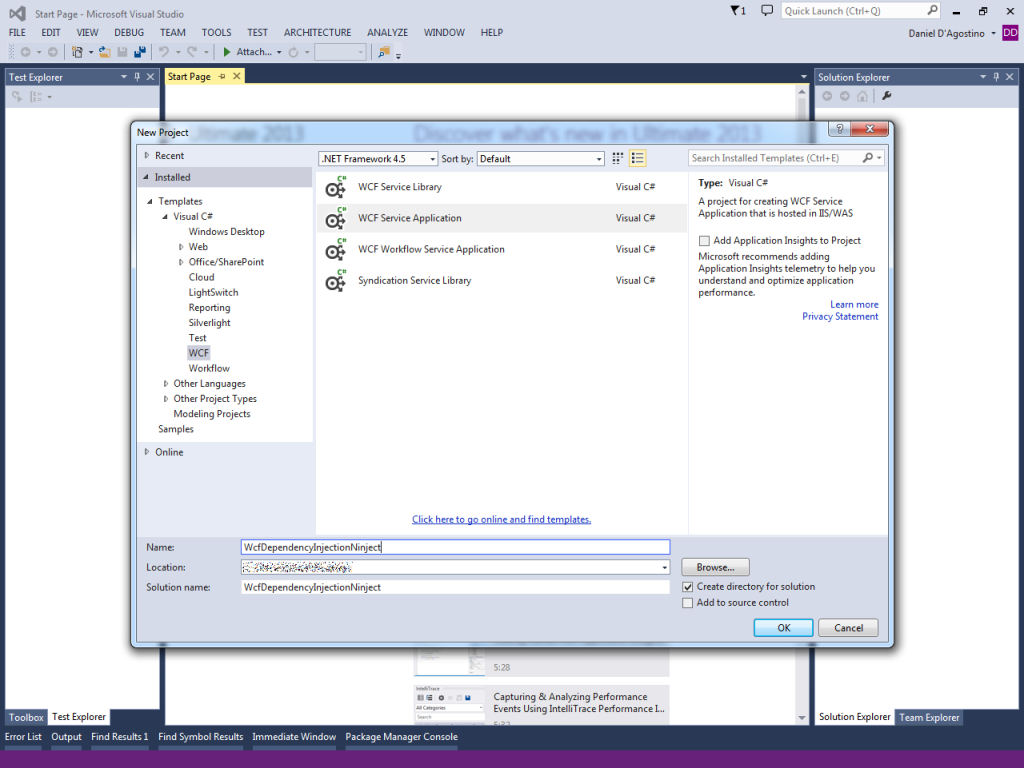
wcfdi-createproject

Create a new interface called IRepository:

    public interface IRepository
    {

    }

Create a new class called Repository which implements the IRepository interface:

    public class Repository : IRepository
    {

    }

In your Service1 class, add a constructor that depends on IRepository:

    public class Service1 : IService1
    {
        private IRepository repository;

        public Service1(IRepository repository)
        {
            this.repository = repository;
        }

        public string GetData(int value)
        {
            return string.Format("You entered: {0}", value);
        }

        public CompositeType GetDataUsingDataContract(CompositeType composite)
        {
            if (composite == null)
            {
                throw new ArgumentNullException("composite");
            }
            if (composite.BoolValue)
            {
                composite.StringValue += "Suffix";
            }
            return composite;
        }
    }

Click on Service1.svc in Solution Explorer, and then press F5 to debug the application. Making sure that Service1.svc is focused, causes the WCF Test Client to be launched when you press F5.

Notice the error you get because of the constructor we just added:
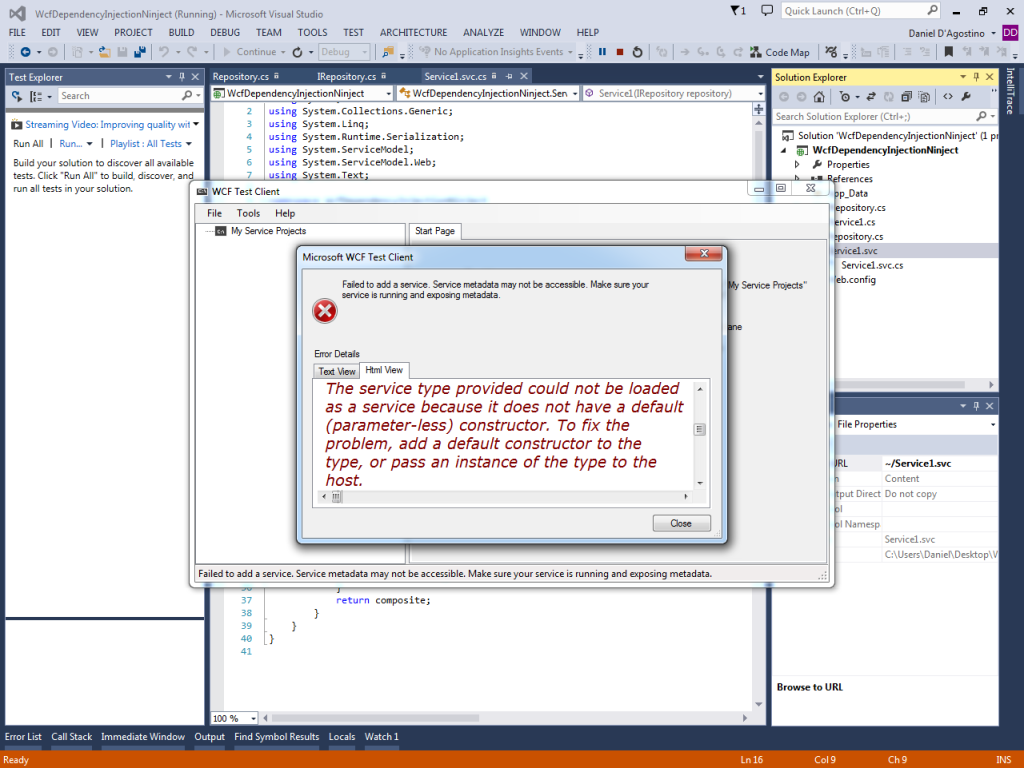
wcfdi-parameterlessconstructorerror

Part 2: Setting up Ninject

Stop debugging. Right-click on your solution in Solution Explorer, and select “Manage NuGet Packages for Solution…“. Search Online for “ninject wcf“, and install Ninject.Extensions.Wcf (note that this also installs other related packages that you need):

wcfdi-ninject.extensions.wcf

With that done, right click on Service1.svc and select “View Markup“:
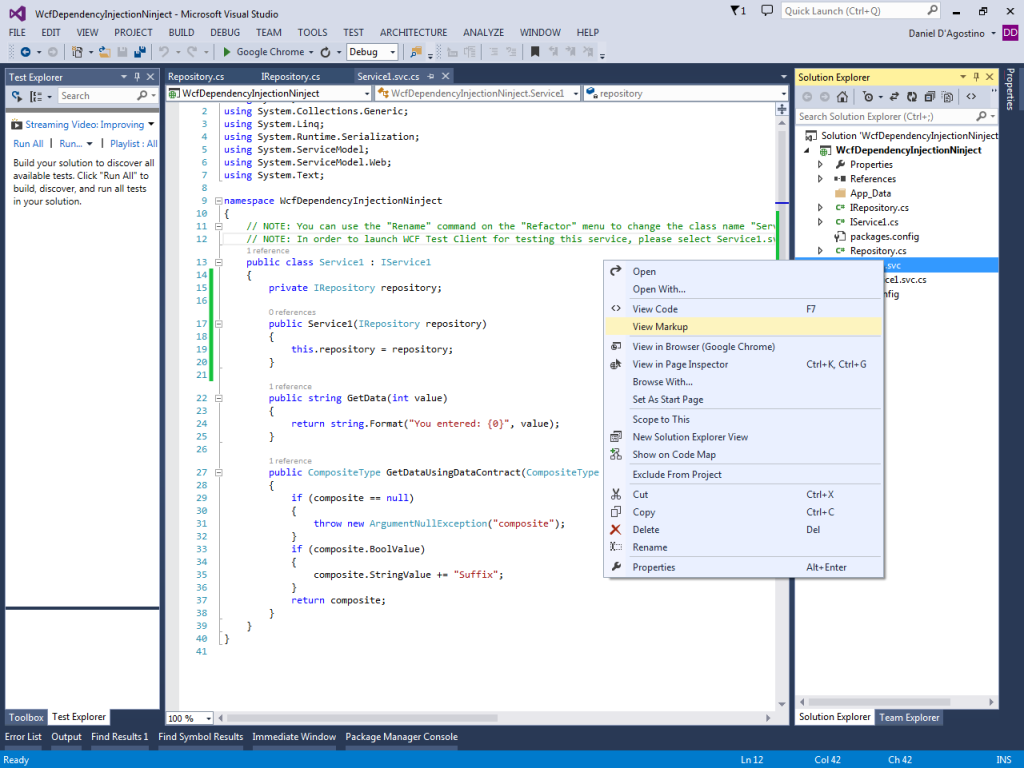
wcfdi-viewmarkup

Configure the service to use the Ninject ServiceHost Factory by adding the line highlighted below:

<%@ ServiceHost Language="C#"
                Debug="true"
                Service="WcfDependencyInjectionNinject.Service1"
                CodeBehind="Service1.svc.cs"
                Factory="Ninject.Extensions.Wcf.NinjectServiceHostFactory"
%>

Next, add a new Global Application Class, either via the context menu shown below, or via Add -> New Item… under Web templates, and name it Global.asax:
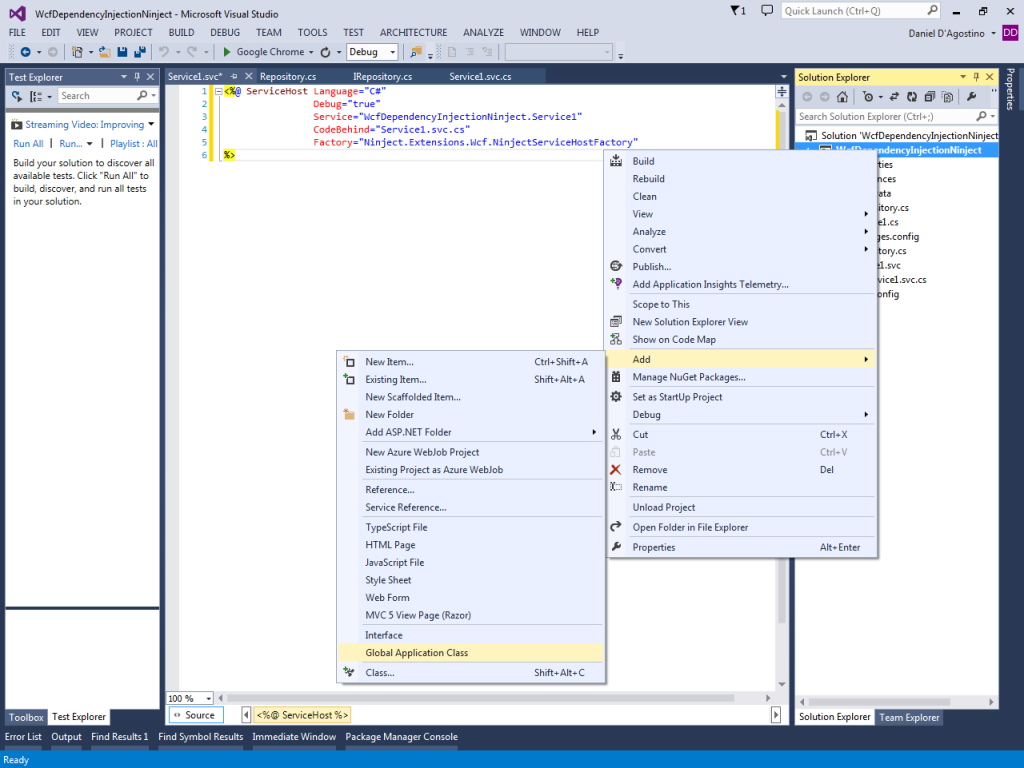
wcfdi-global-application-class

The Global class you just created must inherit from NinjectHttpApplication, and needs to have a new CreateKernel() method to create the IoC container and configure any types (in this case our IRepository):

// ...

using Ninject;
using Ninject.Web.Common;

namespace WcfDependencyInjectionNinject
{
    public class Global : NinjectHttpApplication
    {
        protected override IKernel CreateKernel()
        {
            var kernel = new StandardKernel();
            kernel.Bind<IRepository>().To<Repository>().InSingletonScope();
            return kernel;
        }

// ...

Part 3: Testing

That’s all you need! Once again, select Service1.svc in Solution Explorer, and hit F5 to run the WCF Test Client.

wcfdi-running-correctly

As you can see, the WCF Test Client now connects to the service without any problems. You can put a breakpoint to see how a Repository instance is really being passed into the service’s constructor, and you can invoke service methods via the WCF Test Client.

C# 6 Preview: String Interpolation

Update 31st January 2015: The syntax for string interpolation has changed as from VS2015 CTP5, as per the example at the end of this article. Please see C# 6 Preview: Changes in VS2015 CTP 5 for the latest syntax and examples. This article remains available due to historical significance.

Visual Studio 2015 Preview was released last week, and it supercedes the CTPs of what was previously known as “Visual Studio 14”. This VS2015 pre-release comes with a new C# 6.0 feature that wasn’t in the CTPs: string interpolation. Let’s learn about this feature by looking at an example.

I’ve got this Customer class with properties for an Id (integer), FirstName, LastName, and DateOfBirth, and I’ve declared an instance as follows:

            var dateOfBirth = new DateTime(2014, 10, 12);
            var customer = new Customer(1354, "Tony", "Smith", dateOfBirth);

Now, if I want to combine the first and last names into a full name, I can use the typical string.Format():

            var fullName = string.Format("{0} {1}", customer.FirstName, customer.LastName);

But in C# 6.0, I can use string interpolation to take out the placeholders and incorporate the string formatting arguments (in this case the two properties) directly in the string:

            var fullName = "\{customer.FirstName} \{customer.LastName}";

This eliminates the need to have placeholders that match the arguments, which can be a nightmare to maintain when you have a lot of them.

Just like string.Format(), string interpolation allows you to include formatting arguments:

            var dob2 = "Customer \{customer.IdNo} was born: \{customer.DateOfBirth:"yyyy-MM-dd"}";

In the case of the date, I had to put the format string in quotes to prevent the dashes from being interpreted as minus signs.

VS2015 highlights interpolated strings such that the referenced variables are shown as such, and not as part of the string:

vs2015-string-interpolation-highlighting

The actual syntax of string interpolation is going to change. String interpolation has gone through numerous discussions (such as this, this and this), and the development team has decided to change it for the benefit of the language. Quoting the latest C# feature descriptions (PDF):

“Note: This describes the syntax that works in the Preview. However, we’ve decided to change the syntax, to even better match that of format strings. In a later release you’ll see interpolated strings written like this:”

var s = $"{p.Name,20} is {p.Age:D3} year{{s}} old";

Visual Studio 2015 and .NET 2015 Announcements

.NET goes Open Source

During the Connect(); event on 12-13 November, a few pretty exciting announcements were made. One of the most notable of these announcements came from Scott Guthrie’s keynote speech and his followup blog post: Microsoft are open sourcing the .NET Core Runtime:

“Today I’m excited to announce that we are going even further, and will be open sourcing the .NET Core Runtime.  This will include everything needed to execute .NET code – including the CLR, Just-In-Time Compiler (JIT), Garbage Collector (GC), and core .NET base class libraries.”

Microsoft have already been working hard to open source the .NET server stack, and on top of that, they will be releasing official distributions of .NET Core for Linux and Mac.

From the Microsoft news article:

“Delivering on its promise to support cross-platform development, Microsoft is providing the full .NET server stack in open source, including ASP.NET, the .NET compiler, the .NET Core Runtime, Framework and Libraries, enabling developers to build with .NET across Windows, Mac or Linux. Through this implementation, Microsoft will work closely with the open source community, taking contributions for future improvements to .NET and will work through the .NET Foundation.”

There is no mention of client technologies such as WPF moving over to Linux or Mac, but that’s understandable – moving the .NET Core and server stack there is already a remarkable achievement, and whether all the other .NET technologies will follow suit in the future can only be subject to speculation at this stage.

Releases

A post on the Visual Studio blog announces new Visual Studio-related releases.

The first of these is Visual Studio 15 Preview, which supercedes the previous Visual Studio 14 CTPs:

Download Visual Studio 2015 Preview. This is the first full preview of what we used to call Visual Studio “14.” Even if you’ve been following the earlier CTPs, you’ll find some new things in here, including a new Visual Studio Emulator for Android and support for building Android applications using C++ based off of Clang and LLVM. There’s an Azure VM image available in the Gallery as well. You can get the entire list of feature and enhancement from Visual Studio 2015 Preview release notes. [UPDATE: The language packs for Visual Studio 2015 Preview are now available for download.]”

Before you rush out and try the new preview, though, check out this little warning:

“Since the majority of initial comments tend to be questions about supported configurations, I’ll put this up front: before you try to upgrade from Visual Studio “14” CTPs to Visual Studio 2015 Ultimate Preview, first uninstall Visual Studio “14” CTP – if you don’t, your system can wind up in an unstable state.”

As Somasegar explained in his Connect(); speech, the new .NET version will be known as .NET 2015, which intentionally breaks away from the previous versioning system.

Another release is Visual Studio Community 2013, which is free for commercial/non-commercial use for teams up to 5 people, “includes all the great functionality of Visual Studio Professional 2013”, and brings together the old Express editions which previously were in separate units for web development, application development, etc.

Finally, Microsoft has announced the availability of Visual Studio 2013 Update 4.

Other Enhancements

There are a myriad of enhancements throughout Visual Studio, and they are certainly not limited to the server stack or .NET becoming open source. Visual Studio is getting an emulator for Android (as already quoted above), there will be enhancements to WPF,  and lots more. Somasegar’s overview will give you an idea of what’s new, and the Visual Studio blog’s post has all the details.

Further Reading

For more information about the upcoming features in Visual Studio 2015 and .NET 2015, check out: