Tag Archives: Programmer’s Ranch

Security Risk in Binding WPF PasswordBox Password

This article was originally posted here at Programmer’s Ranch with the title “C# WPF/MVVM: Why You Shouldn’t Bind PasswordBox Password”, on 4th October 2014.

Update 1st October 2018: As ZXeno posted in the comments, there seems to be a security flaw in the PasswordBox control by which it is possible to snoop passwords directly. The original premise of this article was that binding the password would expose it, but it turns out that it is already exposed regardless of whether you use data binding or not.

Hi! 🙂

In WPF circles, the PasswordBox control has generated quite a bit of discussion. The thing is that you can access the password entered by the user using the Password property, but it’s not a dependency property, and MVVM purists don’t like the fact that they can’t bind it to their ViewModel.

In this article, I’m going to show how the password can be bound in the ViewModel despite this limitation. And I’m also going to show you why it’s a very bad idea to do this. This article is a little advanced in nature, and assumes you’re familiar with WPF and MVVM.

Right, so let’s set up something we can work with. Create a new WPF application, and then add a new class called MainWindowViewModel. In your MainWindow‘s codebehind (i.e. MainWindow.xaml.cs), set up your window’s DataContext by adding the following line at the end of your constructor:

            this.DataContext = new MainWindowViewModel();

Right, now let’s add a couple of properties to our MainWindowViewModel that we’ll want to bind to:

        public string Username { get; set; }
        public string Password { get; set; }

Now we can build our form by editing the XAML in MainWindow.xaml. Let’s go with this (just make sure the namespace matches what you have):

<Window x:Class="CsWpfMvvmPasswordBox.MainWindow"
        xmlns="http://schemas.microsoft.com/winfx/2006/xaml/presentation"
        xmlns:x="http://schemas.microsoft.com/winfx/2006/xaml"
        Title="Login"
        Height="120"
        Width="325">
    <Grid>

        <Grid.RowDefinitions>
            <RowDefinition Height="20" />
            <RowDefinition Height="20" />
            <RowDefinition Height="30" />
        </Grid.RowDefinitions>

        <Grid.ColumnDefinitions>
            <ColumnDefinition Width="90" />
            <ColumnDefinition />
        </Grid.ColumnDefinitions>

        <TextBlock Text="Username:"
            Grid.Row="0"
            Grid.Column="0"
            Margin="2" />
        <TextBox Text="{Binding Path=Username}"
            Grid.Row="0"
            Grid.Column="1"
            Margin="2" />

        <TextBlock Text="Password:"
            Grid.Row="1"
            Grid.Column="0"
            Margin="2" />
        <PasswordBox Password="{Binding Path=Password}"
            Grid.Row="1"
            Grid.Column="1"
            Margin="2" />

        <Button Content="Login"
            Grid.Row="2"
            Grid.Column="1"
            HorizontalAlignment="Right"
            Width="100"
            Margin="2" />
    </Grid>
</Window>

Now, you’ll notice right away that something’s wrong when you see the blue squiggly line at the password binding:

wpf-bindpasswordbox-cantbind

Oh no! What are we going to do now? If we can’t bind the password, and have to somehow retrieve it from the control, then we’ll break the MVVM pattern, right? And we MVVM knights-in-shining-armour can’t afford to deviate from the path of light that is MVVM. You see, the Password property can’t be bound specifically because it shouldn’t, but let’s say that we’re like most other developers and we’re so blinded by this MVVM dogma that we don’t care about the security concerns and we want an MVVM-friendly solution.

Well, no problem! It turns out that there actually is an MVVM-friendly way to bind the password – see the PasswordBoxAssistant and PasswordHelper implementations. To get up and running, let’s add a new PasswordBoxHelper class to our project, and add the implementation from the second link:

    public static class PasswordHelper
    {
        public static readonly DependencyProperty PasswordProperty =
            DependencyProperty.RegisterAttached("Password",
            typeof(string), typeof(PasswordHelper),
            new FrameworkPropertyMetadata(string.Empty, OnPasswordPropertyChanged));

        public static readonly DependencyProperty AttachProperty =
            DependencyProperty.RegisterAttached("Attach",
            typeof(bool), typeof(PasswordHelper), new PropertyMetadata(false, Attach));

        private static readonly DependencyProperty IsUpdatingProperty =
            DependencyProperty.RegisterAttached("IsUpdating", typeof(bool),
            typeof(PasswordHelper));


        public static void SetAttach(DependencyObject dp, bool value)
        {
            dp.SetValue(AttachProperty, value);
        }

        public static bool GetAttach(DependencyObject dp)
        {
            return (bool)dp.GetValue(AttachProperty);
        }

        public static string GetPassword(DependencyObject dp)
        {
            return (string)dp.GetValue(PasswordProperty);
        }

        public static void SetPassword(DependencyObject dp, string value)
        {
            dp.SetValue(PasswordProperty, value);
        }

        private static bool GetIsUpdating(DependencyObject dp)
        {
            return (bool)dp.GetValue(IsUpdatingProperty);
        }

        private static void SetIsUpdating(DependencyObject dp, bool value)
        {
            dp.SetValue(IsUpdatingProperty, value);
        }

        private static void OnPasswordPropertyChanged(DependencyObject sender,
            DependencyPropertyChangedEventArgs e)
        {
            PasswordBox passwordBox = sender as PasswordBox;
            passwordBox.PasswordChanged -= PasswordChanged;

            if (!(bool)GetIsUpdating(passwordBox))
            {
                passwordBox.Password = (string)e.NewValue;
            }
            passwordBox.PasswordChanged += PasswordChanged;
        }

        private static void Attach(DependencyObject sender,
            DependencyPropertyChangedEventArgs e)
        {
            PasswordBox passwordBox = sender as PasswordBox;

            if (passwordBox == null)
                return;

            if ((bool)e.OldValue)
            {
                passwordBox.PasswordChanged -= PasswordChanged;
            }

            if ((bool)e.NewValue)
            {
                passwordBox.PasswordChanged += PasswordChanged;
            }
        }

        private static void PasswordChanged(object sender, RoutedEventArgs e)
        {
            PasswordBox passwordBox = sender as PasswordBox;
            SetIsUpdating(passwordBox, true);
            SetPassword(passwordBox, passwordBox.Password);
            SetIsUpdating(passwordBox, false);
        }
    }

You will also need to add the following usings at the top:

using System.Windows;
using System.Windows.Controls;

Now, let’s fix our Password binding. First, add the following attribute to the Window declaration in the XAML so that we can access our project’s classes (adjust namespace as needed):

        xmlns:local="clr-namespace:CsWpfMvvmPasswordBox"

Then update the PasswordBox declaration to use the PasswordBoxHelper as follows:

        <PasswordBox local:PasswordHelper.Attach="True"
            local:PasswordHelper.Password="{Binding Path=Password}"
            Grid.Row="1"
            Grid.Column="1"
            Margin="2" />

That did it! The project now compiles.

Now, let’s see why what we have done is a very stupid thing to do. To do this, we’re going to need this WPF utility called Snoop, so go over to their website, download it, and install it using the .msi file.

Run Snoop. All you’ll see is a thin bar with a few buttons. On the right hand side, there is a button that looks like a circle (in fact it’s supposed to be crosshairs). If you hover over it, it will explain how to use it:

wpf-bindpasswordbox-snoop1

Run the WPF application we just developed. Enter something into the PasswordBox, but shhhh! Don’t tell anyone what you wrote there! 🙂

Next, drag those crosshairs from Snoop onto the WPF window:

wpf-bindpasswordbox-snoop2

When you let go, a window opens. In the treeview to the left, you can navigate through the mounds of crap that internally make up our simple application. When you find the PasswordBox, you’ll also find the PasswordHelper:

wpf-bindpasswordbox-snoop3

…and as you can see, the PasswordHelper keeps the password exposed in memory so anyone who knows what he’s doing can gain access to it. With a program like Snoop, anyone can access passwords that are bound.

There are a couple of lessons to take from this.

First, don’t ever bind passwords in WPF. There are other alternatives you can use, such as passing your entire PasswordBox control as a binding parameter – although this sounds extremely stupid, it’s a lot more secure than binding passwords. And arguably, it doesn’t break the MVVM pattern.

Secondly, don’t be so religious about so-called best practices such as MVVM. Ultimately they are guidelines, and there are many cases such as this where there are more important things to consider (in this case, security). For something as simple as a login window, it’s much more practical to just do without MVVM and do everything in the codebehind. It isn’t going to affect the scalability, maintainability, robustness, [insert architectural buzz-word here], etc of your application if you make an exception that is rational.

Before ending this article, I would like to thank the person who posted this answer to one of my questions on Stack Overflow. That answer helped me understand the dangers of binding passwords, and provided the inspiration for this article. As further reading, you might also want to read this other question (and its answer) which deals with the security of processing passwords in memory in general (not just data binding).

That’s all for today. Happy coding! 🙂

On Mystery Meat Navigation and Unusability

This article was originally posted here at Programmer’s Ranch on 12th September 2013. It has been updated since a lot of the original examples are no longer available.

Hello folks! 🙂

Today I’m going to talk about Mystery Meat Navigation (MMN). This term was invented 15 years ago by Vincent Flanders of Web Pages That Suck. It refers to a horrible practice of filling a website’s navigation with meaningless icons. When a user moves his mouse over one of these icons, the icon changes or pops up some text, revealing what it really does.

A classic analogy of mystery meat navigation (which seems to have mostly disappeared from the web) is a road sign that initially looks completely blank, but changes to indicate where you’re going just as you drive past it.

Even now, 15 years later, MMN is still used on the web. Even reputable web design companies here in Malta have fallen in the MMN trap. Alert eBusiness, for instance, used to have the following navigation bar:

alert-mmn

Right, so what do those icons mean? The last one seems pretty clear: a shopping cart. Mousing over it reveals it stands for Alert Payment Gateway, which is close enough. But what about the rest? The first one is a mouse, for instance. Would it ever cross your mind that it actually means “Web Design”?

Another example: Pcionix (now defunct):

pcionix-mmn

The home icon is pretty obvious, so that can be forgiven. But a pie chart that stands for SEO – seriously?

But this, from design.com.mt, is even worse:

design-mmn

This has got to be the worst of them all. Whereas you might be able to somehow guess what the icons in the other sites mean, the navigation here is hidden behind meaningless numbers that you again have to mouse over to understand.

It gets worse: there are videos on YouTube of sites with iconic navigation that actually floats around, so you actually have to find out where that “About Us” cube thingy moved to (examples: Mandarina DuckQualcomm).

So why is MMN bad? In case it isn’t obvious, it is very annoying for users to have to click on stuff to figure out what the page offers. A website should give a clear indication of how it is structured, without the user needing to interact with it just to get an idea. Imagine you’re driving and need to interact with a bunch of direction signs (such as these) one by one to get an idea of the places in the area. Then, after sifting through a dozen, you forget what you saw earlier and have to go back and interact with them again. Sorry, the “just a click away” idea is not an excuse when it comes to navigation, which is really a website’s backbone.

Another great example comes from feedback that Vincent Flanders received, and illustrates how MMN would be if applied to a business’s answering machine:

“You’ve reached XYZ Corporation. To find out what option #1 is, press 1. To find out what option #2 is, press 2. (Etc….) If you’d like to continue doing business with our company after we’ve slapped you around and wasted your valuable time, press 9”

MMN is a slap in the face of usability. It shows meaningless icons in the place of important navigational information. What could possibly worse?

The only thing worse than showing meaningless icons is not showing any icons at all! That’s pretty much the direction taken by Windows 8’s notorious alternate UI, formerly known as Metro. One of its design principles is “Do more with less” which includes “Put content before chrome”. In this case the “chrome” refers to the stuff that makes the application – menus, the ‘X’ button at the top-right, toolbars, etc. So basically you end up with something like this:

ubuntu-pdf-metro

That’s the default PDF viewer on Windows 8 – one full screen Windows 8 Style (the new name for Metro) app with the PDF content and nothing else, not even an ‘X’ to close it. In fact Windows 8 users are somehow expected to know beforehand (“by osmosis”, as this Windows 8.1 review puts it) that to close a Windows 8 Style app you have to grab it from the top and drag downwards with your mouse. Contrast this with the same PDF viewed on Windows 7:

ubuntu-pdf-win7

Needless to say, everything that you can do with a PDF is immediately accessible either from the toolbars or via the menus. There is no hidden stuff, no needing to drag your mouse into a corner to open some Start Screen or Charms Bar. See, the program actually shows you what it can do, and for new users that’s important. The “Content before Chrome” idea is wrong precisely because when you use a program, you want to do stuff, not just see stuff.

So it’s no wonder that Microsoft seems to have made a U-turn on its Windows 8 Style design stuff. If MMN is an example of bad usability, this Windows 8 abomination is an example of… unusability.

XML Serialization in C#

This article was originally posted here at Programmer’s Ranch on 6th November 2013.

Hi guys and gals! 🙂

In this article, we’re going to see how to do XML serialization, which is really just a fancy way of saying we want to load and save objects as files in XML format.

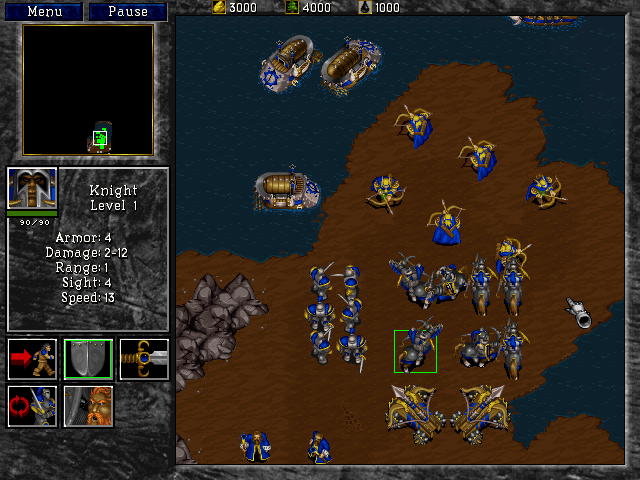
So you see, I’ve been a big fan of Warcraft 2 for a long time… probably about 15 years. In this game, you command different units (e.g. peasants, knights, etc), and each of them has different attributes such as Damage, Speed, etc. For instance, this is the mage:

csxmlser-war2-mage

Don’t mess with that guy – he can turn you into a sheep! And here’s the knight… not exactly a mild-mannered fellow, either:

csxmlser-war2-knight

If we represent those units and their attributes in XML, we might end up with something like this (I took out some of the extra crap that appears at the beginning when you actually save a file using XML serialization):

<UnitDatabase>
  <units>
    <Unit>
      <Name>Mage</Name>
      <Armor>0</Armor>
      <MinDamage>5</MinDamage>
      <MaxDamage>9</MaxDamage>
      <Range>2</Range>
      <Sight>9</Sight>
      <Speed>8</Speed>
    </Unit>
    <Unit>
      <Name>Knight</Name>
      <Armor>4</Armor>
      <MinDamage>2</MinDamage>
      <MaxDamage>12</MaxDamage>
      <Range>1</Range>
      <Sight>4</Sight>
      <Speed>13</Speed>
    </Unit>
  </units>
</UnitDatabase>

So, let’s see how we can actually read and write a file like this in C#. Create a new Console Application in your favourite IDE.

We first need to create a class to represent our units with their attributes. Create a class and call it Unit. For convenience, we can implement the attributes as auto-implemented properties as follows:

public String Name { get; set; }
public int Armor { get; set; }
public int MinDamage { get; set; }
public int MaxDamage { get; set; }
public int Range { get; set; }
public int Sight { get; set; }
public int Speed { get; set; }

This is just a quick alternative to declaring a member variable and a corresponding read-write property (available from .NET 3.0 onwards). For example, the Name property above is more or less equivalent to the following (just for demonstration – don’t actually add it to your code):

private String name;

public String Name
{
    get
    {
        return this.name;
    }
    set
    {
        this.name = value;
    }
}

Next, add a constructor to set the attributes, so we can easily create Unit instances from our main program code:

public Unit(String name, int armor, int minDamage, int maxDamage,
    int range, int sight, int speed)
{
    this.Name = name;
    this.Armor = armor;
    this.MinDamage = minDamage;
    this.MaxDamage = maxDamage;
    this.Range = range;
    this.Sight = sight;
    this.Speed = speed;
}

Now we need to create another class to hold an array of these units. Create a new class and call it UnitDatabase (admittedly a bit of a poor choice of a name, since it’s not actually a database, but anyway). Give it a Units property as follows:

public Unit[] Units { get; set; }

A constructor to assign this directly can also be pretty convenient. Add the following:

public UnitDatabase(Unit[] units)
{
    this.Units = units;
}

Now we can implement our loading and saving code in UnitDatabase itself. Start by adding the code to save the UnitDatabase to a file:

public void Save(String filename)
{
    XmlSerializer ser = new XmlSerializer(typeof(UnitDatabase));

    using (StreamWriter sw = File.CreateText(filename))
        ser.Serialize(sw, this);
}

You can see that we’re making use of the XmlSerializer class. The file is saved by using its Serialize() method, which takes a TextWriter and the object to serialize. The StreamWriter returned by File.CreateText() quite conveniently is a subclass of TextWriter, so we can pass it as the first parameter to Serialize(). The second parameter is this: the UnitDatabase itself.

To get this code to compile, you’ll have to add the following using statements at the top:

using System.Xml.Serialization;
using System.IO;

Loading an XML file as a UnitDatabase is just as easy. In this case we make the method static since it isn’t tied to any particular UnitDatabase instance:

public static UnitDatabase Load(String filename)
{
    XmlSerializer ser = new XmlSerializer(typeof(UnitDatabase));
    
    using (StreamReader sr = File.OpenText(filename))
        return ser.Deserialize(sr) as UnitDatabase;
}

You can see that we’re still using the XmlSerializer, but this time we use the Deserialize() method to read the file from disk and create a UnitDatabase from it. Deserialize() takes a TextReader, which again is a base class of the StreamReader that we get by calling File.OpenText(), so everything fits like magic. Deserialize() returns an Object, so as a last touch we cast this to a UnitDatabase using the as keyword. It’s just the same as writing it like this:

return (UnitDatabase) ser.Deserialize(sr);

That’s all we need! Now, let’s add some functionality to make it easy to write our units to the console output. All classes inherit from Object, and Object defines this ToString() method which we can use to return a string representation of our objects. This is very convenient in our case, so we can implement Unit‘s ToString() method as follows:

public override string ToString()
{
    StringBuilder sb = new StringBuilder();
    sb.AppendFormat("Name:      {0}", this.Name);
    sb.AppendLine();
    sb.AppendFormat("Armor:     {0}", this.Armor);
    sb.AppendLine();
    sb.AppendFormat("MinDamage: {0}", this.MinDamage);
    sb.AppendLine();
    sb.AppendFormat("MaxDamage: {0}", this.MaxDamage);
    sb.AppendLine();
    sb.AppendFormat("Range:     {0}", this.Range);
    sb.AppendLine();
    sb.AppendFormat("Sight:     {0}", this.Sight);
    sb.AppendLine();
    sb.AppendFormat("Speed:     {0}", this.Speed);
    sb.AppendLine();
    
    return sb.ToString();
}

Note the override keyword in the method’s signature. This means that we are replacing ToString()‘s default functionality (which usually just returns the name of the class) with our own, in this case showing the unit’s name and attributes.

Let’s do the same for UnitDatabase. In this case we return a concatenation of all the units’ string representations:

public override string ToString()
{
    StringBuilder sb = new StringBuilder();
    foreach (Unit unit in this.Units)
        sb.AppendLine(unit.ToString());
    return sb.ToString();
}

To compile this code, you’ll need to add the following line at the top of both files (because of the StringBuilder):

using System.Text;

Now all we have left to do is write code in Main() that actually uses these classes. We can start by creating our two units:

Unit mage = new Unit("Mage", 0, 5, 9, 2, 9, 8);
Unit knight = new Unit("Knight", 4, 2, 12, 1, 4, 13);

We can then combine these into an array using collection initializer syntax (see “C# Basics: Morse Code Converter Using Dictionaries” if you forgot what that is):

Unit[] units = new Unit[] { mage, knight };

Then, we create a UnitDatabase out of this array:

UnitDatabase db = new UnitDatabase(units);

…and finally save it to a file called units.xml:

db.Save("units.xml");

You can now press F5 to run the program and see that it works. If you’re using Visual Studio, you might have run into this error:

csxmlser-ctor-error

That’s because XML serialization needs classes to have an empty constructor. SharpDevelop creates one for you when you create a new class, but Visual Studio does not. So if you’re missing those, add them in. One for Unit:

public Unit()
{

}

…and one for UnitDatabase:

public UnitDatabase()
{

}

Good. Now press F5 to run the program, and then go to the project’s bin\Debug folder to check that the units.xml file has been created. When you open it, it should look like this:

<?xml version="1.0" encoding="utf-8"?>
<UnitDatabase xmlns:xsi="http://www.w3.org/2001/XMLSchema-instance" xmlns:xsd="http://www.w3.org/2001/XMLSchema">
  <Units>
    <Unit>
      <Name>Mage</Name>
      <Armor>0</Armor>
      <MinDamage>5</MinDamage>
      <MaxDamage>9</MaxDamage>
      <Range>2</Range>
      <Sight>9</Sight>
      <Speed>8</Speed>
    </Unit>
    <Unit>
      <Name>Knight</Name>
      <Armor>4</Armor>
      <MinDamage>2</MinDamage>
      <MaxDamage>12</MaxDamage>
      <Range>1</Range>
      <Sight>4</Sight>
      <Speed>13</Speed>
    </Unit>
  </Units>
</UnitDatabase>

It’s got some more stuff in the first two lines than I showed you at the beginning, but that’s just added there to make it a valid XML document and you can just ignore it.

At the end of Main(), let us now add code to load the file and display the unit data:

UnitDatabase loadedDb = UnitDatabase.Load("units.xml");
Console.WriteLine(loadedDb.ToString());
Console.ReadLine();

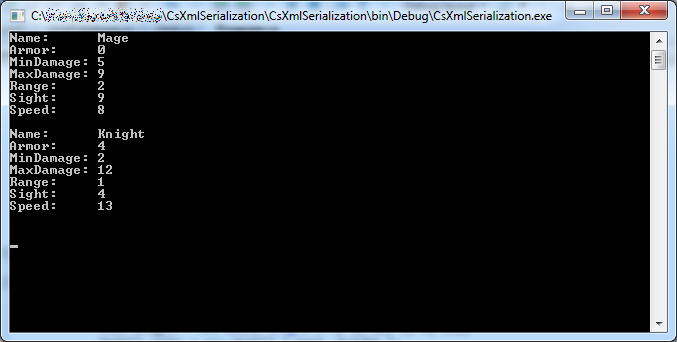
Press F5 to see the result:

csxmlser-result

If you omit the ToString() as follows:

Console.WriteLine(loadedDb);

…then the program works all the same, because Console.WriteLine() uses the ToString() method of the objects it is meant to write.

Great! 🙂 In this article, we have seen how we can very easily save (serialize) objects as XML files, and load (deserialize) them back from XML files. To do this we need classes that match the XML structure, as well as the handy XmlSerializer class. Classes to be serialized must have a parameterless constructor. It is possible to do a lot more with XML serialization – there are several attributes that allow you to control the actual XML nodes and attributes that are written to the file.

We have also seen other aspects of C#, such as the ToString() method available in every object; how to override inherited methods; the as keyword which is an elegant alias for type casting; and auto-implemented properties.

Thanks for reading, and come visit Programmer’s Ranch Gigi Labs again in future! 🙂

To Always Use Braces for Conditionals and Loops… or not

This article was originally posted here at Programmer’s Ranch on 25th September 2013. The original article mentions Jesse Liberty as “one of many who suggest always using braces” with conditional statements. However, Jesse Liberty changed his view after reading the article (as you can see in the comments of the original article). As such, the article presented here has been slightly edited to remove this statement.

Hi everyone! 🙂

While following a number of Pluralsight courses by Jesse Liberty (which I highly recommend), I was reminded of the long-running debate about whether one should always use braces when control flow statements (conditionals and loops) are involved. So let’s say we have the following conditional:

if (x == 0)
    Console.WriteLine("x is zero");
else if (x < 0)
    Console.WriteLine("x is negative");
else if (x > 0)
    Console.WriteLine("x is positive");

The proponents of the always-use-braces camp would have us write them like this:

if (x == 0)
{
    Console.WriteLine("x is zero");
}
else if (x < 0)
{
    Console.WriteLine("x is negative");
}
else if (x > 0)
{
    Console.WriteLine("x is positive");
}

In this article, I’m going to discuss the advantages and disadvantages of this approach, as well as my personal opinion based on my experience. I want to say from the beginning that this article is subjective and not completely factual or objective – so take it for what it is. There is no general consensus on this matter precisely because it is a matter of personal taste.

Brace styles

Braces (or curly brackets) are a feature in just about any programming language that uses the C-style syntax, including C, C++, Java, C#, JavaScript, PHP, and many others. They define a scoped block that can be executed as a single statement as part of control flow (conditionals and loops). There are many different styles in which they can be used.

The Java folks seem to like this kind of style:

if (x == 0) {
    Console.WriteLine("x is zero");
}

The .NET camp, on the other hand, seems to prefer aligning braces vertically:

if (x == 0)
{
    Console.WriteLine("x is zero");
}

If you have just one statement, you can technically leave out the braces, so you can write your code like this:

if (x == 0)
    Console.WriteLine("x is zero");

…or like this.

if (x == 0) Console.WriteLine("x is zero");

Personally, I think the first and last options aren’t the best in terms of readability (especially when code becomes complex) so I’ll focus on the second and third. I normally use the second option (with braces) when I have multiple statements, and the third option (no braces) when I have just one. Many people recommend always using braces, and dismiss the third option as bad practice. Let’s take a look at the reasons why.

If you need to add statements, you’ll find the braces ready

So let’s take the same example as before, where you have this statement:

if (x == 0)
    Console.WriteLine("x is zero");

If you need to add additional statements to be executed as part of the conditional, the braces will have to be added anyway. Some people recommend always using braces so that you’ll find them ready when you need to add additional statements.

In that case, I suppose, we shouldn’t use empty element syntax in XML:

<RowDefinition Height="30" />

…and instead always write our tags in full:

<RowDefinition Height="30"></RowDefinition>

…simply because we might need to add something inside the element at some point. I think this is a very weak argument, because it disregards a language feature that may be very convenient, and at the same time bloats code with something that adds no meaning to the code. Take a look at the first two code snippets in this article – the one that uses braces is twice as long (in terms of lines) as the other one. And for what? Because people are too lazy to type in the braces when they are eventually needed? Wat.

Adding statements can be error-prone

Another reason why omitting braces is considered bad practice is that it may be easy to introduce logical errors when maintaining such code (see this question on Programmers StackExchange and this other one on Stack Overflow). Let’s say you have this:

if (x == 0)
    Console.WriteLine("x is zero");

Then, you add an additional statement intended to be within the conditional, and you do it like this:

if (x == 0)
    Console.WriteLine("x is zero");
    Console.WriteLine(" which means it's neither positive nor negative");

Oops! The second Console.WriteLine() isn’t actually part of the conditional, so it always gets executed, no matter what. This is a valid argument. But let’s dissect it a little further.

First, let’s start again from our simple single-line conditional:

if (x == 0)
    Console.WriteLine("x is zero");

Now, if you want to add code at this point, you have two courses of action. If you want to add statements as part of the conditional, you know that there’s just one statement and no braces, so adding them should be a pretty automatic response:

if (x == 0)
{
    Console.WriteLine("x is zero");
    Console.WriteLine(" which means it's neither positive nor negative");
}

On the other hand, if you want to add a statement that is not a part of the conditional, you add it at the same level as the if statement:

if (x == 0)
    Console.WriteLine("x is zero");
Console.WriteLine(" which means it's neither positive nor negative");

Even in absence of braces, the indentation shows clearly that one statement belongs to the conditional and the other does not. So actually, when seeing this kind of code:

if (x == 0)
    Console.WriteLine("x is zero");
    Console.WriteLine(" which means it's neither positive nor negative");

…I can’t help but think that the readability problem (which results in incorrect control flow) is one of indentation, not of whether to use braces or not.

I can certainly imagine beginning programmers making this kind of mistake, but I find it hard to believe that more seasoned programmers find it hard to read basic conditionals. As one of the answers to this question states:

“I even find it implausible that this should be a common mistake: blocks are a fundamental part of programming. Block level resolution and scoping is an automatic, ingrained mental process for programmers. The brain just does it (otherwise, reasoning about programming would be much harder). There is no additional mental effort required to remember putting the braces: the programmer also remembers to indent the newly added statement correctly, after all; so the programmer has already mentally processed that a block is involved.” — Konrad Rudolph

Also, one of the sections in this article states that:

“Programmers with enough discipline to always notice the braces (and put them in when needed) don’t need this idiom [always using braces].

“Auto-indent editors make it obvious whether your new statement is part of the else clause, making it unlikely you’ll have the bug this idiom tries to prevent.”

Summary

Personally, I think that using braces when they aren’t necessary is a waste of space, resulting in a lot of unnecessary lines of code. I use them when needed, and don’t use them for single statements. I find nothing wrong with omitting braces when they aren’t needed. This has worked for me for many years, and you may or may not agree with me. Different people find themselves comfortable using different approaches, and there is no general consensus on what is best.

So find out what works best for you, and don’t let anyone tell you how you should write your code based on subjective arguments. While you should definitely learn from more experienced programmers and best practices based on rational and logical arguments, be practical and don’t get too religious about your code.

Setting Connection Strings at Runtime with Entity Framework 5.0, Database First, VS2012

This article was originally posted here at Programmer’s Ranch on Saturday 16th November 2013. The syntax highlighting was added when the article was migrated here.

Hi everyone! 🙂

This article deals with how to solve the problem of building and setting an Entity Framework connection string at runtime, based on a database-first approach (i.e. you have generated an Entity Data Model based on an existing database). You are expected to be familiar with ADO .NET and the Entity Framework. The first part of the article deals with setting up an Entity Data Model and simple interactions with it; this should appeal to all readers. The second part deals with the custom connection string issue, and will be helpful only to those who have actually run into that problem.

We’re going to be using Visual Studio 2012, and Entity Framework 5.0. Start a new Console Application so that you can follow along.

Setting up the database

You can use whatever database you want, but in my case I’m using SQL Server Compact edition (SQLCE). If you’re using something else and already have a database, you can just skip over this section.

Unlike many of the more popular databases such as SQL Server and MySQL, SQLCE is not a server and stores its data in a file with .sdf extension. This file can be queried and updated using regular SQL, but is not designed to handle things like concurrent users – something which isn’t a problem in our case. Such file-based databases are called embedded databases.

If you have Visual Studio, then you most likely already have SQLCE installed. Look for it in “C:\Program Files (x86)\Microsoft SQL Server Compact Edition\v4.0“. Under the Desktop orPrivate folders you’ll find a file called System.Data.SqlServerCe.dll which we need to interact with SQLCE. Add a reference to it from your Console Application.

Now, we’re going to create the database and a simple one-table schema. We’ll use good old ADO.NET for that. We’ll create the database only if it doesn’t exist already. First, add the following usings at the top of Program.cs:

using System.IO;
using System.Data.SqlServerCe;

In Main(), add the following:

String filename = "people.sdf";
String connStr = "Data Source=" + filename;

Since SQLCE works with just a file, we can create a basic connection string using just the name of the file we’re working with.

The following code actually creates the database and a single table called person.

            try
            {
                // create database if it doesn't exist already

                if (!File.Exists(filename))
                {
                    // create the actual database file

                    using (SqlCeEngine engine = new SqlCeEngine(connStr))
                    {
                        engine.CreateDatabase();
                    }

                    // create the table schema

                    using (SqlCeConnection conn = new SqlCeConnection(connStr))
                    {
                        conn.Open();

                        String sql = @"create table person(
                                       id int identity not null primary key,
                                       name nvarchar(20),
                                       surname nvarchar(30)
                                   );";

                        using (SqlCeCommand command = new SqlCeCommand())
                        {
                            command.CommandText = sql;
                            command.Connection = conn;
                            int result = command.ExecuteNonQuery();
                        }
                    }
                }
            }
            catch (Exception ex)
            {
                Console.WriteLine(ex);
            }

We first use SqlCeEngine to create the database file. Then we use ADO .NET to create the person table. Each row will have an auto-incrementing id (primary key), as well as a name and surname. Note that SQLCE does not support the varchar type, so we have to use nvarchar (Unicode) instead.

If you now build and run the application, you should find a people.sdf file in the bin\Debug folder. We’ll use that to create an Entity Data Model for the Entity Framework.

Creating the Data Model

Right click on the project and select Add -> New Item…:

cs-efconnstr-addnewitem

From the Data category, select ADO.NET Entity Data Model. You can choose a name for it, or just leave it as the default Model1.edmx; it doesn’t really matter.

cs-efconnstr-addedm

Click The Add button. This brings up the Entity Data Model Wizard.

cs-efconnstr-edmwiz1

The “Generate from database” option is the default selection, so just click Next.

cs-efconnstr-edmwiz2

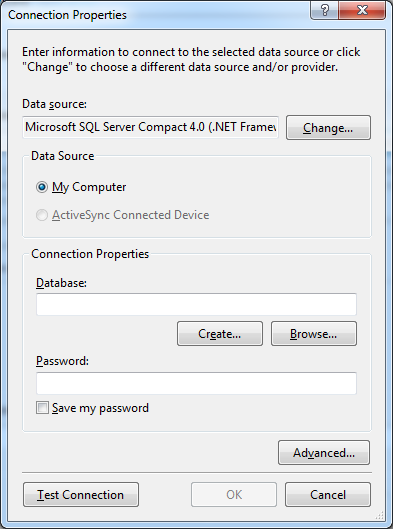
Hit the New Connection… button to bring up the Connection Properties window.

cs-efconnstr-connprop

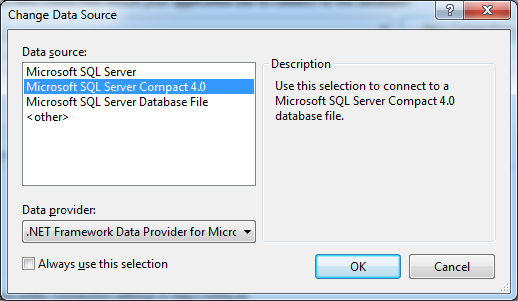
If SQL Server Compact 4.0 is not already selected as the Data source, click the Change… button and select it from the Change Data Source window:

cs-efconnstr-changeds

Back in the Connection Properties window, click the Browse… button and locate the people.sdf file in your bin\Debug folder that we generated in the previous section. Leave the Password field empty, and click Test Connection. If all is well, you’ll get a message box saying that the test succeeded.

Once you click OK, the Entity Data Model Wizard should become populated with a connection string and a default name for the model:

cs-efconnstr-edmwiz3

When you click Next, you’ll get the following message:

cs-efconnstr-localdata

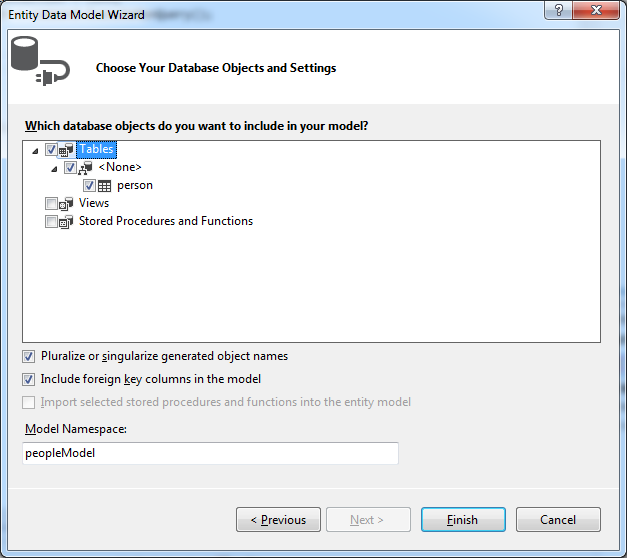
Just click Yes and get on with it. In the next step, import the person table into your model by ticking the checkbox next to it:

cs-efconnstr-edmwiz4

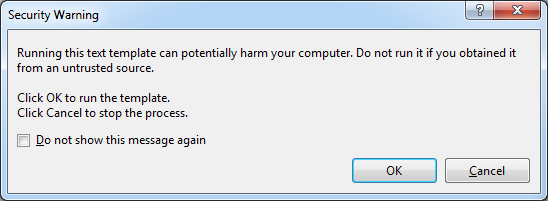
Click Finish. The files for your model are added to the project. You may also get the following warning:

cs-efconnstr-security-warning

You don’t have to worry about it. Just click OK. If you click Cancel instead, you won’t have the necessary autogenerated code that you need for this project.

Interacting with the database using the Entity Framework

After the database-creation code from the first section, and before the end of the try scope, add the following code:

// interact with the database

using (peopleEntities db = new peopleEntities())
{
    db.people.Add(new person() { name = "John", surname = "Smith" });
    db.SaveChanges();

    foreach (person p in db.people)
    {
        Console.WriteLine("{0} {1} {2}", p.id, p.name, p.surname);
    }
}

Here, we create an instance of our entity context (peopleEntities) and then use it to interact with the database. We add a new row to the person table, and then commit the change via db.SaveChanges(). Finally, We retrieve all rows from the table and display them.

Also, add the following at the end of the Main() method so that we can see the output:

Console.ReadLine();

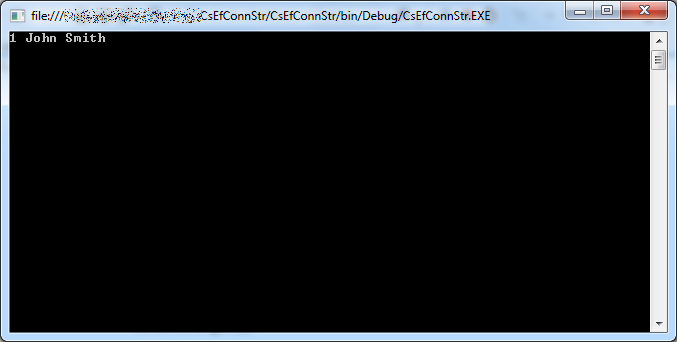
Run the program by pressing F5. The output shows that a row was indeed added:

cs-efconnstr-output1

The Entity Framework knows where to find the database because it has a connection string in the App.config file:

  <connectionStrings>
    <add name="peopleEntities" connectionString="metadata=res://*/Model1.csdl|res://*/Model1.ssdl|res://*/Model1.msl;provider=System.Data.SqlServerCe.4.0;provider connection string=&quot;data source=|DataDirectory|\people.sdf&quot;" providerName="System.Data.EntityClient" />
  </connectionStrings>

This might be good enough in some situations, but other times, we might want to build such connection string in code and ask the Entity Framework to work with it. A reason for this might be because the connection string contains a password, and you want to obtain it from an encrypted source. The following two sections illustrate how this is done.

Building a raw Entity Framework connection string

Let’s start out by commenting out the connection string in the App.config file:

  <connectionStrings>
    <!--
    <add name="peopleEntities" connectionString="metadata=res://*/Model1.csdl|res://*/Model1.ssdl|res://*/Model1.msl;provider=System.Data.SqlServerCe.4.0;provider connection string=&quot;data source=|DataDirectory|\people.sdf&quot;" providerName="System.Data.EntityClient" />
    -->
  </connectionStrings>

If you try running the program now, you’ll get a nice exception.

Now, what we want to do is add the connection string into our code and pass it to the entity context (the peopleEntities). So before our Entity Framework code (which starts with using (peopleEntities…), add the following:

String entityConnStr = @"metadata=res://*/Model1.csdl|res://*/Model1.ssdl|res://*/Model1.msl;provider=System.Data.SqlServerCe.4.0;provider connection string=&amp;quot;data source=|DataDirectory|\people.sdf&quot;";

If you now try to pass this connection string to the peopleEntities constructor, you’ll realise that you can’t. You can see why if you expand Model1.edmx and then Model1.Context.tt in Solution Explorer, and finally open the Model1.Context.cs file:

cs-efconnstr-dbcontext

The peopleEntities class has only a parameterless constructor, and it calls the constructor of DbContext with the connection string name defined in App.config. The DbContext constructor may accept a connection string instead, but we have no way of passing it through peopleEntities directly.

While you could add another constructor to peopleEntities, it is never a good idea to modify autogenerated code. If you regenerate the model, any code you add would be lost. Fortunately, however, peopleEntities is a partial class, which means we can add implementation to it in a separate file (see this question and this other question on Stack Overflow).

Add a new class and name it peopleEntities. Add the following at the top:

using System.Data.Entity;

Implement the class as follows:

    public partial class peopleEntities : DbContext
    {
        public peopleEntities(String connectionString)
            : base(connectionString)
        {

        }
    }

We can now modify our instantiation of peopleEntities to use our connection string as defined in code:

using (peopleEntities db = new peopleEntities(entityConnStr))

Since we are using a partial class defined in a separate file, any changes to the model will cause the autogenerated peopleEntities to be recreated, but will not touch the code we added in peopleEntities.cs.

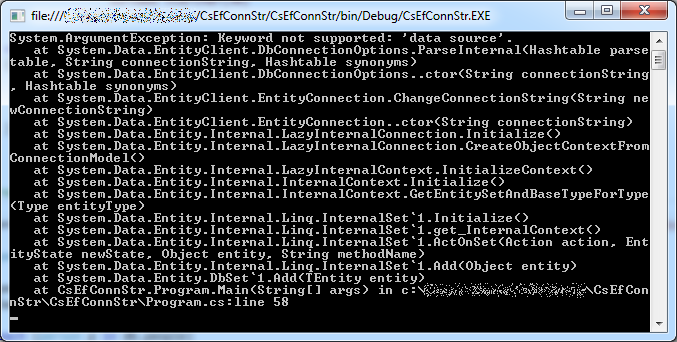
When we run the program, we now get a very nice exception (though different from what we got right after commenting out the connection string in App.config):

cs-efconnstr-output2

Apparently this happens because of the &quot; values, which are necessary in XML files but cause problems when supplied in a String literal in code. We can replace them with single quotes instead, as follows:

String entityConnStr = @"metadata=res://*/Model1.csdl|res://*/Model1.ssdl|res://*/Model1.msl;provider=System.Data.SqlServerCe.4.0;provider connection string='data source=|DataDirectory|\people.sdf'";

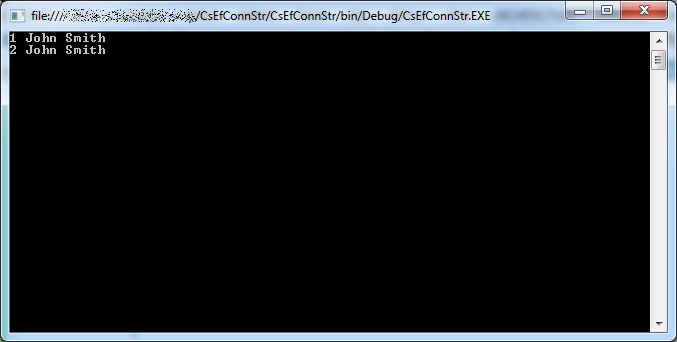
If we run the program now, it works fine, and a new row is added and retrieved:

cs-efconnstr-output3

Using EntityConnectionStringBuilder

You’ll notice that the connection string we’ve been using is made up of three parts: metadata, provider, and the provider connection string that we normally use with ADO.NET.

We can use a class called EntityConnectionStringBuilder to provide these values separately and build a connection string. Using this approach avoids the problem with quotes illustrated at the end of the previous section.

First, remove or comment out the entityConnStr variable we have been using so far.

Then add the following near the top of Program.cs:

using System.Data.EntityClient;

Finally, add the following code instead of the connection string code we just removed:

EntityConnectionStringBuilder csb = new EntityConnectionStringBuilder();
csb.Metadata = "res://*/Model1.csdl|res://*/Model1.ssdl|res://*/Model1.msl";
csb.Provider = "System.Data.SqlServerCe.4.0";
csb.ProviderConnectionString = "data source=people.sdf";
String entityConnStr = csb.ToString();

When you run the program, it should work just as well:

cs-efconnstr-output4

Summary

This article covered quite a bit of ground:

  • We first used the SqlceEngine and ADO .NET to create a SQL Server Compact database.
  • We then created an Entity Data Model for this database.
  • We added some code to add rows and retrieve data using the Entity Framework.
  • We provided the Entity Framework with a raw connection string in code. To do this, we used a partial class to add a new constructor to the entity context class that can pass the connection string to the parent DbContext. We also observed a problem with using &quot; in the connection string, and solved it by using single quotes instead.
  • We used EntityConnectionStringBuilder to build a connection string from its constituent parts, and in doing so completely avoided the &quot; problem.

I hope you found this useful. Feel free to leave any feedback in the comments below. Check back for more articles! 🙂