Category Archives: Software development

Calculating the Checksum of a FIX Message

The FIX (Financial Information Exchange) Protocol is an industry standard used by financial institutions to… guess what… exchange financial information.

A FIX message is simply a sequence of key-value pairs, each followed by a SOH (ASCII value 1) character. Since SOH is a non-printable character, FIX messages are often illustrated using another character, such as a pipe. The following is an example of a FIX message, taken from FIX Parser:

8=FIX.4.1|9=61|35=A|34=1|49=EXEC|52=20121105-23:24:06|56=BANZAI|98=0|108=30|10=003|

As you can see, key-value pairs are delimited by the pipe character (which would be a SOH character in a real FIX message). Note how there is also a pipe character at the very end. Keys are separated from values with an equals sign (=). The keys themselves are numbers; each number represents a particular field in the FIX protocol. For example, FIX Field 8 represents the FIX protocol as well as the beginning of a FIX message. The use of numbers instead of field names makes messages less readable, but keeps them small.

The last field in a FIX message is the checksum (FIX Field 10). The algorithm used to calculate the checksum is described here:

“The checksum of a FIX message is calculated by summing every byte of the message up to but not including the checksum field itself. This checksum is then transformed into a modulo 256 number for transmission and comparison. The checksum is calculated after all encryption is completed, i.e. the message as transmitted between parties is processed.

“For transmission, the checksum must be sent as printable characters, so the checksum is transformed into three ASCII digits.

“For example, if the checksum has been calculated to be 274 then the modulo 256 value is 18 (256 + 18 = 274). This value would be transmitted a |10=018| where “10=”is the tag for the checksum field.”

In C#, we can implement this as follows.

First, let’s create our test message. We start with a pipe-delimited representation (just because it’s more readable that way), without the checksum field, and then we swap out the pipes for SOH characters (\u0001). Since FIX uses an ASCII representation, we can easily get a byte representation of the message:

            string message = "8=FIX.4.1|9=61|35=A|34=1|49=EXEC|52=20121105-23:24:06|"
                + "56=BANZAI|98=0|108=30|";
            message = message.Replace('|', '\u0001');
            byte[] messageBytes = Encoding.ASCII.GetBytes(message);

The algorithm itself is then easy to implement. We simply iterate over each byte, add its value to a running total, divide it by 256, and take the remainder:

            for (int i = 0; i < message.Length; i++)
                total += messageBytes[i];

            int checksum = total % 256;

There’s nothing more to add – that’s the checksum. If you’re sending a FIX message, you’ll convert the value to a string and pad it with zeroes if necessary to make sure it’s exactly 3 characters:

            string checksumStr = checksum.ToString().PadLeft(3, '0');

If you’re parsing a received message, you’ll want to compare the checksum you calculated to the one provided with the message, to make sure the message isn’t corrupt.

Easy RabbitMQ Messaging with EasyNetQ

This article is about EasyNetQ, a library for using RabbitMQ with .NET. At the time of writing this article, EasyNetQ is still prerelease software. Despite that, several people have been using it in production environments for a while. If you use it in production, it’s at your own risk.

Last August I wrote “Getting Started with RabbitMQ with .NET“. This illustrated, among other things, how you can receive messages from a RabbitMQ queue using the official RabbitMQ .NET client library.

While that’s a perfectly fine thing to do, it’s often preferable to use a higher-level library that takes care of the little details and allows you to focus on the actual messaging in a structured way. Well, that’s why EasyNetQ exists. With EasyNetQ, you don’t have to worry about stuff like serialization, messaging patterns, connection reliability, etc. In the rest of this article, we’ll see how easy it is to send and receive messages with EasyNetQ.

The first thing we need to do, of course, is to install the EasyNetQ NuGet package:

easynetq-install-package

Then, let’s create a class that represents the messages we will be sending. In this example, we’ll pretend we’re sending the position of a player in a game:

    public class PlayerPosition
    {
        public int X { get; set; }
        public int Y { get; set; }
    }

Once we have that, we can subscribe to messages arriving in a queue. This is done like this:

            using (var bus = RabbitHutch.CreateBus("host=localhost"))
            {
                bus.Subscribe<PlayerPosition>("MyGame", playerPosition =>
                    Console.WriteLine($"{playerPosition.X}, {playerPosition.Y}"));

                Console.ReadLine();
            }

So you declare your queue using RabbitHutch.CreateBus(). Bus is just a queue. So what’s a RabbitHutch? Well, what can I say? It’s a rabbit cage.

Facepalmorangflipped

Note how we are subscribing specifically to receive a message of type PlayerPosition. We are using a subscriptionId of “MyGame”, and we are also passing in a handler that specifies what to do with the received message. If the syntax looks a little unfamiliar, that’s because I’m using string interpolation, a new C# language feature introduced in C# 6.0.

When we run this, we can see that a queue is created, with the name built from the message class name and the subscriptionId:

easynetq-newqueue

Now in order to understand what’s going through the queue, let’s stop the subscriber for the time being.

We can send a message on the queue as follows:

            using (var bus = RabbitHutch.CreateBus("host=localhost"))
            {
                var playerPosition = new PlayerPosition() { X = 1, Y = 2 };
                bus.Publish<PlayerPosition>(playerPosition);

                Console.ReadLine();
            }

Note how we’re sending a strongly typed object (as opposed to a loose string), which we supply as the generic parameter. You can of course leave out the generic parameter, but I am including it above for clarity.

We can now check out the message in the queue from the “Get messages” section in the RabbitMQ management web interface:

easynetq-message-example

As you can see, the data we sent is serialized into JSON, and it is also accompanied by type information that helps EasyNetQ to deserialize it at the receiving end.

In fact, we can now run our subscriber again, and see that it consumes the message:

easynetq-message-received

So you can see how EasyNetQ makes it really easy to focus on the messaging and leave the details to it. Naturally, there’s a lot more you can do with EasyNetQ than this introductory article illustrates. Check out the EasyNetQ documentation for more info.

Security Risk in Binding WPF PasswordBox Password

This article was originally posted here at Programmer’s Ranch with the title “C# WPF/MVVM: Why You Shouldn’t Bind PasswordBox Password”, on 4th October 2014.

Update 1st October 2018: As ZXeno posted in the comments, there seems to be a security flaw in the PasswordBox control by which it is possible to snoop passwords directly. The original premise of this article was that binding the password would expose it, but it turns out that it is already exposed regardless of whether you use data binding or not.

Hi! 🙂

In WPF circles, the PasswordBox control has generated quite a bit of discussion. The thing is that you can access the password entered by the user using the Password property, but it’s not a dependency property, and MVVM purists don’t like the fact that they can’t bind it to their ViewModel.

In this article, I’m going to show how the password can be bound in the ViewModel despite this limitation. And I’m also going to show you why it’s a very bad idea to do this. This article is a little advanced in nature, and assumes you’re familiar with WPF and MVVM.

Right, so let’s set up something we can work with. Create a new WPF application, and then add a new class called MainWindowViewModel. In your MainWindow‘s codebehind (i.e. MainWindow.xaml.cs), set up your window’s DataContext by adding the following line at the end of your constructor:

            this.DataContext = new MainWindowViewModel();

Right, now let’s add a couple of properties to our MainWindowViewModel that we’ll want to bind to:

        public string Username { get; set; }
        public string Password { get; set; }

Now we can build our form by editing the XAML in MainWindow.xaml. Let’s go with this (just make sure the namespace matches what you have):

<Window x:Class="CsWpfMvvmPasswordBox.MainWindow"
        xmlns="http://schemas.microsoft.com/winfx/2006/xaml/presentation"
        xmlns:x="http://schemas.microsoft.com/winfx/2006/xaml"
        Title="Login"
        Height="120"
        Width="325">
    <Grid>

        <Grid.RowDefinitions>
            <RowDefinition Height="20" />
            <RowDefinition Height="20" />
            <RowDefinition Height="30" />
        </Grid.RowDefinitions>

        <Grid.ColumnDefinitions>
            <ColumnDefinition Width="90" />
            <ColumnDefinition />
        </Grid.ColumnDefinitions>

        <TextBlock Text="Username:"
            Grid.Row="0"
            Grid.Column="0"
            Margin="2" />
        <TextBox Text="{Binding Path=Username}"
            Grid.Row="0"
            Grid.Column="1"
            Margin="2" />

        <TextBlock Text="Password:"
            Grid.Row="1"
            Grid.Column="0"
            Margin="2" />
        <PasswordBox Password="{Binding Path=Password}"
            Grid.Row="1"
            Grid.Column="1"
            Margin="2" />

        <Button Content="Login"
            Grid.Row="2"
            Grid.Column="1"
            HorizontalAlignment="Right"
            Width="100"
            Margin="2" />
    </Grid>
</Window>

Now, you’ll notice right away that something’s wrong when you see the blue squiggly line at the password binding:
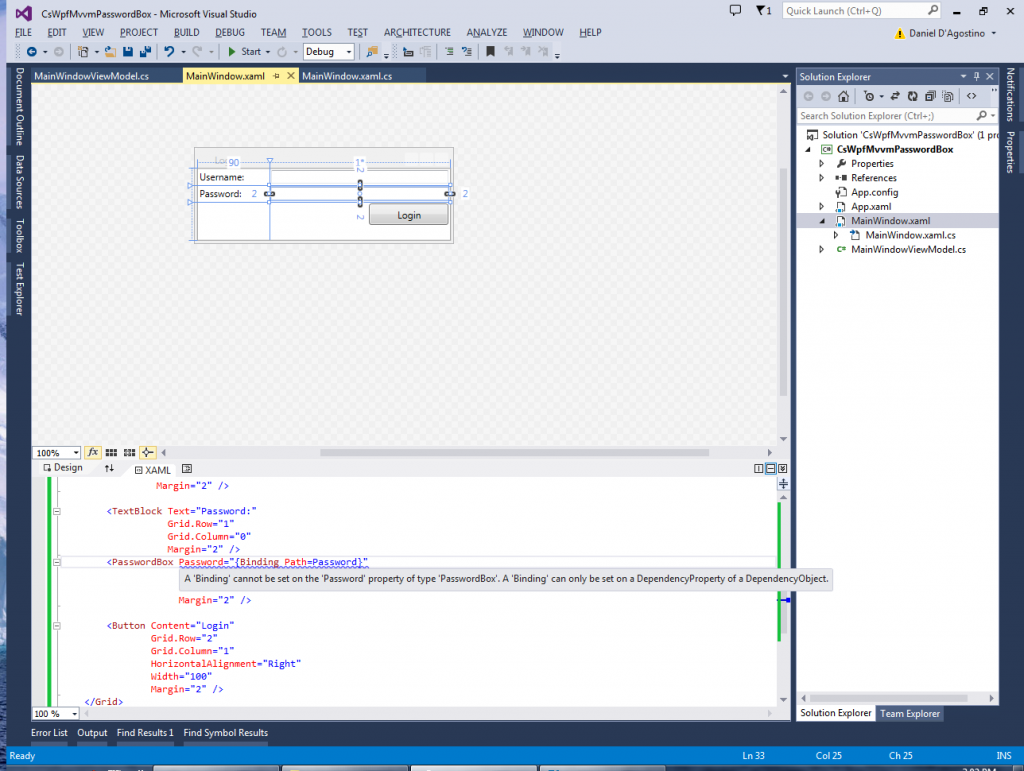
wpf-bindpasswordbox-cantbind

Oh no! What are we going to do now? If we can’t bind the password, and have to somehow retrieve it from the control, then we’ll break the MVVM pattern, right? And we MVVM knights-in-shining-armour can’t afford to deviate from the path of light that is MVVM. You see, the Password property can’t be bound specifically because it shouldn’t, but let’s say that we’re like most other developers and we’re so blinded by this MVVM dogma that we don’t care about the security concerns and we want an MVVM-friendly solution.

Well, no problem! It turns out that there actually is an MVVM-friendly way to bind the password – see the PasswordBoxAssistant and PasswordHelper implementations. To get up and running, let’s add a new PasswordBoxHelper class to our project, and add the implementation from the second link:

    public static class PasswordHelper
    {
        public static readonly DependencyProperty PasswordProperty =
            DependencyProperty.RegisterAttached("Password",
            typeof(string), typeof(PasswordHelper),
            new FrameworkPropertyMetadata(string.Empty, OnPasswordPropertyChanged));

        public static readonly DependencyProperty AttachProperty =
            DependencyProperty.RegisterAttached("Attach",
            typeof(bool), typeof(PasswordHelper), new PropertyMetadata(false, Attach));

        private static readonly DependencyProperty IsUpdatingProperty =
            DependencyProperty.RegisterAttached("IsUpdating", typeof(bool),
            typeof(PasswordHelper));


        public static void SetAttach(DependencyObject dp, bool value)
        {
            dp.SetValue(AttachProperty, value);
        }

        public static bool GetAttach(DependencyObject dp)
        {
            return (bool)dp.GetValue(AttachProperty);
        }

        public static string GetPassword(DependencyObject dp)
        {
            return (string)dp.GetValue(PasswordProperty);
        }

        public static void SetPassword(DependencyObject dp, string value)
        {
            dp.SetValue(PasswordProperty, value);
        }

        private static bool GetIsUpdating(DependencyObject dp)
        {
            return (bool)dp.GetValue(IsUpdatingProperty);
        }

        private static void SetIsUpdating(DependencyObject dp, bool value)
        {
            dp.SetValue(IsUpdatingProperty, value);
        }

        private static void OnPasswordPropertyChanged(DependencyObject sender,
            DependencyPropertyChangedEventArgs e)
        {
            PasswordBox passwordBox = sender as PasswordBox;
            passwordBox.PasswordChanged -= PasswordChanged;

            if (!(bool)GetIsUpdating(passwordBox))
            {
                passwordBox.Password = (string)e.NewValue;
            }
            passwordBox.PasswordChanged += PasswordChanged;
        }

        private static void Attach(DependencyObject sender,
            DependencyPropertyChangedEventArgs e)
        {
            PasswordBox passwordBox = sender as PasswordBox;

            if (passwordBox == null)
                return;

            if ((bool)e.OldValue)
            {
                passwordBox.PasswordChanged -= PasswordChanged;
            }

            if ((bool)e.NewValue)
            {
                passwordBox.PasswordChanged += PasswordChanged;
            }
        }

        private static void PasswordChanged(object sender, RoutedEventArgs e)
        {
            PasswordBox passwordBox = sender as PasswordBox;
            SetIsUpdating(passwordBox, true);
            SetPassword(passwordBox, passwordBox.Password);
            SetIsUpdating(passwordBox, false);
        }
    }

You will also need to add the following usings at the top:

using System.Windows;
using System.Windows.Controls;

Now, let’s fix our Password binding. First, add the following attribute to the Window declaration in the XAML so that we can access our project’s classes (adjust namespace as needed):

        xmlns:local="clr-namespace:CsWpfMvvmPasswordBox"

Then update the PasswordBox declaration to use the PasswordBoxHelper as follows:

        <PasswordBox local:PasswordHelper.Attach="True"
            local:PasswordHelper.Password="{Binding Path=Password}"
            Grid.Row="1"
            Grid.Column="1"
            Margin="2" />

That did it! The project now compiles.

Now, let’s see why what we have done is a very stupid thing to do. To do this, we’re going to need this WPF utility called Snoop, so go over to their website, download it, and install it using the .msi file.

Run Snoop. All you’ll see is a thin bar with a few buttons. On the right hand side, there is a button that looks like a circle (in fact it’s supposed to be crosshairs). If you hover over it, it will explain how to use it:

wpf-bindpasswordbox-snoop1

Run the WPF application we just developed. Enter something into the PasswordBox, but shhhh! Don’t tell anyone what you wrote there! 🙂

Next, drag those crosshairs from Snoop onto the WPF window:

wpf-bindpasswordbox-snoop2

When you let go, a window opens. In the treeview to the left, you can navigate through the mounds of crap that internally make up our simple application. When you find the PasswordBox, you’ll also find the PasswordHelper:
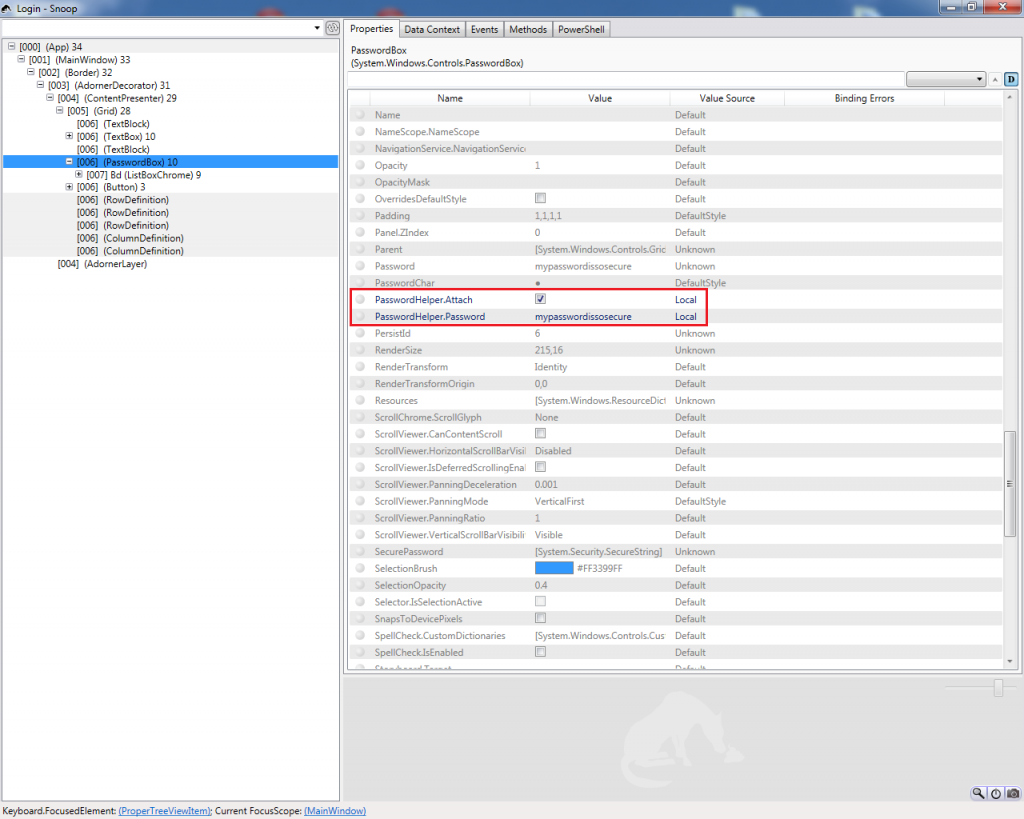
wpf-bindpasswordbox-snoop3

…and as you can see, the PasswordHelper keeps the password exposed in memory so anyone who knows what he’s doing can gain access to it. With a program like Snoop, anyone can access passwords that are bound.

There are a couple of lessons to take from this.

First, don’t ever bind passwords in WPF. There are other alternatives you can use, such as passing your entire PasswordBox control as a binding parameter – although this sounds extremely stupid, it’s a lot more secure than binding passwords. And arguably, it doesn’t break the MVVM pattern.

Secondly, don’t be so religious about so-called best practices such as MVVM. Ultimately they are guidelines, and there are many cases such as this where there are more important things to consider (in this case, security). For something as simple as a login window, it’s much more practical to just do without MVVM and do everything in the codebehind. It isn’t going to affect the scalability, maintainability, robustness, [insert architectural buzz-word here], etc of your application if you make an exception that is rational.

Before ending this article, I would like to thank the person who posted this answer to one of my questions on Stack Overflow. That answer helped me understand the dangers of binding passwords, and provided the inspiration for this article. As further reading, you might also want to read this other question (and its answer) which deals with the security of processing passwords in memory in general (not just data binding).

That’s all for today. Happy coding! 🙂

Nasty const bug in ASP .NET 5

Recently, Microsoft released some much-anticipated software including Visual Studio 2015 and .NET 4.6. This has not been without hiccups though: the guys at Stack Exchange identified a serious flaw in the new .NET’s RyuJIT compiler, which was promptly fixed by Microsoft.

And if, like me, you happen to be playing around with the prerelease technologies, you’re bound to run into other odd behaviour. Specifically, I ran into an issue where debugging information would stop working in an ASP .NET 5 Web Application. I posted a question on Stack Overflow about it before realising it was caused by the presence of a const.

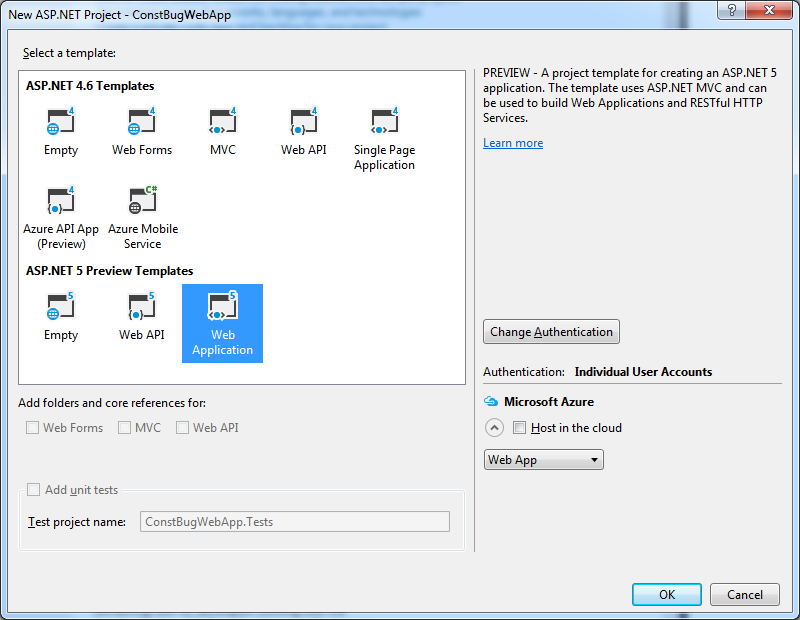
To reproduce the issue, let’s create a new Web Application. In the template selector, we’ll use one of the ASP .NET 5 Preview Templates:

aspnet5constbug-newproject

Locate the Index() method in HomeController, and add some code involving a const:

        public IActionResult Index()
        {
            const int x = 1;
            ViewData["x"] = x;

            return View();
        }

Put a breakpoint somewhere. Run the application, and you’ll notice two things:

  1. If you hover over the constant, you won’t get any tooltip showing its value.
  2. If you try to get that information from the Immediate Window or watches, you’ll get the following error:
error CS0648: '' is a type not supported by the language

aspnet5constbug-noconstinfo

In the above screenshot you can’t see that my cursor is actually on x and I’m not getting any intellisense, but you can see the message in the Immediate Window.

If we instead go to the About page, though, debugging tooltips work fine:

aspnet5constbug-infoavailableonothermethod

In fact, if you add some code in the Index() method (e.g. before the const is declared), you’ll notice that you can’t see the value of any variables or constants in the whole method. Other methods, however, are unaffected.

Let us now remove the const keyword and make x a variable instead:

aspnet5constbug-variableworks

There you go, it was the const keyword that messed up debugging information for the whole method. Removing it made everything work again.

I have no idea what’s causing this bug, but it’s clearly in ASP .NET 5. Console applications do not have this problem, nor do ASP .NET web applications prior to version 5.

Update 2015.09.30: There seems to be an open issue about this, posted just a few days ago.

Retrieving Table Metadata from SQL Server Catalog Views

Introduction

All database systems that I’ve worked with have some sort of system tables that provide information about the tables, columns, indexes, constraints, etc in a database. SQL Server is no exception; in fact there are different ways of querying its System Catalog. We’re going to look at one of these: Catalog Views, which can be queried easily.

Being able to retrieve this metadata can be very useful in various situations, such as developing tools to work with and visualize data (like SQL Server Management Studio), or automating rote tasks (such as creating Entity classes for each table).

List of Table Names

Querying catalog views is as easy as querying any table. The easiest thing you can do is get a list of table names. Use this query:

select *
from sys.tables;

Here’s the result:

systables

So if all you want is the name of the table, just refine the query to select only that:

select name
from sys.tables;

Retrieving data using ADO .NET

It is easy to run simple queries using the good old ADO .NET technology. Below is a sample you could use to retrieve the table names from a C# application.

        static void Main(string[] args)
        {
            const string connStr = @"server=.\SQLEXPRESS;database=BookStore;Trusted_Connection=True;";

            using (var conn = new SqlConnection(connStr))
            {
                conn.Open();

                using (var command = new SqlCommand())
                {
                    command.Connection = conn;

                    command.CommandText = "select name from sys.tables;";

                    using (var reader = command.ExecuteReader())
                    {
                        while (reader.Read())
                        {
                            string name = reader["name"].ToString();
                            Console.WriteLine(name);
                        }
                    }
                }
            }

            Console.ReadLine();
        }

This code can be similarly adapted to fetch additional data from the queries we will see next.

More Advanced Queries

Retrieving other table metadata such as indexes, foreign keys, etc is not as straightforward as retrieving table names. However, you can get queries for just about any metadata you need from the Querying the SQL Server System Catalog FAQ.

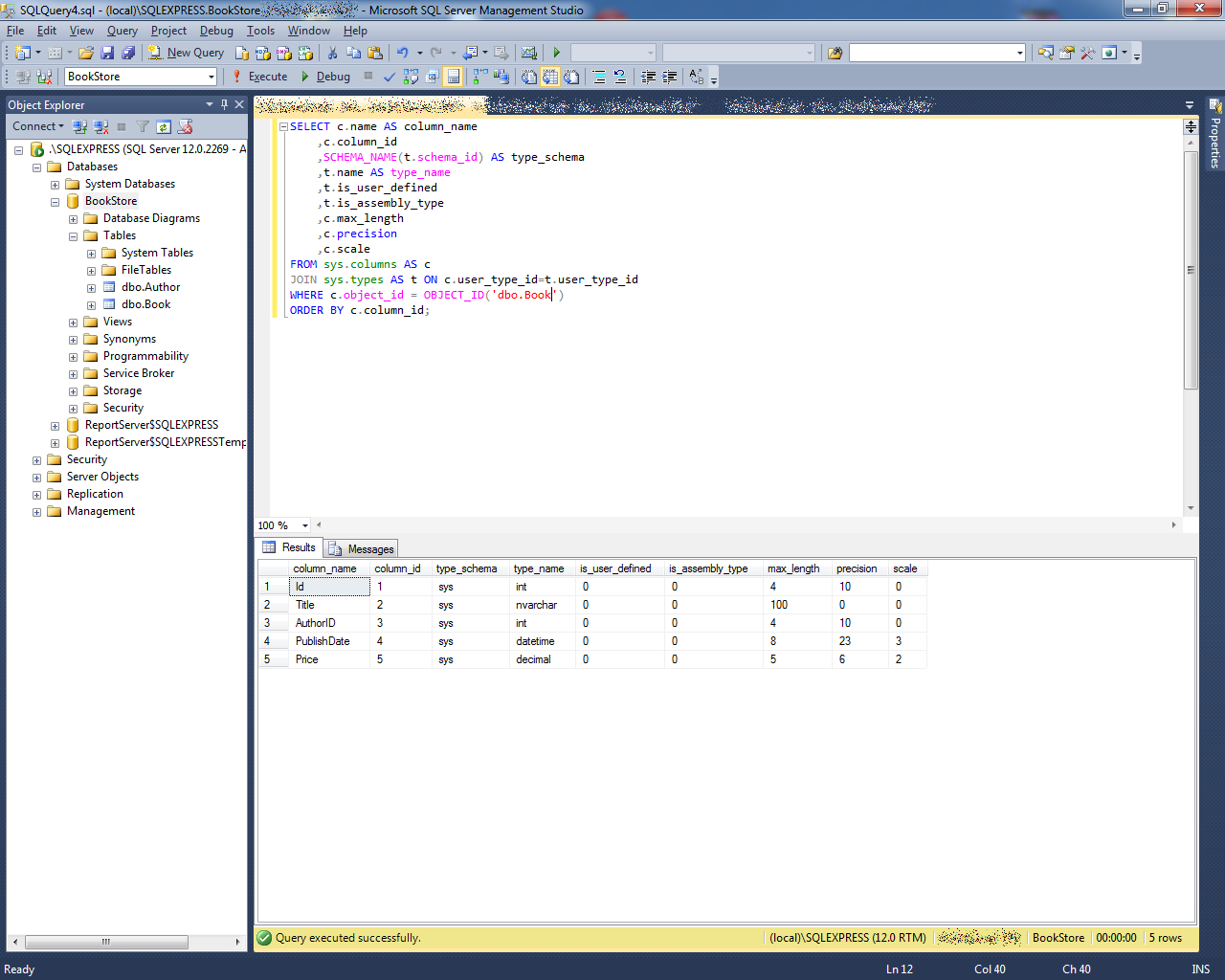
Here’s the query to get column data types:

SELECT c.name AS column_name
    ,c.column_id
    ,SCHEMA_NAME(t.schema_id) AS type_schema
    ,t.name AS type_name
    ,t.is_user_defined
    ,t.is_assembly_type
    ,c.max_length
    ,c.precision
    ,c.scale
FROM sys.columns AS c 
JOIN sys.types AS t ON c.user_type_id=t.user_type_id
WHERE c.object_id = OBJECT_ID('<schema_name.table_name>')
ORDER BY c.column_id;

Here’s the result:

syscolumns

This is how you get the indexes for a table (which may include primary keys):

SELECT i.name AS index_name
    ,i.type_desc
    ,is_unique
    ,ds.type_desc AS filegroup_or_partition_scheme
    ,ds.name AS filegroup_or_partition_scheme_name
    ,ignore_dup_key
    ,is_primary_key
    ,is_unique_constraint
    ,fill_factor
    ,is_padded
    ,is_disabled
    ,allow_row_locks
    ,allow_page_locks
FROM sys.indexes AS i
INNER JOIN sys.data_spaces AS ds ON i.data_space_id = ds.data_space_id
WHERE is_hypothetical = 0 AND i.index_id <> 0 
AND i.object_id = OBJECT_ID('<schema_name.table_name>');

Here’s an example result:

sysindexes

And finally, here’s how you get info on the foreign keys:

SELECT 
    f.name AS foreign_key_name
   ,OBJECT_NAME(f.parent_object_id) AS table_name
   ,COL_NAME(fc.parent_object_id, fc.parent_column_id) AS constraint_column_name
   ,OBJECT_NAME (f.referenced_object_id) AS referenced_object
   ,COL_NAME(fc.referenced_object_id, fc.referenced_column_id) AS referenced_column_name
   ,is_disabled
   ,delete_referential_action_desc
   ,update_referential_action_desc
FROM sys.foreign_keys AS f
INNER JOIN sys.foreign_key_columns AS fc 
   ON f.object_id = fc.constraint_object_id 
WHERE f.parent_object_id = OBJECT_ID('<schema_name.table_name>');

Here’s the result of that:

sysforeign_keys

So even though these queries aren’t trivial to cook up, you can find just about anything you need from the Querying the SQL Server System Catalog FAQ, and just adapt it from there.

One Query to Rule Them

If you’re going to do something like code generation, you probably want to build one query that retrieves all the above metadata in one go. You can do that by combining the above queries. Fortunately, I’ve done that for you. Here you go:

SELECT
	-- columns / data types
	c.name AS column_name
    ,c.column_id
    ,SCHEMA_NAME(t.schema_id) AS type_schema
    ,t.name AS type_name
    ,c.max_length
    ,c.precision
    ,c.scale
	-- primary key / indexes
	,i.name AS index_name
    ,is_identity
	,i.is_primary_key
	-- foreign key
    ,f.name AS foreign_key_name
   ,OBJECT_NAME (f.referenced_object_id) AS referenced_object
   ,COL_NAME(fc.referenced_object_id, fc.referenced_column_id) AS referenced_column_name
FROM sys.columns AS c 
INNER JOIN sys.types AS t
	ON c.user_type_id=t.user_type_id
LEFT OUTER JOIN sys.index_columns AS ic
	ON ic.object_id = c.object_id
	AND c.column_id = ic.column_id
LEFT OUTER JOIN sys.indexes AS i
	ON i.object_id = ic.object_id
	AND i.index_id = ic.index_id
LEFT OUTER JOIN sys.foreign_key_columns AS fc
	ON fc.parent_object_id = c.object_id
	AND COL_NAME(fc.parent_object_id, fc.parent_column_id) = c.name
LEFT OUTER JOIN sys.foreign_keys AS f
	ON f.parent_object_id = c.object_id
	AND fc.constraint_object_id = f.object_id
WHERE c.object_id = OBJECT_ID('dbo.Book')
ORDER BY c.column_id;

Here’s what you’ll get:

sysquerycombined

That includes column names, column types (along with stuff like decimal precision), indexes, primary keys, auto-increment (that’s is_identity), and foreign key info (constraint name, referenced table, and referenced column).

I’ve only tested this on a very simple scenario, so I’m pretty sure there are improvements to be made. While this can be considered a starting point, feedback is more than welcome.