Category Archives: Software development

Using Time-Based One-Time Passwords for Two-Factor Authentication

Introduction

Two-factor authentication (2FA) is becoming more and more important, as its adoption is driven by a need for major software companies to secure their systems against threats, as well as due to legal requirements of strong customer authentication, such as the PSD2 directive that came in force in Europe last month.

2FA can be implemented in a number of ways. Typically, it is a combination of the usual username/password login as well as something else, often being a one-time password (OTP) that is sent via SMS or email, or generated by an algorithm.

In this article, we’ll focus entirely on generating and verifying Time-Based One-Time Passwords (TOTP) using Google Authenticator and the Otp.NET library.

Update 20th October 2019: This also works if you use Microsoft Authenticator instead of Google Authenticator. Microsoft Authenticator requires more permissions on your device, sends usage data to Microsoft by default, and is slightly more confusing because you have to choose the type of account.

Update 22nd October 2019: I discovered another mobile app called Authy, and it works just as well to acquire the TOTP secret and generate codes. It is interesting because it has a mechanism to take encrypted backups in the cloud and synchronise across devices, addressing the problem of when you lose or change your phone.

About TOTP

TOTP is an algorithm used to generate one-time passwords based on a shared secret and the current time. It is defined in RFC6238, and is a variant of the HOTP algorithm (RFC4226) which uses a counter instead of time.

The client and server use the same algorithm, the same shared secret and (roughly) the same time to generate the same code.

TOTP can be thought of as a function that takes the shared secret and current time as inputs, and generates a one-time password as output. Given that the client and server both know the same shared secret, and that their software clocks are more or less in sync without major clock skew, then they would generate the same code. This allows a code generated on a mobile device to be verified on the server side.

Generating a Shared Secret

We will use Otp.NET to perform most operations related to TOTP generation and verification. This can easily be installed in a .NET (Core) console application via NuGet:

Install-Package Otp.NET

It is then really easy to generate and output a shared secret using the following code:

var secret = KeyGeneration.GenerateRandomKey(20);
var base32Secret = Base32Encoding.ToString(secret);
Console.WriteLine(base32Secret);

The secret that we generated on the first line is an array of bytes. However, we output it in base32 encoding. This is important for the next step when we will pass the secret to the mobile device. As I learned the hard way, it does not work if the secret is an arbitrary string and not base32-encoded.

Running the above, I just got the following in the output:

6L4OH6DDC4PLNQBA5422GM67KXRDIQQP

Generating a QR Code for the Secret

Stefan Sundin made this great 2FA QR code generator. The two required fields are the Secret (where we paste the value generated above) and a Label (which is arbitrary and identifies the application — we’ll simply put “MFA Test 1” in there).

The QR code helps to synchronise the secret between the server and the mobile device.

Setting up Google Authenticator

Find Google Authenticator in your phone’s app store and install it. It requires access to your camera as we’ll see in a second.

Get Google Authenticator from your phone’s app store.

After installation and its brief in-built tutorial, you get to the point where you can set up your first TOTP code generator (they call it an “account”):

To synchronise a shared secret onto your mobile device, you can scan a barcode or type in the secret directly.

This step is where you enter the shared secret into Google Authenticator. You can do that by scanning a QR code (first option), or by typing it in (second option). The latter is slow and painful, especially on a mobile device, and should be kept as a fallback in case there is some kind of problem scanning the QR code. Scanning the QR code is really just a convenience mechanism and is an encoded version of the same secret.

Scan the barcode to get the shared secret into Google Authenticator.

Once you’ve scanned the QR code, Google Authenticator has acquired the shared secret and starts generating TOTP codes every 30 seconds:

Google Authenticator is generating TOTP codes.

Since you can have more than one of these code generators in here (for different applications), they come with a label. In this case, you’ll notice that we have “MFA Test 1”, which is exactly what we entered in the Label field when generating the QR code.

Generating TOTP codes from Otp.NET

If you need to generate TOTP codes from .NET code (essentially to do what Google Authenticator is doing), then Otp.NET makes it very easy to do that:

            string base32Secret = "6L4OH6DDC4PLNQBA5422GM67KXRDIQQP";
            var secret = Base32Encoding.ToBytes(base32Secret);

            var totp = new Totp(secret);
            var code = totp.ComputeTotp();

            Console.WriteLine(code);

The ComputeTotp() method takes an optional DateTime parameter as the current time to use for the code generation algorithm. If not provided, it uses DateTime.UtcNow, which is typically what you want to use.

The TOTP code generated from the C# program (top right) is identical to the one generated from Google Authenticator on my phone (bottom centre).

Since we are using Google Authenticator, we don’t actually need this at all, so this is just something to keep in mind if you ever actually need it. It also gives some assurance that we’re on the right track, because what we’re doing in C# and on the mobile device are evidently well in sync.

Verifying TOTP Codes

Like every other operation we’ve seen, verifying TOTP codes with Otp.NET is also very easy. The following code shows how to do this, although most of the code is actually handling input and output.

            string base32Secret = "6L4OH6DDC4PLNQBA5422GM67KXRDIQQP";
            var secret = Base32Encoding.ToBytes(base32Secret);

            var totp = new Totp(secret);

            while (true)
            {
                Console.Write("Enter code: ");
                string inputCode = Console.ReadLine();
                bool valid = totp.VerifyTotp(inputCode, out long timeStepMatched,
                    VerificationWindow.RfcSpecifiedNetworkDelay);

                string validStr = valid ? "Valid" : "Invalid";
                var colour = valid ? ConsoleColor.Green : ConsoleColor.Red;
                Console.ForegroundColor = colour;
                Console.WriteLine(validStr);
                Console.ResetColor();
            }

Here’s what it might look like while you test it out repeatedly:

A number of tests show interesting results.

As you can see above, I did a number of things:

  1. I entered two invalid codes, and got invalid responses.
  2. I entered a valid code, and got a valid response as expected.
  3. I waited for a new code to be generated, then entered the same code as before, and it was accepted.
  4. I entered the new code that was generated, and it was validated.
  5. I entered another invalid code, and it was marked as such.

The most interesting part of the above is the third step, and it requires further explanation. Codes are generated in time windows, by default every 30 seconds. That doesn’t necessarily mean that the previous code should be rejected. The time window might have shifted just as the user was typing the code, or there could be network delays, etc. Typically, some leeway is allowed when validating these codes. The RFC recommends allowing codes from one time window in the past or future, and that’s what the value of VerificationWindow.RfcSpecifiedNetworkDelay that we passed in as the third parameter to VerifyTotp() does. If you want, you can pass in something different that is more lenient or more restrictive.

On the other hand, accepting the same code twice is wrong, considering we are supposed to be generating one time passwords. In order to make sure that a code isn’t used twice, we need to store something that we can later check to know whether a code has been used. That’s the reason for the second parameter to VerifyTotp(). It gives us back a number indicating the time step used, so we can save this whenever a code is used, and later check whether the same time step has already been used before.

Assuming a single shared secret, a very quick-and-dirty dummy implementation using a HashSet instead of real persistence could look something like this:

            string base32Secret = "6L4OH6DDC4PLNQBA5422GM67KXRDIQQP";
            var secret = Base32Encoding.ToBytes(base32Secret);

            var totp = new Totp(secret);

            var usedTimeSteps = new HashSet<long>();

            while (true)
            {
                Console.Write("Enter code: ");
                string inputCode = Console.ReadLine();
                bool valid = totp.VerifyTotp(inputCode, out long timeStepMatched,
                    VerificationWindow.RfcSpecifiedNetworkDelay);

                valid &= !usedTimeSteps.Contains(timeStepMatched);
                usedTimeSteps.Add(timeStepMatched);

                string validStr = valid ? "Valid" : "Invalid";
                var colour = valid ? ConsoleColor.Green : ConsoleColor.Red;
                Console.ForegroundColor = colour;
                Console.WriteLine(validStr);
                Console.ResetColor();
            }

Like this, there’s no way you can ever have the same code be valid twice:

The same code, even within the same time window, is invalid the second time.

Conclusion

In this article we’ve seen how Time-Based One-Time Passwords can be generated and verified. We’ve focused mainly on:

  1. Generating a shared secret using Otp.NET
  2. Bringing it to a mobile device with Google Authenticator
  3. Using Google Authenticator to generate TOTP codes
  4. Using Otp.NET to validate these codes

In a two-factor authentication implementation, this is of course only one of the factors, and usually takes place after a regular username/password login.

Retrieving Stock Prices using AWS Lambda

AWS Lambda functions are great for simple logic running periodically (among other things). In this article, we’ll create a simple AWS Lambda function in Python that retrieves stock prices from a REST API every minute. Let’s get straight to it!

Create a Lambda Function

First, we need to create a function. Follow the instructions illustrated below to do this.

From the AWS Console dashboard, locate the Lambda service. You can also do this via the Services drop-down panel at the top, or from your recently visited services (if you’ve already been using Lambda).
Once you are in the Lambda service, create a new function by clicking on the “Create a function” button as shown above.
Choose a name for the Lambda function, and also the runtime. We’re using Python 3.7 (which is the latest supported Python version in AWS Lambda at the time of writing this) for this example, but other options are available (e.g. Node.js, NET Core, Go, etc). Leave everything else as is and hit the Create function button.
Once the Lambda is created, you are taken to the new function itself. A green status message at the top indicates that it has been created successfully.

Editing the Lambda’s Code

The function’s configuration screen can seem quite confusing at first, but all you need to do is scroll down to get to the code editor. While there are a few different ways to add code to your Lambda, using the provided editor (which is the default option for Python) is the easiest.

Replace the default code in the editor with the following, and hit the Save button at the top-right.

from urllib.request import urlopen
from contextlib import closing
import json

def lambda_handler(event, context):
    with closing(urlopen("https://financialmodelingprep.com/api/v3/stock/real-time-price/GOOGL")) as responseData:
        jsonData = responseData.read()
        deserialisedData = json.loads(jsonData)
        price = deserialisedData['price']
        print(price);
    return price

Here we are simply retrieving Google’s stock price using the Financial Modeling Prep Stock Realtime Price API, which is open and doesn’t require any authentication.

Next to the Save button at the top-right, there’s a Test button. Click it, and the following screen comes up.

The Configure test event screen. Just enter a name and hit Create.

Just enter a name (e.g. “Test”) and hit the Create button further below. We’re not using the input JSON data, so you can just ignore it.

Next, click the Test button at the top-right again, and your Lambda function will be executed:

After clicking Test again, the lambda is executed and the results are shown below the code.

The results are shown below the code, and these include various metadata (such as a Request ID and execution time) as well as Google’s stock price of 1082.38, which we retrieved from the REST API and logged using the print statement in the code.

Running Periodically

We now have a working Lambda function, but so far we have to invoke it manually every time. Let’s set it up so that it runs every minute.

At the top of the screen, click CloudWatch Events on the left to add a CloudWatch trigger.

Scroll back to the top, and you’ll see a placeholder telling you to “Add triggers from the list on the left“. Following that advice, click on “CloudWatch Events” to the left.

A CloudWatch Event trigger is added to the function.

This has the effect of adding “CloudWatch Events” as a trigger in the slot where the placeholder text was, but what you might not notice at first is that the lower part of the page changes from the code editor to a “Configure triggers panel“. This can be quite confusing for those new to AWS Lambda who might not intuit right away that clicking on the boxes will affect the content in some other part of the page.

By scrolling down, we can configure the new trigger.

Here we use a Schedule expression of rate(1 minute) to make the function run every minute.

Filling in most of the settings (e.g. choosing a name) is easy, bearing in mind that there are some restrictions (e.g. some characters, such as spaces, are restricted in the name).

The only tricky part is where we specify how frequently we want the function to be executed. For this, we can use cron or rate expressions (refer to AWS documentation: Schedule Expressions Using Rate or Cron). By using an expression of rate(1 minute), we configure the function to run every minute, which is the smallest supported interval.

Once this is all set up, click the Add button to set up the trigger. Then, don’t forget to click the Save button at the top-right of the page to apply the changes to the Lambda function.

Checking Output in CloudWatch

After waiting a few minutes for the function to run a few times, we can go into CloudWatch and check the output of each execution.

CloudWatch logs.

From the AWS Services, locate CloudWatch. Go into Logs from the left menu, and locate the log group for our Lambda function (in this case it’s /aws/lambda/StockChecker).

Select the most recent log stream (the one at the top), and if you scroll to the end, you should see logs showing the function’s execution every minute, as well as whatever we’re writing to standard output (in this case, Google’s stock price).

CloudWatch logs show that the Lambda function is executing every minute.

We can see that the function is executing every minute, and we’re logging a stock price each time. The US stock market is closed right now, and that’s why the stock price is always the same (you’d expect it to change frequently when the market is active).

Conclusion

At this point, we have a simple, working AWS Lambda function (written in Python) that runs every minute and retrieves Google’s stock price. To keep things simple, we’re just writing it to standard output, which means we can see the value in CloudWatch – but we could also expand the code to build something useful from this.

Getting Started with Angular 8

Angular is an open-source framework built and maintained by Google, which is mainly used to develop Single-Page Applications (SPAs). It provides a structured approach towards creating front-end web applications.

Originally known as AngularJS, the framework underwent a complete rewrite that resulted in Angular 2.0 (dropping the -JS suffix from the name). The versions that came after 2.0 (with Angular 8 being the latest, released just over two weeks ago) are incremental upgrades, thus it is possible to upgrade between them. However, AngularJS is a different beast and there is no easy way to upgrade from AngularJS from Angular 2.0+.

In this article, we’re going to go through the steps necessary to start working with Angular. In order to keep this concise, there won’t be a lot of background.

npm

On Windows, download the Node.js installer from their website. Either version should be fine to get started.

The first thing we need to do is get npm, a package manager for JavaScript libraries. On Windows, download and install Node.js. On Linux or Mac, use the relevant package manager for your system (e.g. apt-get on Linux Ubuntu), possibly along with the sudo command for elevated privileges, to install npm.

Angular CLI

The Angular CLI homepage shows the commands you need to set up and use the Angular CLI tools.

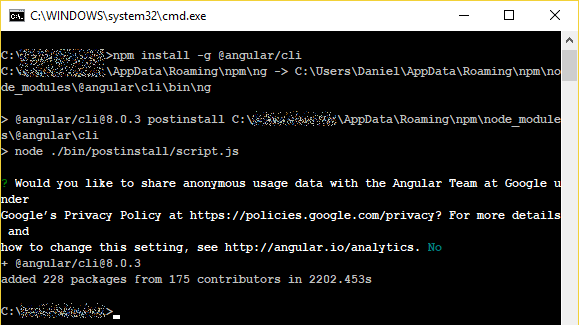
Next, we need the Angular CLI to help us with our development workflow. Use npm to install it as a global tool, as follows (prefix this with sudo if using Linux or Mac):

npm install -g @angular/cli
Using npm to install the Angular CLI.

ng is the command-line tool we just installed. Use ng --version to make sure it’s in working order:

After executing ng --version, we can see some “Angular CLI” ASCII art and other information. This means that it’s working fine.

Creating a Project

Use ng new to create an Angular app from a template. You’ll be asked some questions to determine what features you need, but for now just press ENTER at each question to use the defaults.

ng new myproject
ng new myproject creates a folder called myproject with the Angular files in it. Press ENTER when asked questions to use defaults for now.

Note: when I first ran this, I got an error along the lines of “EPERM: operation not permitted, unlink“, even when using an elevated command prompt. The problem was likely caused by an old version of npm I had on my machine before, and I fixed it by running npm cache clean --force.

Running the application

Go into the project directory you’ve just created (e.g. myproject), and use ng serve to run the web application you just generated:

cd myproject
ng serve
ng serve runs a web server that you can use to access the running web application. Look in the output for the endpoint to use in your browser.

When ng serve is done building the project, it runs a web server hosting the web application. The output tells you where to access it, in this case http://localhost:4200/. Put that in your browser’s address bar, and you should see the homepage from the project template that we set up earlier:

A simple page shows us that Angular is in fact working.

Data Binding Illustration

We’ve created and run a web application using Angular, so we’re done in terms of getting started. However, let’s make a small change to the web application to get a little more comfortable with it and see something working.

Visual Studio Code is a popular choice for frontend development, despite having been made by Microsoft.

With ng serve still running, locate the src/app directory under your project’s root directory. Using a text editor or IDE of your choice, add the lines highlighted below to app.component.html:

<!--The content below is only a placeholder and can be replaced.-->
<div style="text-align:center">
  <h1>
    Welcome to {{ title }}!
  </h1>
  <img width="300" alt="Angular Logo" src="data:image/svg+xml;base64,PHN2ZyB4bWxucz0iaHR0cDovL3d3dy53My5vcmcvMjAwMC9zdmciIHZpZXdCb3g9IjAgMCAyNTAgMjUwIj4KICAgIDxwYXRoIGZpbGw9IiNERDAwMzEiIGQ9Ik0xMjUgMzBMMzEuOSA2My4ybDE0LjIgMTIzLjFMMTI1IDIzMGw3OC45LTQzLjcgMTQuMi0xMjMuMXoiIC8+CiAgICA8cGF0aCBmaWxsPSIjQzMwMDJGIiBkPSJNMTI1IDMwdjIyLjItLjFWMjMwbDc4LjktNDMuNyAxNC4yLTEyMy4xTDEyNSAzMHoiIC8+CiAgICA8cGF0aCAgZmlsbD0iI0ZGRkZGRiIgZD0iTTEyNSA1Mi4xTDY2LjggMTgyLjZoMjEuN2wxMS43LTI5LjJoNDkuNGwxMS43IDI5LjJIMTgzTDEyNSA1Mi4xem0xNyA4My4zaC0zNGwxNy00MC45IDE3IDQwLjl6IiAvPgogIDwvc3ZnPg==">
  <input type="text" [(ngModel)]="name" />
  <br />{{ name }}
</div>
<h2>Here are some links to help you start: </h2>
<ul>
  <li>
    <h2><a target="_blank" rel="noopener" href="https://angular.io/tutorial">Tour of Heroes</a></h2>
  </li>
  <li>
    <h2><a target="_blank" rel="noopener" href="https://angular.io/cli">CLI Documentation</a></h2>
  </li>
  <li>
    <h2><a target="_blank" rel="noopener" href="https://blog.angular.io/">Angular blog</a></h2>
  </li>
</ul>

Then, add the lines highlighted below to app.module.ts:

import { BrowserModule } from '@angular/platform-browser';
import { NgModule } from '@angular/core';
import { FormsModule } from '@angular/forms';

import { AppComponent } from './app.component';

@NgModule({
  declarations: [
    AppComponent
  ],
  imports: [
    FormsModule,
    BrowserModule
  ],
  providers: [],
  bootstrap: [AppComponent]
})
export class AppModule { }

When ng serve detects these changes, it should reload the web application (in your browser) automatically, so you don’t need to stop and start it again whenever you change something.

We’ve added the text input box under the image. When you type in it, the text below it is automatically updated accordingly.

Thanks to the changes we made, we now have a text input box under the Angular logo. When you type in it, the text below it is synchronised with it.

The changes we made might seem alien at first, but we’ve actually used two important features of Angular: data binding and string interpolation. While explaining these is beyond the scope of this introductory article, I hope that seeing this power at work — with such a small change — has given a taste of why Angular is so useful.

Woodchuck Translation with Amazon Translate

This article is an attempt to have fun with Amazon Translate, and is not intended to be taken as any sort of serious review.

Amazon Web Services (AWS) includes a machine translation service called Amazon Translate:

“Amazon Translate is a neural machine translation service that delivers fast, high-quality, and affordable language translation. Neural machine translation is a form of language translation automation that uses deep learning models to deliver more accurate and more natural sounding translation than traditional statistical and rule-based translation algorithms. Amazon Translate allows you to localize content – such as websites and applications – for international users, and to easily translate large volumes of text efficiently.” — Amazon Translate homepage

Sounds pretty cool. If you log into the AWS Console and select the Amazon Translate service, it gives you an interface where you can easily play with it:

If we hit the “Swap languages” button, this translates the result back to the original language. In this really simple case, it matches perfectly:

However, this is not always the case. Translating back and forth will often result in things being “lost in translation”, for various reasons ranging from context to linguistic differences.

Since we all know machine translation isn’t perfect, I could not resist being a complete bastard and testing AWS Translate against none other than… How much wood would a woodchuck chuck:

Translating back and forth for each of the supported languages yields some interesting and often hilarious results before the translation converges (translating back and forth starts giving you the same thing every time). Let’s take a look at the results of this little experiment.

English <-> German

  1. How much wood would a woodchuck chuck if a woodchuck could chuck wood?
  2. Wie viel Holz würde ein Holzfutter, wenn ein Holzfutter Holz abwerfen könnte?
  3. How much wood would a wood fodder if a wood fodder could drop wood?
  4. Wie viel Holz würde ein Holzfutter, wenn ein Holzfutter Holz fallen könnte?
  5. How much wood would a wood lining if a wood lining could fall wood?
  6. Wie viel Holz würde eine Holzverkleidung, wenn eine Holzverkleidung Holz fallen könnte?
  7. How much wood would a wood panelling if a wood paneling could fall wood?

It’s easy to see how, as we translate back and forth, we not only lose the sense of the original question (if it ever had any), but the result also makes no grammatical sense. However, what really catches my eye is the two different spellings of “panelling”/”paneling” in the same phrase.

English <-> French

  1. How much wood would a woodchuck chuck if a woodchuck could chuck wood?
  2. Combien de bois un mandrin de bois serait-il un mandrin de bois si un mandrin de bois pouvait mander du bois ?
  3. How much wood would a wood mandrel be a wood mandrel if a wood mandrel could mandrel wood?
  4. Combien de bois un mandrin de bois serait-il un mandrin de bois si un mandrin de bois pouvait mandrin de bois ?
  5. How much wood would a wood chuck be a wood chuck if a wood chuck could wood chuck?

What’s really interesting about this one is that after going on a nice big detour (becoming a “wood mandrel”), the English phrase eventually returns to something relatively close to the original (even if still wrong).

English <-> Portuguese

  1. How much wood would a woodchuck chuck if a woodchuck could chuck wood?
  2. Quanta madeira uma marmota manteria se uma marmota pudesse atirar madeira?
  3. How much wood would a groundhog keep if a groundhog could throw wood?

This one’s pretty good – it got the animal right. The only mistake is on the first translation of “chuck” becoming “keep” – you’ll notice that all other translations also interpret the different “chuck”s differently.

English <-> Spanish

  1. How much wood would a woodchuck chuck if a woodchuck could chuck wood?
  2. ¿Cuánta madera haría un Woodchuck si un Woodchuck pudiera tirar madera?
  3. How much wood would a Woodchuck make if a Woodchuck could throw wood?
  4. ¿Cuánta madera ganaría un Woodchuck si un Woodchuck pudiera tirar madera?
  5. How much wood would a Woodchuck gain if a Woodchuck could throw wood?

The Spanish Mr. Woodchuck is a businessman, apparently.

English <-> Arabic

  1. How much wood would a woodchuck chuck if a woodchuck could chuck wood?
  2. كم من الخشب يمكن أن تشوك الخشب إذا كان الخشب يمكن أن يرمي الخشب؟
  3. How much wood can a wood fork if the wood can throw wood?
  4. كم الخشب يمكن شوكة الخشب إذا الخشب يمكن رمي الخشب؟
  5. How much wood can a wood fork if wood can throw wood?

Okay, this is starting to get pretty weird.

English <-> Chinese

  1. How much wood would a woodchuck chuck if a woodchuck could chuck wood?
  2. 如果木头可以木头卡住木头,木头卡住多少木头?
  3. If wood can be stuck in wood, how many wood is stuck?
  4. 如果木头可以被卡在木头上,有多少木头被卡住?
  5. If wood can be stuck on wood, how many wood is stuck?
  6. 如果木头可以卡在木头上,有多少木头被卡住?
  7. If the wood can be stuck on the wood, how many wood is stuck?

Uhhh…

English <-> Japanese

  1. How much wood would a woodchuck chuck if a woodchuck could chuck wood?
  2. ウッドチャックが木材をチャックできるなら、どのくらいの木材をチャックしますか?
  3. If a Woodchuck can chuck wood, how much wood would you chuck?
  4. もしウッドチャックが木材をチャックできるなら、どのくらいの木材をチャックしますか?
  5. If the wood chuck can chuck wood, how much wood would you chuck?
  6. 木材チャックが木材をチャックできるなら、どれくらいの木材をチャックしますか?
  7. If a wood chuck can chuck wood, how much wood do you chuck?
  8. 木材チャックが木材をチャックできる場合、どれくらいの木材をチャックしますか?
  9. If a wood chuck can chuck wood, how much wood do you chuck?

I don’t know… how much wood would you chuck?

English <-> Russian

  1. How much wood would a woodchuck chuck if a woodchuck could chuck wood?
  2. Сколько дров будет завалить, если дрочак сможет заправлять древесину?
  3. How much wood will it fill if the wok can fill the wood?
  4. Сколько древесины она заполнит, если вок сможет заполнить дерево?
  5. How much wood will it fill if the wok can fill the tree?
  6. Сколько дерева она заполнит, если вок сможет заполнить дерево?
  7. How much tree would she fill if the wok could fill the tree?

Image credit: source

Sounds like one of Google’s interview questions.

English <-> Traditional Chinese

  1. How much wood would a woodchuck chuck if a woodchuck could chuck wood?
  2. 如果一個木頭能扔木頭的話一個木頭會扔多少木頭
  3. How much wood would a wood throw if one could throw wood?
  4. 如果能扔木頭的話木頭會扔多少木頭
  5. How much wood would it throw out if we could throw it?
  6. 如果我們能扔掉的話會丟多少木頭
  7. How much wood would we lose if we could throw it away?
  8. 如果我們能把它扔掉我們會損失多少木頭
  9. How much wood would we lose if we could get rid of it?
  10. 如果能除掉它我們會損失多少木頭
  11. How much wood would we lose if we could get rid of it?

I think we’ve found the Spanish woodchuck businessman’s rival.

English <-> Italian

  1. How much wood would a woodchuck chuck if a woodchuck could chuck wood?
  2. Quanta legna manderebbe una marmotta se una marmotta potesse buttare legna?
  3. How much wood would a groundhog send if a groundhog could throw out wood?
  4. Quanto legna manderebbe una marmotta se una marmotta potesse buttare la legna?
  5. How much wood would a groundhog send if a groundhog could throw out the wood?
  6. Quanto legna manderebbe una marmotta se una marmotta potesse buttare via la legna?
  7. How much wood would a groundhog send if a groundhog could throw away the wood?

This one is interesting as there are a lot of very subtle changes before convergence.

English <-> Turkish

  1. How much wood would a woodchuck chuck if a woodchuck could chuck wood?
  2. Eğer bir dağ sıçanı odunları çöpe atabilseydi, bir dağ sıçanı ne kadar ağaç gönderirdi?
  3. If a groundhog could throw wood away, how many trees would a groundhog send?
  4. Eğer bir dağ sıçanı tahta atabilseydi, bir dağ sıçanı kaç ağaç gönderirdi?
  5. If a groundhog could throw a throne, how many trees would a groundhog send?
  6. Eğer bir dağ sıçanı tahtı atabilseydi, bir dağ sıçanı kaç ağaç gönderirdi?
  7. If a groundhog could throw the throne, how many trees would a groundhog send?

It is really bizarre to see how “wood” transitions into “throne” and “trees” in two different parts of the same question.

English <-> Czech

  1. How much wood would a woodchuck chuck if a woodchuck could chuck wood?
  2. Kolik dřeva by dřevorubec sklízl, kdyby dřevorubec mohl sklíčit dřevo?
  3. How much wood would a lumberjack harvest if a lumberjack could deceive the wood?
  4. Kolik dřeva by dřevorubec sklízel, kdyby dřevorubec mohl klamat dřevo?
  5. How much wood would a lumberjack harvest if a lumberjack could deceive wood?

Image credit: source

Conclusion

I had fun playing around with Amazon Translate and seeing how the woodchuck tongue-twister degenerates when translated across different languages. I hope it was just as much fun for you to read this.

Please do not make any judgements about the accuracy of Amazon Translate based on this, for the following reasons:

  1. This is a very specific case and certainly doesn’t speak for the accuracy across entire languages.
  2. Translation isn’t easy. We’ve all heard of situations where things got “lost in translation”. Translation depends very much on context and linguistic differences. Hopefully the varying performance across languages is an illustration of this.
  3. Machine translation isn’t easy either. There’s a reason why it’s considered a field of artificial intelligence.

Microsoft Orleans 2.0.4 Released

Those using (or learning about) Microsoft Orleans, especially the newer 2.0.x releases that target .NET Standard and are cross-platform, might be interested to know that version 2.0.4 has just been released.

This release includes a couple of important bugfixes:

  • A number of Orleans users observed grain calls getting really slow after the silo has been running for around 12 hours. The long issue discussion reveals a lot of collective findings and ultimately provides the means to reproduce the problem. The root cause was traced to a bug in BlockingCollection<T> in .NET Core, which can lead to memory leaks and even lost items (Orleans messages in this case). A workaround has been implemented to sort this out.
  • Another issue prevented Orleans build-time code generation from being built when targeting .NET Core 2.1. This has also been fixed.

If you’re using Orleans 2.0.x, it’s therefore a good idea to upgrade to 2.0.4, especially if you are running Orleans in production.