Category Archives: Software development

Data-Driven Tests with NUnit

This article shows how you can run the same unit test multiple times with different input data, using NUnit.

A Simple Scenario

Before we can learn about data-driven testing using NUnit, we need some actual logic to test. Let’s use the following class for this purpose:

    public class PriceCalculator
    {
        private decimal adultPrice;

        public PriceCalculator(decimal adultPrice)
        {
            this.adultPrice = adultPrice;
        }

        public decimal CalculatePrice(int age)
        {
            decimal multiplier = 0.0m;

            if (age >= 5 && age < 16) // 5 to 15: half price
                multiplier = 0.5m;
            else if (age >= 16 && age < 60) // 16 to 59: full price
                multiplier = 1.0m;
            else if (age >= 60) // 60+: half price
                multiplier = 0.5m;

            return this.adultPrice * multiplier;
        }
    }

So, here we have a scenario where we have something to sell (whatever it is), and certain age ranges get discounts. Kids under 5 years of age are free; older kids under 16 pay half price, as do senior citizens from age 60 onwards.

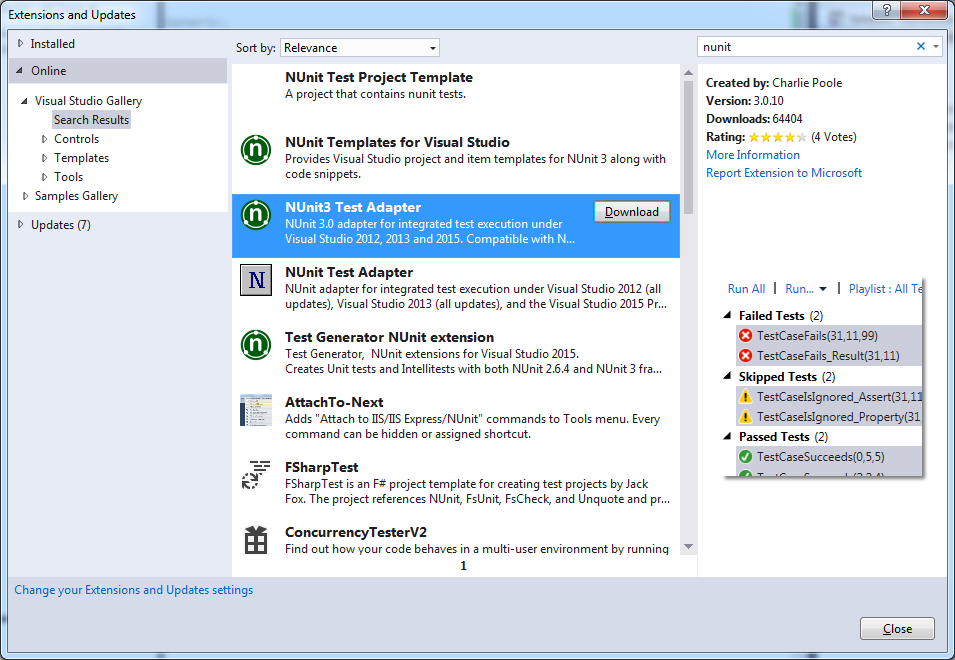
If you want to run NUnit unit tests from within Visual Studio, make sure you have the NUnit Test Adapter. You can get it from Tools menu -> Extensions and Updates…:
nunit-test-adapter

Plain Old Unit Tests

To test this, you’d have to write several unit tests. One of them could look like this:

        [Test]
        public void CalculatePriceTest()
        {
            // arrange

            const decimal adultPrice = 10m;
            var priceCalculator = new PriceCalculator(adultPrice);
            const int age = 10;

            // act

            decimal actualPrice = priceCalculator.CalculatePrice(age);

            // assert

            const decimal expectedPrice = 5m;

            Assert.AreEqual(expectedPrice, actualPrice);
        }

You’d have to write other similar tests to cover the various age ranges and edge cases (e.g. making sure that age boundaries are inclusive or exclusive as needed).

Copying this test code and varying the input data is a bit of a hassle and not quite DRY. An alternative could be to set up a list with the input data and expected result and iterate over it. That’s not necessary, because NUnit gives us a way to do this out of the box.

The TestCase Attribute

NUnit provides a feature called Parameterized Tests. These provide two mechanisms that allow you to easily run the same test with multiple input data.

The first of these is the [TestCase] attribute. This replaces the [Test] attribute we used before, and provides input data to pass to the test method via parameters:

        [TestCase(1, 0)]
        [TestCase(10, 5)]
        [TestCase(20, 10)]
        [TestCase(70, 5)]
        public void CalculatePriceTest(int age, decimal expectedPrice)
        {
            // arrange

            const decimal adultPrice = 10m;
            var priceCalculator = new PriceCalculator(adultPrice);

            // act

            decimal actualPrice = priceCalculator.CalculatePrice(age);

            // assert

            Assert.AreEqual(expectedPrice, actualPrice);
        }

This can actually be simplified further by using the ExpectedResult named parameter, and replacing the Assert with a simple return statement:

        [TestCase(1, ExpectedResult = 0)]
        [TestCase(10, ExpectedResult = 5)]
        [TestCase(20, ExpectedResult = 10)]
        [TestCase(70, ExpectedResult = 5)]
        public decimal CalculatePriceTest(int age)
        {
            // arrange

            const decimal adultPrice = 10m;
            var priceCalculator = new PriceCalculator(adultPrice);

            // act

            decimal actualPrice = priceCalculator.CalculatePrice(age);

            // assert

            return actualPrice;
        }

Note: technically we should declare the expected results as decimals in this case, such as ExpectedResult = 0m. However, the attribute doesn’t seem to allow it. Integers work just fine.

The TestCaseSource Attribute

The [TestCase] attribute works great when you want to run the same test against a few different combinations of input data and expected results. However, it can still get very tedious for very exhaustive tests with a lot of input data.

A more fitting technique for such scenarios is to use the [TestCaseSource] attribute:

        [TestCaseSource("TestCases")]
        public decimal CalculatePriceTest(int age)
        {
            // arrange

            const decimal adultPrice = 10m;
            var priceCalculator = new PriceCalculator(adultPrice);

            // act

            decimal actualPrice = priceCalculator.CalculatePrice(age);

            // assert

            return actualPrice;
        }

The [TestCaseSource] attribute takes the name of a public static property which will provide the input data (i.e. the same data that we passed in to the [TestCase] attribute earlier). You can use this to load the data from arbitrary sources such as databases, files, etc.

There are a number of ways of working with the [TestCaseSource] attribute (refer to the documentation), but a straightforward way to work with it is to use the TestCaseData class. You can provide it with any input data as well as an expected result. For instance, say we have the following CSV file mapping age to expected price, for ages between 0 and 99:

0,0
1,0
2,0
3,0
4,0
5,5
6,5
7,5
8,5
9,5
10,5
11,5
12,5
13,5
14,5
15,5
16,10
17,10
18,10
...

We can write a property that reads this and provides the necessary test case data as follows:

        public static List<TestCaseData> TestCases
        {
            get
            {
                var testCases = new List<TestCaseData>();

                using (var fs = File.OpenRead(@"C:\test.csv"))
                using (var sr = new StreamReader(fs))
                {
                    string line = string.Empty;
                    while (line != null)
                    {
                        line = sr.ReadLine();
                        if (line != null)
                        {
                            string[] split = line.Split(new char[] { ',' },
                                StringSplitOptions.None);

                            int age = Convert.ToInt32(split[0]);
                            decimal expectedPrice = Convert.ToDecimal(split[1]);

                            var testCase = new TestCaseData(age).Returns(expectedPrice);
                            testCases.Add(testCase);
                        }
                    }
                }

                return testCases;
            }
        }

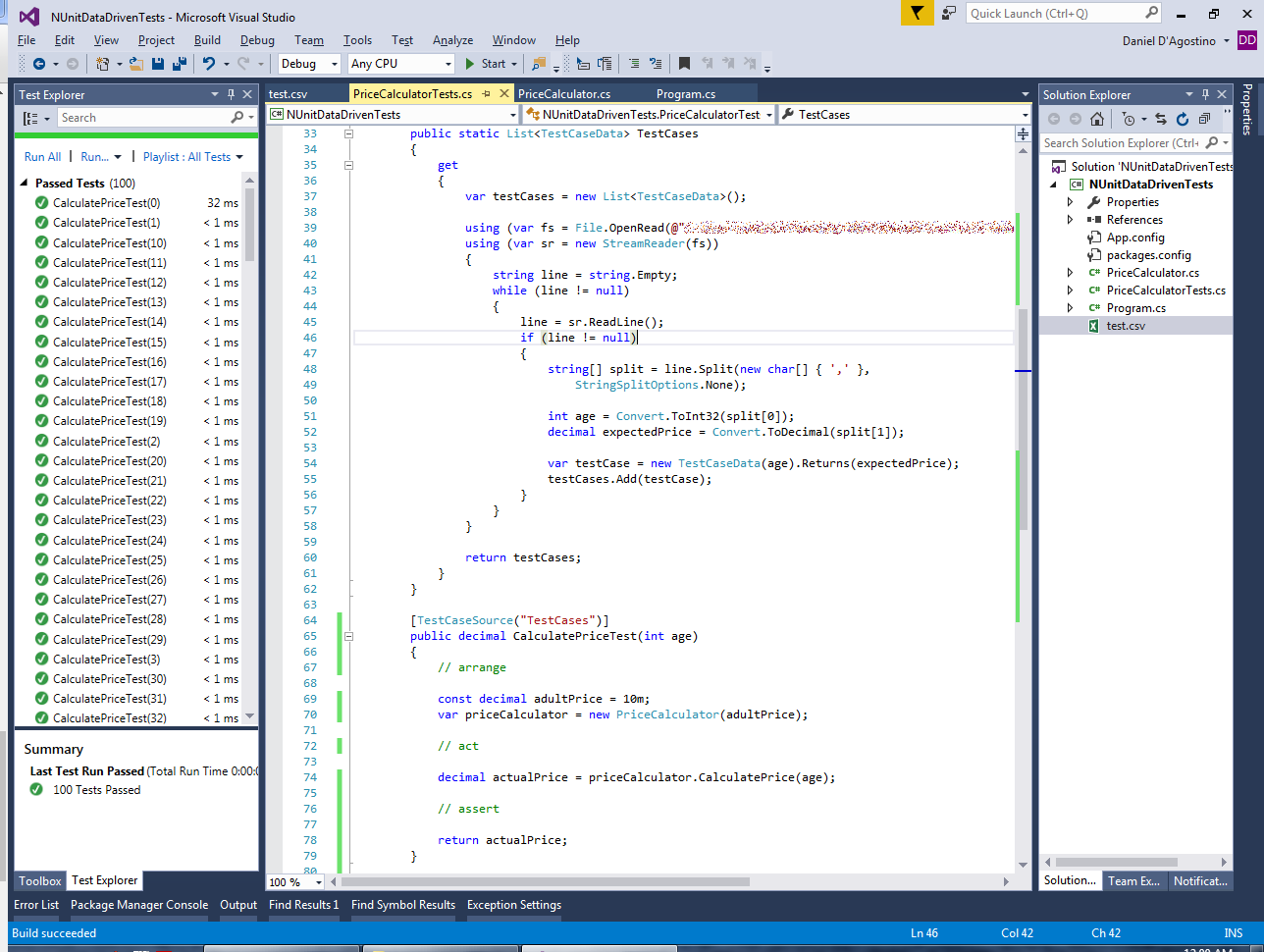
You can see the power of this approach when you run a hundred tests in the bat of an eyelid:
nunit-hundred-tests

The first test takes a small performance penalty as the test data is loaded. But that’s a small price to pay for the development time saved in writing unit tests.

Unity3D: Changing game speed and pausing

This article was originally posted on 4th August 2013 at Programmer’s Ranch using Unity3D 4.2.0f4. This updated version of the article uses Unity3D 5.3.4f1, and the source code is available at the Gigi Labs BitBucket repository. Syntax highlighting and a new screenshot have been added, and the text is slightly modified.

In this article, we’ll learn about controlling time in Unity3D. This allows us to easily pause the game, slow it down, or speed it up.

Create a new project and add a sphere to your scene via GameObject menu -> 3D Object -> Sphere. Next, create a new C# script by right clicking in the Project panel, and selecting Create -> C# Script. Name it Ball, and drag it onto your Sphere in the Hierarchy panel. Double-click the script to open it in Visual Studio.

We’re going to make a very basic bouncing ball just to be able to see the effects of our change in speed. Start off with the following code for the Ball script:

public class Ball : MonoBehaviour
{
    private Vector3 velocity;

    // Use this for initialization
    void Start()
    {
        this.velocity = new Vector3(1.0f, 1.0f, 0.0f);
    }

    // Update is called once per frame
    void Update()
    {
        this.transform.position += this.velocity * Time.deltaTime;

        if (this.transform.position.x > 5.0f)
            velocity.x = -velocity.x;
        else if (this.transform.position.x < -5.0f)
            velocity.x = -velocity.x;
        else if (this.transform.position.y > 6.0f)
            velocity.y = -velocity.y;
        else if (this.transform.position.y < -5.0f)
            velocity.y = -velocity.y;
    }
}

This will make the ball bounce when it reaches the sides of the screen. This may vary depending on your monitor so use whichever values work best.

unity3d-speed-ball

Games look interactive because they generate a certain number of images (frames) per second, usually something between 30 and 60. Time.deltaTime is the time between one frame and the next; multiplying this by the velocity makes the ball move pretty uniformly.

Another important property of the Time class is Time.timeScale. This is a measure of how quickly scripts and animations run, and is set to 1.0f by default. We can change this to make the game run at different speeds. To try it out, add the following code to the Ball script’s Update() method:

        if (Input.GetKeyDown(KeyCode.P))
            Time.timeScale = 0.0f;
        else if (Input.GetKeyDown(KeyCode.N))
            Time.timeScale = 1.0f;
        else if (Input.GetKeyDown(KeyCode.F))
            Time.timeScale = 2.0f;
        else if (Input.GetKeyDown(KeyCode.S))
            Time.timeScale = 0.5f;

What we’re doing here is:

  • If the player presses ‘P’ (pause), we set the time scale to zero, effectively stopping any movement in the game.
  • If the player presses ‘N’ (normal speed), we set the time scale to the default of 1.0f.
  • If the player presses ‘F’ (fast), we set the time scale to double the normal speed.
  • If the player presses ‘S’ (slow), we set the time scale to half the normal speed.

This simple property allows you to not only pause the game, but also to play the game at different speeds. Several games including Starcraft and Warcraft 2 have settings that allow you to tweak the game speed in order to make it more challenging or less frenetic.

starcraft-speed-settings

This article showed how a single line of code in Unity3D is enough to change the speed of a game or pause it. Although this was a very easy tutorial, I hope you will also find it very useful in any games you make!

Monitoring the Size of a Folder

In this article, we’ll develop a simple application that can check the total size taken by a folder (including the files directly inside it, and those in its subfolders), and monitor it periodically to send alerts if it exceeds a certain threshold. This can be useful, for example, to ensure that automatic backups aren’t taking too much space on disk. The source code is available at the Gigi Labs BitBucket repository.

The techniques we’ll use for this are nothing new. We’ll use recursive directory traversal to calculate the total size of the folder, and we’ll use a timer to check this periodically. To send alerts, we’d typically use SmtpClient to send email, but since you’d need an actual SMTP server to test this, we’ll just write something to the console instead.

We’ll start off by calculating the total size of a folder:

        static void Main(string[] args)
        {
            string directoryPath = ConfigurationManager.AppSettings["DirectoryPath"];

            var dir = new DirectoryInfo(directoryPath);
            var size = CalculateDirectorySize(dir);
            Console.WriteLine(size);

            Console.ReadKey(true);
        }

We’re reading the path to the directory to monitor from an application setting (remember to add a reference to System.Configuration). Then we pass the resulting DirectoryInfo object to a recursive CalculateDirectorySize() method, which we’ll define next:

        static long CalculateDirectorySize(DirectoryInfo dir)
        {
            long totalSize = 0L;

            foreach (var file in dir.EnumerateFiles())
                totalSize += file.Length;

            foreach (var subdir in dir.EnumerateDirectories())
                totalSize += CalculateDirectorySize(subdir);

            return totalSize;
        }

This recursive method simply adds up the sizes of the files it contains directly, then adds the total size after recursing into its subdirectories. We’re using the long data type because int will overflow if the folder contains several gigabytes of data.

Note: you might get an UnauthorizedAccessException if you run this in something like C:. It’s easiest to just run it on a folder within your user folder.

This is the result of running the above code against my desktop (which I seem to need to clean up):

dirsize-desktop

We can now refactor our Main() method to run a timer and periodically check the size of the folder:

        private static string directoryPath;

        static void Main(string[] args)
        {
            directoryPath = ConfigurationManager.AppSettings["DirectoryPath"];

            var timer = new Timer();
            timer.Interval = 5000;
            timer.Elapsed += Timer_Elapsed;
            timer.Enabled = true;
            timer.Start();

            Console.ReadKey(true);
        }

Every 5 seconds, the timer will run the following event handler:

        private static void Timer_Elapsed(object sender, ElapsedEventArgs e)
        {
            var dir = new DirectoryInfo(directoryPath);
            var size = CalculateDirectorySize(dir);
            Console.WriteLine(size);
        }

It is now very easy to extend this with a warning mechanism:

        private static string directoryPath;
        private static long threshold;

        static void Main(string[] args)
        {
            directoryPath = ConfigurationManager.AppSettings["DirectoryPath"];
            threshold = Convert.ToInt64(ConfigurationManager.AppSettings["Threshold"]);

            var timer = new Timer();
            timer.Interval = 5000;
            timer.Elapsed += Timer_Elapsed;
            timer.Enabled = true;
            timer.Start();

            Console.ReadKey(true);
        }

        private static void Timer_Elapsed(object sender, ElapsedEventArgs e)
        {
            var dir = new DirectoryInfo(directoryPath);
            var size = CalculateDirectorySize(dir);
            string warning = size > threshold ? " WARNING - THRESHOLD EXCEEDED" : null;
            Console.WriteLine("{0}{1}", size, warning);
        }

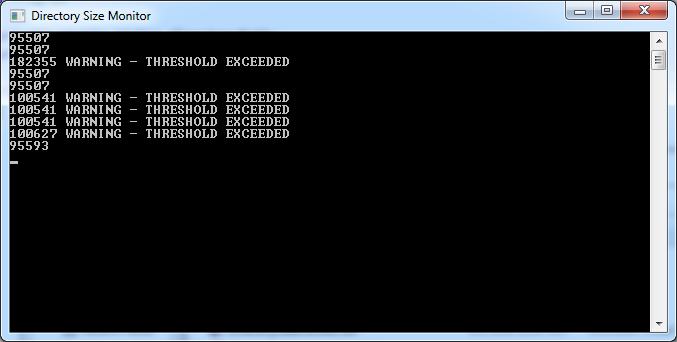
Here’s an example run of this application:

dirsize-warnings

Add to that some exception handling and console title code, and you get the source code available in the Gigi Labs BitBucket repository.

Understanding Recursion with Directory Traversal

This article was originally posted as “C#: Understanding Recursion with Directory Traversal” at Programmer’s Ranch on 27th September 2013. It has undergone minor modifications.

In this article, we’re going to talk about recursion. This technique is often considered an alternative to iteration (i.e. loops), and is useful for a wide variety of situations ranging from computing factorials to clearing empty areas in Minesweeper:

csrecursion-minesweeper

Since factorials are boring, and Minesweeper is a bit complex for this easy tutorial, we’re going to look at the filesystem in order to learn about recursion. For example, take a look at the folder for the solution I just created in SharpDevelop:

csrecursion-cmd-files-folders

See, the filesystem is actually a tree data structure. Each folder can contain other files and folders, which can in turn contain other files and folders, and so on. It isn’t easy to work with things like trees using loops, but with recursion it just comes natural. Let’s see how.

After creating a new console application, add the following at the top, which we need to interact with the filesystem:

using System.IO;

The first thing we want to do is get the current directory where the executable will be running. We do this by using Directory.GetCurrentDirectory(). Let’s try that out:

string currentDir = Directory.GetCurrentDirectory();
Console.WriteLine(currentDir);
Console.ReadKey(true);

…and here’s what we get:

csrecursion-current-dir

Now, we want to navigate up to the first CsRecursion folder, which is the solution folder. From there we’ll be able to list the contents of all the subfolder. To do this, we create an instance of DirectoryInfo:

var dir = new DirectoryInfo(currentDir);

This allows us to get to the parent folder:

dir = dir.Parent.Parent.Parent;

…and this is what we have so far:

csrecursion-parent

Right, now about listing the folder and subfolder contents. Let’s add a method to do that:

public static void ListContents(DirectoryInfo dir)
{

}

In this method, we first want to list all the files in that folder. We can do this using DirectoryInfo.GetFiles(), or else using the static Directory.GetFiles() method, which is easier and works directly with file paths (strings):

foreach (string file in Directory.GetFiles(dir.FullName))
    Console.WriteLine(file);

Okay, now all we need is to do the same thing for all subfolders. It turns out that our ListContents() method can actually call itself, and pass in each subdirectory as a parameter:

foreach (DirectoryInfo subdir in dir.GetDirectories())
    ListContents(subdir);

When a method calls itself, it’s called recursion. In this case we say we are recursing into subdirectories.

Let’s just change Main() so that it calls our ListContents() method:

        public static void Main(string[] args)
        {
            string currentDir = Directory.GetCurrentDirectory();
            var dir = new DirectoryInfo(currentDir);
            dir = dir.Parent.Parent.Parent;
            ListContents(dir);
           
            Console.ReadKey(true);
        }

…and voilà:

csrecursion-listing

As you can see, there’s a very small amount of code, and recursion is a perfect fit for this kind of thing, because the same method can work on folders at different levels of the filesystem.

There’s an important concept about recursion you need to be aware of, that might not be so evident in this example: the stopping condition. If a method calls itself and has no way to stop calling itself, you get a sort of infinite loop which actually ends in a stack overflow (in short, there’s a limit to the number of times a method can call another method). Therefore, a recursive function always needs a way to stop calling itself.

If you’re doing factorials, recursion stops when n=1. If you’re computing a Fibonacci sequence, n=0 and n=1 are the stopping conditions. In our case, recursion stops when a folder has no further subfolders. In Minesweeper, recursion stops when there are no more adjacent blank squares (you either hit an edge or a number).

Anyhow, as we have seen in this article, recursion is a great technique to use when your data has divergent paths (most notably when dealing with trees).

C# AppSettings: Upgrading Settings between Assembly Versions

This article was originally posted at Programmer’s Ranch on 15th April 2014.

In “C# AppSettings: Saving User Preferences in a WPF Browser application“, we learned how to define and use user settings in a .NET application. In this article we’ll deal with a slight complication when it comes to maintaining settings between different application versions. But first, let’s build a very simple application to get the point across.

After creating a new Console Application in your favourite IDE, go Add -> New Item… and add a Settings file called… well… Settings.settings! In the designer, add a setting called Name which will be a String in User scope:

cs-settingsupgrade-designer

In our Main() method, let us now write some code that does something with this setting.

        public static void Main(string[] args)
        {
            string name = Settings.Default.Name;
           
            if (string.IsNullOrEmpty(name))
            {
                Console.WriteLine("Hello! Who might you be?");
                Console.Write("You say: ");
                name = Console.ReadLine();
                Console.WriteLine("Pleased to meet you, {0}!", name);
               
                Settings.Default.Name = name;
                Settings.Default.Save();
            }
            else
            {
                Console.WriteLine("Hi {0}! Nice to see you again!", name);
            }
           
            Console.ReadKey(true);
        }

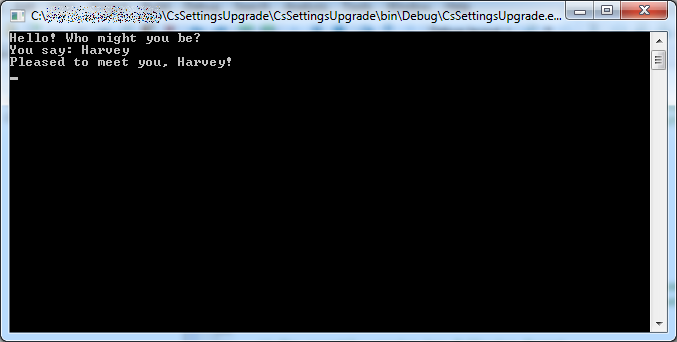
We’re not doing anything fancy here. If the Name setting contains something, then we just output a one-liner; otherwise we ask the user for his name and then save it in the Name setting. Here’s what it looks like when you run it for the first time:

cs-settingsupgrade-introductions

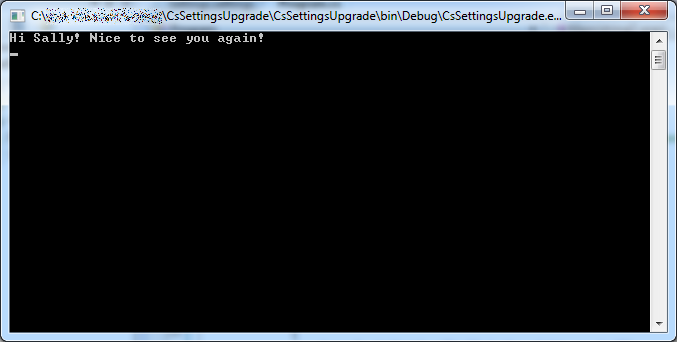
And when we run it again:

cs-settingsupgrade-remember

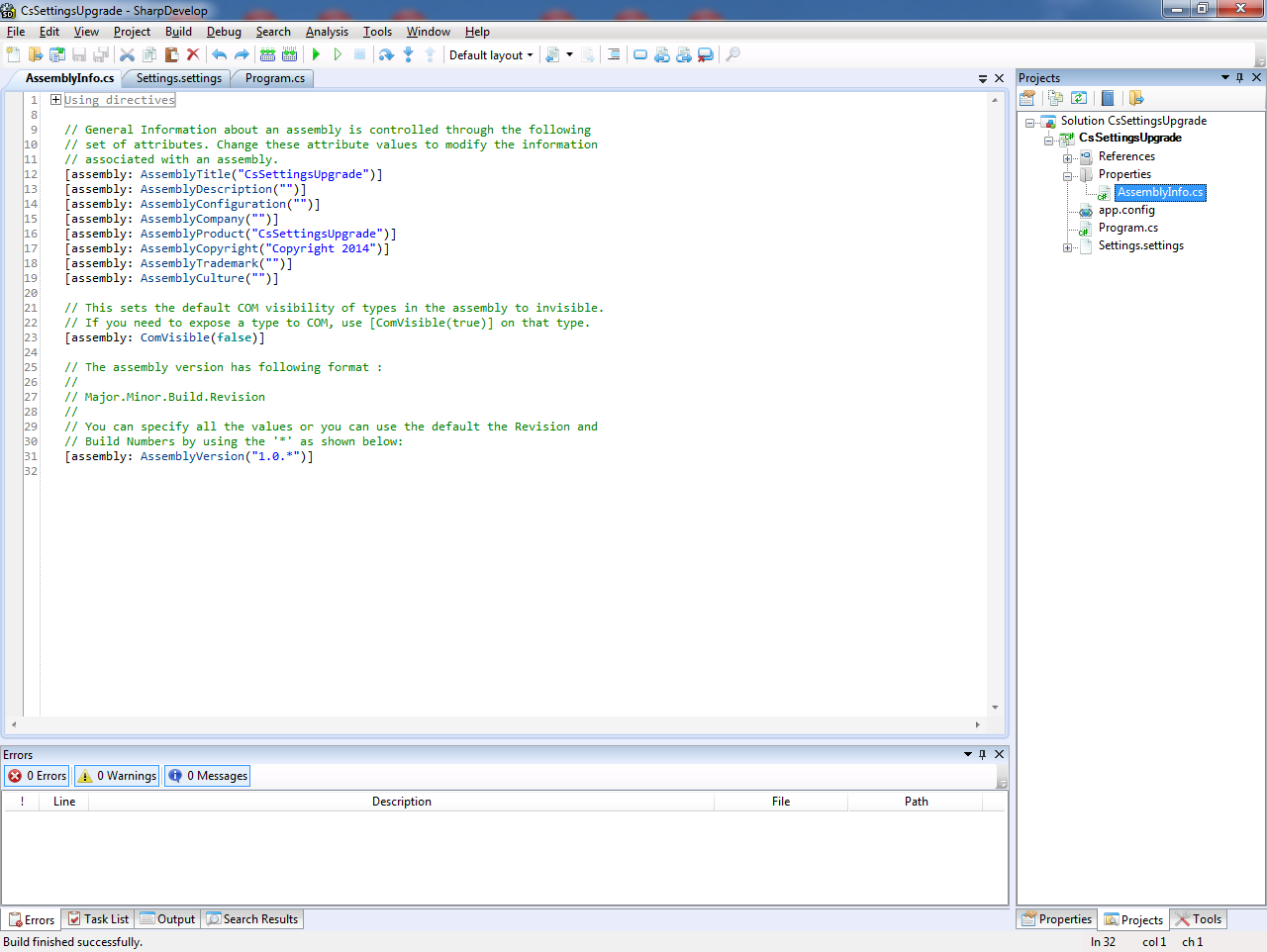
Now you see, these settings are tied to the version of the program. Each project you compile has something called an assembly version. This is an internal version number assigned to each .exe and .dll file. In SharpDevelop, by default this is set to 1.0.*, which generates something like 1.0.5218.35490 (the actual value is different each time you build, because of the ‘*’ bit). You can find the AssemblyVersion within the AssemblyInfo.cs file that is automatically created when you create a new project:

cs-settingsupgrade-assemblyversion

Now, since a different assembly version is generated with each build, you’ll be quick to notice a problem. If you change the code (even just add a space) and build and run again, the setting you had earlier is somehow lost, and you’re back to the name prompt:

cs-settingsupgrade-introduction-again

The problem here is that the settings are tied not only to program and user, but also to the assembly version. Each time the assembly version changes, a new set of settings are created for the application.

We can use a fixed assembly version:

[assembly: AssemblyVersion("1.0.0.0")]

…and now even after changing code, the settings are remembered:

cs-settingsupgrade-remember-again

However, the problem remains. At some point we’ll want to change that assembly version to, say, 1.0.0.1, and we don’t want to lose our settings.

There is actually a solution to this problem, described in this StackOverflow answer. In a nutshell, you need to import the settings from your old application version by upgrading them.

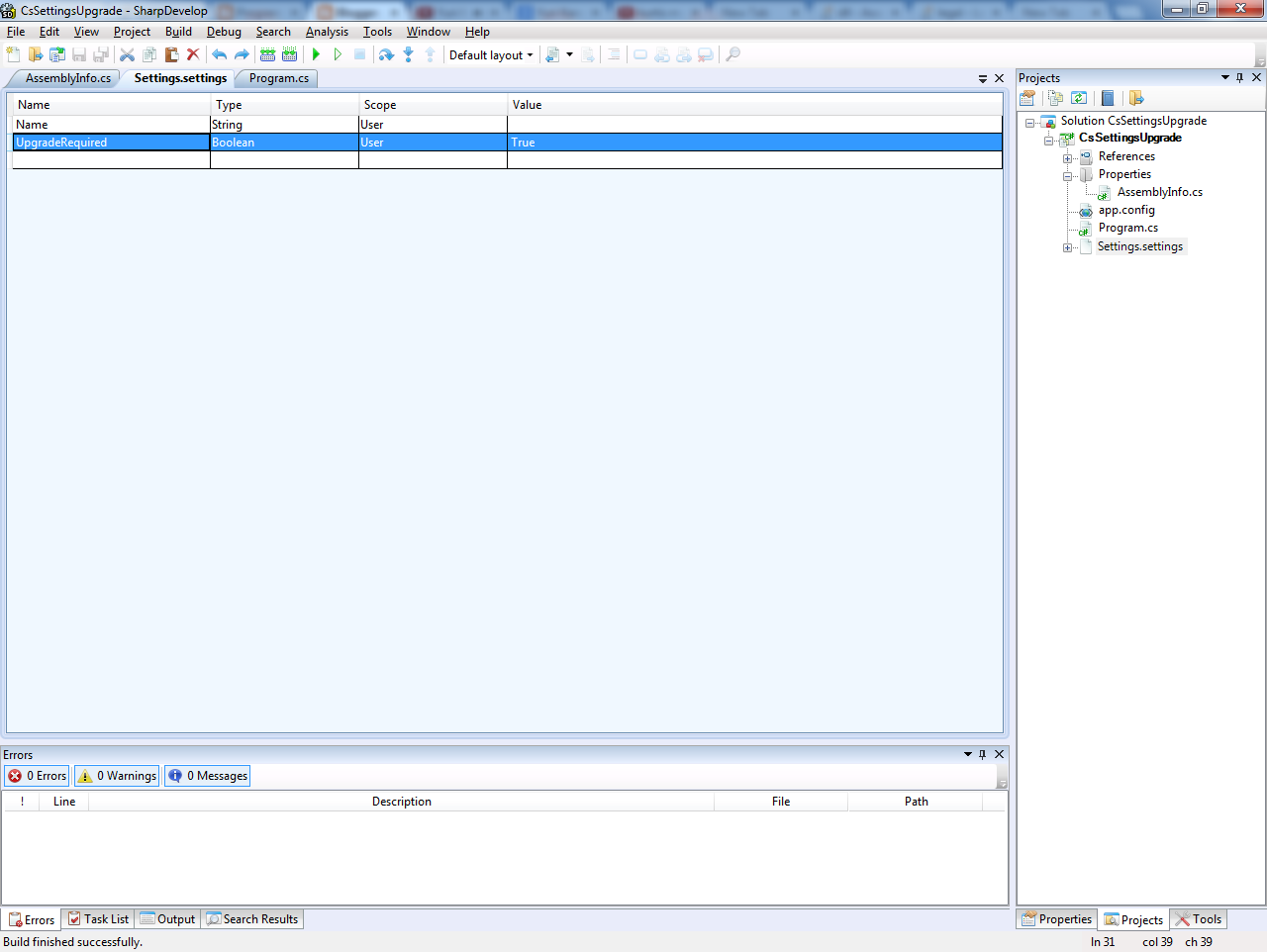
To do this, first add a boolean setting called UpgradeRequired in your settings file, and make sure to set it to True by default:

cs-settingsupgrade-upgraderequired

Before we actually use this, let’s change the assembly version to see that the settings are not loaded:

[assembly: AssemblyVersion("1.0.0.1")]

And sure enough, you are asked for your name once again when running the program:

cs-settingsupgrade-introduction-3

Then, at the beginning of Main(), add the following code to upgrade the existing settings:

            if (Settings.Default.UpgradeRequired)
            {
                Settings.Default.Upgrade();
                Settings.Default.UpgradeRequired = false;
                Settings.Default.Save();
            }

If you now run the application, the old settings are retrieved and saved into the new settings. Note that the UpgradeRequired setting is set to false as part of the upgrade operation, so that it is done only the first time.

cs-settingsupgrade-remember-again

It works pretty nicely.

In this article, we learned about the assembly version, an internal version associated with each .dll and .exe file produced when compiling a .NET project. We also learned about the role it plays in .NET user settings, and how to upgrade them to make them survive changes in the assembly version.