Category Archives: Software development

Double Buffering in Redis

This article deals with a specific situation. You have a program that is continuously building a data structure from scratch. This data structure takes long (i.e. several seconds) to build, but is continuously accessed by clients. While it is being built, clients will end up retrieving partial data. This article explains how a well-known technique from computer graphics can be used in Redis to address this problem. The full source code is available at BitBucket.

The Problem

Like just about anything, this scenario is best demonstrated with an example. So we’ll first start with some code to set up a client connection to Redis:

        private static Lazy<ConnectionMultiplexer> LazyConnection
            = new Lazy<ConnectionMultiplexer>(() =>
            {
                var config = new ConfigurationOptions();
                config.EndPoints.Add("localhost:6379");
                config.AbortOnConnectFail = false;

                return ConnectionMultiplexer.Connect(config);
            }
        );

        public static ConnectionMultiplexer Connection
        {
            get
            {
                return LazyConnection.Value;
            }
        }

The code above is based on the feedback I received from this StackOverflow question and is the proper way to get a connection set up using StackExchange.Redis. You’ll need to install the StackExchange.Redis package via NuGet before you can use this code.

Our actual program code is extremely simple. We establish a connection (via the property above) and then continuously call a method that populates our data structure:

        static void Main(string[] args)
        {
            var connection = Connection;
            var database = connection.GetDatabase(0);

            while (true)
                PopulateAwesomeCompanies(database);
        }

We use this infinite loop because the nature of the data may be dynamic, for example items may be removed, and it may be hard to keep track of them. So the data structure is simply rebuilt regularly.

For this simple example, our data structure is going to be a Redis sorted set that stores the most awesome companies to work for, sorted by awesomeness. Here is the data we’re going to be using:

        private static string[] companies = new string[]
        {
            "Google",
            "Apple",
            "Amazon",
            "GFI",
            "Blizzard",
            "IBM"
        };

        private static int[] companyScores = new int[] { 95, 15, 80, 0, 100, 56 };

The method that builds the data structure is also very simple. It starts off by erasing the existing data, and then for each company, it calculates their awesomeness (simulated by a simple delay) and adds them to the sorted set:

        public static void PopulateAwesomeCompanies(IDatabase database)
        {
            var key = "awesomecompanies";

            Console.WriteLine("Starting afresh...");

            database.KeyDelete(key); // start with a fresh sorted set

            for (int i = 0; i < 6; i++)
            {
                Console.WriteLine("Calculating {0}", companies[i]);

                // simulate expensive computation
                Thread.Sleep(5000);

                // add company with respective score
                database.SortedSetAdd(key, companies[i], companyScores[i]);
            }
        }

The problem with this approach is that anytime a client accesses this data structure while it’s still being built, they will get partial data:
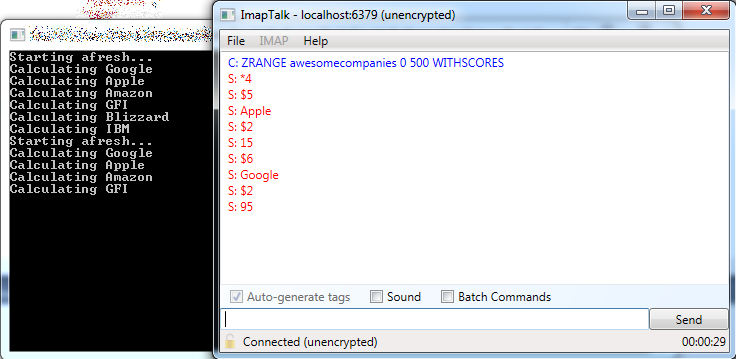
redis-doublebuffering-partialdata

That sucks, because we want the data to be fresh, but we also want it to be complete when it is handed to clients.

Double Buffering in Computer Graphics

There is a technique in computer graphics called double buffering which solves a similar problem. Here’s some background from Wikipedia:

“In computer graphics, double buffering is a technique for drawing graphics that shows no (or less) flicker, tearing, and other artifacts.

“It is difficult for a program to draw a display so that pixels do not change more than once. For instance to update a page of text it is much easier to clear the entire page and then draw the letters than to somehow erase all the pixels that are not in both the old and new letters. However, this intermediate image is seen by the user as flickering. In addition computer monitors constantly redraw the visible video page (at around 60 times a second), so even a perfect update may be visible momentarily as a horizontal divider between the “new” image and the un-redrawn “old” image, known as tearing.

“A software implementation of double buffering has all drawing operations store their results in some region of system RAM; any such region is often called a “back buffer”. When all drawing operations are considered complete, the whole region (or only the changed portion) is copied into the video RAM (the “front buffer”); this copying is usually synchronized with the monitor’s raster beam in order to avoid tearing. Double buffering necessarily requires more memory and CPU time than single buffering because of the system memory allocated for the back buffer, the time for the copy operation, and the time waiting for synchronization.”

In short, double buffering involves the following steps:

  1. Draw the next frame (screen image) in a temporary location in memory that isn’t directly visible to the user (the back buffer)
  2. Swap the front buffer (the actual image on the screen) with the back buffer

That way, the change between the old image and the new one is instantaneous and the user will never notice the difference.

Double Buffering in Redis

We can apply a similar technique in Redis as follows:

  1. Build the new sorted set using a separate, temporary key
  2. Rename the temporary key to the existing key (implicitly deletes the temporary key)

This is how it works out in practice:

        public static void PopulateAwesomeCompanies(IDatabase database)
        {
            var tempKey = "awesomecompaniestemp";
            var key = "awesomecompanies";

            Console.WriteLine("Starting afresh...");

            for (int i = 0; i < 6; i++)
            {
                Console.WriteLine("Calculating {0}", companies[i]);

                // simulate expensive computation
                Thread.Sleep(5000);

                // add company with respective score
                database.SortedSetAdd(tempKey, companies[i], companyScores[i]);
            }

            // replace actual data in key with fresh data from tempKey
            database.KeyRename(tempKey, key);
        }

Here, we aren’t deleting any data structure before we begin, as we did before. Instead, we build our fresh sorted set using the temp key, and then copy it over to the actual key (the one that clients will be requesting). We do this using the Redis RENAME command, which copies the data from the temp key to the actual key, and implicitly also deletes the temp key. Since Redis is single-threaded, this operation is atomic and there is no race condition risk while the rename operation is happening.

The result of this is that the client will always have access to the latest complete data, even while the data structure is being rebuilt:

redis-doublebufferingfulldata

A* Pathfinding Example in C#

The A* pathfinding algorithm is one of the most popular ways of computing the shortest path between two points for game development. “Introduction to A* Pathfinding” by Johann Fradj illustrates the algorithm pretty nicely. I’ve written a C# implementation based on his example code, intended as nothing more than a learning exercise, and I am sharing it in this article. You can get the full source code directly from BitBucket; if you run it, you’ll see the algorithm run step by step.

Our A* algorithm will compute the shortest path between two points, A and B, on a small square grid of tiles. In order to really see it at work, we’ll introduce some obstacles, marked as X in the map below:

            string[] map = new string[]
            {
                "+------+",
                "|      |",
                "|A X   |",
                "|XXX   |",
                "|   X  |",
                "| B    |",
                "|      |",
                "+------+",
            };

The A* algorithm needs to keep track of the tiles it’s visited (closed list) and the ones it’s considering (open list). For this we define a Location class:

    class Location
    {
        public int X;
        public int Y;
        public int F;
        public int G;
        public int H;
        public Location Parent;
    }

Aside from the tile coordinates, each visited tile has three scores (F, G and H). The G score is the distance from the starting point, and the H score is the estimated distance from the destination (calculated as the city block distance). The F score is just G + H. For a full explanation of these values, read the reference article, “Introduction to A* Pathfinding“.

The H score is very simple to calculate – it’s just the horizontal and vertical distance from the current tile to the destination (ignoring any obstacles):

        static int ComputeHScore(int x, int y, int targetX, int targetY)
        {
            return Math.Abs(targetX - x) + Math.Abs(targetY - y);
        }

The Location class also has a Parent property. That’s used to store the previous tile, and it is needed to keep track of the path itself by the time the destination is reached.

Before we start the algorithm, we initialise some values:

            Location current = null;
            var start = new Location { X = 1, Y = 2 };
            var target = new Location { X = 2, Y = 5 };
            var openList = new List<Location>();
            var closedList = new List<Location>();
            int g = 0;

            // start by adding the original position to the open list
            openList.Add(start);

The g value is the G-score; remember it’s the distance from the starting location to the current tile. We keep track of this simply by incrementing its value each time we move to a new tile.

We add the starting location to the open list, so that the algorithm can begin working. The algorithm itself runs in a loop:

            while (openList.Count > 0)
            {
                // algorithm's logic goes here
            }

For each iteration, the A* algorithm will retrieve the tile with the lowest F-score:

                // get the square with the lowest F score
                var lowest = openList.Min(l => l.F);
                current = openList.First(l => l.F == lowest);

This is not necessarily the most efficient way of doing this, but works pretty well for this example. Also note that if there are multiple locations with the same F-score, it doesn’t really matter which is chosen (here we just take the first one) – again see “Introduction to A* Pathfinding” for details.

                // add the current square to the closed list
                closedList.Add(current);

                // remove it from the open list
                openList.Remove(current);

Here we add the current tile to the closed list, and remove it from the open list, to prevent it from being revisited in a subsequent iteration.

                // show current square on the map
                Console.SetCursorPosition(current.X, current.Y);
                Console.Write('.');
                Console.SetCursorPosition(current.X, current.Y);
                System.Threading.Thread.Sleep(1000);

The code above is not part of the A* algorithm. It simply marks the current tile with a dot and waits for a second so that you can follow the algorithm’s progress interactively.

                // if we added the destination to the closed list, we've found a path
                if (closedList.FirstOrDefault(l => l.X == target.X && l.Y == target.Y) != null)
                    break;

There are two conditions that allow the A* algorithm to terminate. One is that there are no more tiles in the open list to process, which would indicate that there is no path between A and B (we aren’t catering for this scenario in this example). The other is when the path is actually found, and that is catered for by the code above.

The rest of the algorithm evaluates adjacent tiles (i.e. the ones immediately one tile left, right, up and down from the current one):

                var adjacentSquares = GetWalkableAdjacentSquares(current.X, current.Y, map);
                g++;

GetWalkableAdjacentSquares() is defined thusly:

        static List<Location> GetWalkableAdjacentSquares(int x, int y, string[] map)
        {
            var proposedLocations = new List<Location>()
            {
                new Location { X = x, Y = y - 1 },
                new Location { X = x, Y = y + 1 },
                new Location { X = x - 1, Y = y },
                new Location { X = x + 1, Y = y },
            };

            return proposedLocations.Where(
                l => map[l.Y][l.X] == ' ' || map[l.Y][l.X] == 'B').ToList();
        }

So back in the algorithm’s loop, we then have a loop over adjacent squares, computing their scores and adding them to the open list when it makes sense to do so:

                foreach(var adjacentSquare in adjacentSquares)
                {
                    // if this adjacent square is already in the closed list, ignore it
                    if (closedList.FirstOrDefault(l => l.X == adjacentSquare.X
                            && l.Y == adjacentSquare.Y) != null)
                        continue;

                    // if it's not in the open list...
                    if (openList.FirstOrDefault(l => l.X == adjacentSquare.X
                            && l.Y == adjacentSquare.Y) == null)
                    {
                        // compute its score, set the parent
                        adjacentSquare.G = g;
                        adjacentSquare.H = ComputeHScore(adjacentSquare.X,
                            adjacentSquare.Y, target.X, target.Y);
                        adjacentSquare.F = adjacentSquare.G + adjacentSquare.H;
                        adjacentSquare.Parent = current;

                        // and add it to the open list
                        openList.Insert(0, adjacentSquare);
                    }
                    else
                    {
                        // test if using the current G score makes the adjacent square's F score
                        // lower, if yes update the parent because it means it's a better path
                        if (g + adjacentSquare.H < adjacentSquare.F)
                        {
                            adjacentSquare.G = g;
                            adjacentSquare.F = adjacentSquare.G + adjacentSquare.H;
                            adjacentSquare.Parent = current;
                        }
                    }
                }

There’s some duplicate code in the if/else statement above, but I preferred to leave it that way as it’s more readable (which is more important here), especially if you’re following along with “Introduction to A* Pathfinding“.

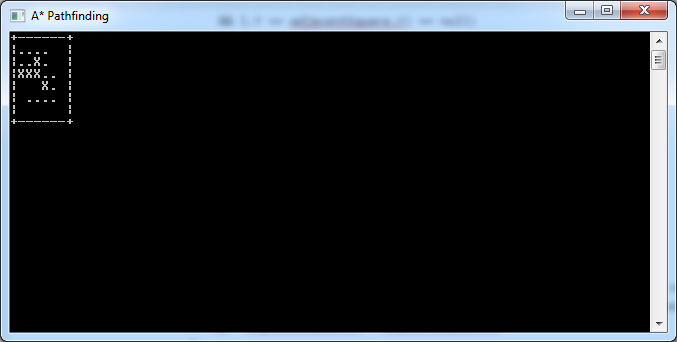
That’s the last thing in the algorithm itself. So once it’s done, you can see the locations that were examined thanks to the dots drawn on the map:

astar-pathfinding-1

When it’s done, the program will run the following code, tracing its way back from destination to start by following the Parent property:

            // assume path was found; let's show it
            while (current != null)
            {
                Console.SetCursorPosition(current.X, current.Y);
                Console.Write('_');
                Console.SetCursorPosition(current.X, current.Y);
                current = current.Parent;
                System.Threading.Thread.Sleep(1000);
            }

This illustrates the actual shortest path by transforming the dots to underscores:

astar-pathfinding-2

You’ll notice that there is in fact a location that was examined but not used in the final path. That’s pretty normal, as A* may need to backtrack at times.

A Redis Analogy in .NET

In this article, we’re going to create a simple Console Application that feels a little bit like Redis. The intention is simply to illustrate what you can do with Redis, not to create anything serious. For this reason, the code will be greatly simplified: we’ll have only a subset of Redis commands, no multithreading, no client/server code, (almost) no parameter validation, and no architecture whatsoever.

Introduction

Redis is a key-value store. You can think of it as a dictionary. In its simplest sense, it could be represented like this:

var store = new Dictionary<string, string>();

However, values in Redis can be more than just strings. In fact, Redis currently supports five main data types:

  • Strings
  • Lists
  • Hashes
  • Sets
  • Sorted Sets

Since in .NET these data types don’t share a common interface, we will be representing our values as plain objects:

var store = new Dictionary<string, object>();

This will result in some unfortunate type checking code, but this is necessary in this case. Maintaining a separate dictionary per type is not feasible since keys must be globally unique (i.e. you can’t use the same key for a list and a hash).

Note also how the use of a dictionary as an in-memory store means we aren’t persisting anything to disk. This might seem to be an oversimplification, but Redis’ default configuration is actually to store data only in memory. It does support persistence if you need it, but we won’t go there.

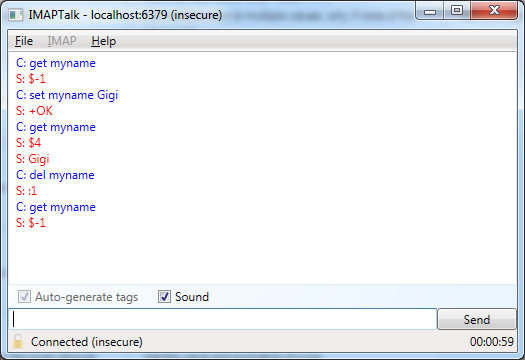
Redis supports a simple protocol which feels a bit like issuing commands in a command line if you use something like IMAPTalk. Thus, in our Console Application, we’ll use the following code to simulate Redis’ command processing logic:

            string input = string.Empty;

            while (true)
            {
                input = Console.ReadLine();

                if (!string.IsNullOrEmpty(input))
                {
                    var tokens = input.Split(); // split the input into words or tokens

                    if (tokens.Length >= 1)
                    {
                        string command = tokens.First().ToLowerInvariant();

                        try
                        {
                            switch(command)
                            {
                                    // TODO command handling code goes here
                                default:
                                    Console.WriteLine("Unrecognized command.");
                                    break;
                            }
                        }
                        catch (Exception)
                        {
                            Console.WriteLine("Error!");
                        }
                    }
                }
                else
                    Console.WriteLine("Invalid command.");
            }

The above code just accepts input, checks what the command is, and takes action accordingly. In the next sections, we’ll replace that TODO with code to actually handle some of the commands.

Strings

redis-imaptalk-strings

The simplest data type in Redis is the string. You can easily assign a value to a key using the SET command, and then retrieve that value using the GET command, as shown above. The SET command is just a matter of assigning the value in the dictionary:

                                case "set":
                                    {
                                        string key = tokens[1];
                                        string value = tokens[2];
                                        store[key] = value;
                                        Console.WriteLine("Done.");
                                    }
                                    break;

The GET command similarly involves basic retrieval from the dictionary, but we also need to cater for non-existent keys, and values that are not strings:

                                case "get":
                                    {
                                        string key = tokens[1];
                                        if (store.ContainsKey(key))
                                        {
                                            var value = store[key] as string;
                                            if (value != null)
                                                Console.WriteLine(value);
                                            else
                                                Console.WriteLine("Invalid data type!");
                                        }
                                        else
                                            Console.WriteLine("Key not found!");
                                    }
                                    break;

We can also support key removal using the DEL command. Again, this is a simple operation against the dictionary:

                                case "del":
                                    {
                                        string key = tokens[1];
                                        store.Remove(key);
                                        Console.WriteLine("Done.");
                                    }
                                    break;

We can now test our three basic string commands:

redis-analogy-strings

Lists

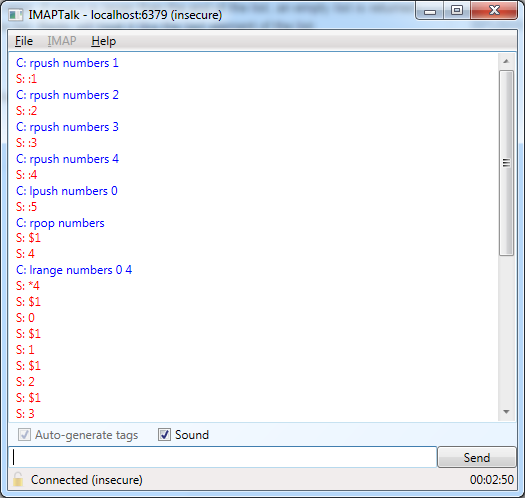
redis-imaptalk-lists

Redis also supports Lists. You can use the LPUSH and RPUSH commands to add an item to the beginning or end of a list respectively – allowing you to easily use the list as a stack or a queue as well. These operations also automatically create the list if it doesn’t already exist.

Here’s how we can implement LPUSH:

                                case "lpush":
                                    {
                                        string key = tokens[1];
                                        string value = tokens[2];
                                        List<string> list = null;

                                        // create/get list

                                        if (!store.ContainsKey(key))
                                        {
                                            list = new List<string>();
                                            store[key] = list;
                                        }
                                        else
                                            list = store[key] as List<string>;

                                        // insert new value in list

                                        if (list != null)
                                        {
                                            list.Insert(0, value);
                                            Console.WriteLine("Done");
                                        }
                                        else
                                            Console.WriteLine("Invalid data type!");
                                    }
                                    break;

The first thing we do here is retrieve the list we’re going to work with. If it doesn’t exist, we create it. We can then proceed to insert the new item into the list – in this case using List<T>.Insert() to put the item at the beginning of the list.

Note that in Redis, LPUSH actually supports insertion of multiple items with the same command. I’m not doing that here to keep things as simple as possible.

RPUSH is pretty much the same thing, except that you call List<T>.Add() instead of .Insert(), so that the new item ends up at the end of the list.

To remove items from the list, we’ll implement LPOP and RPOP, which remove items from the beginning and end of the list respectively. Here’s LPOP:

                                case "lpop":
                                    {
                                        string key = tokens[1];
                                        
                                        if (store.ContainsKey(key))
                                        {
                                            var list = store[key] as List<string>;
                                            if (list != null)
                                            {
                                                if (list.Count > 0)
                                                {
                                                    Console.WriteLine(list.First());
                                                    list.RemoveAt(0);
                                                }
                                                else
                                                    Console.WriteLine("Empty!");
                                            }
                                            else
                                                Console.WriteLine("Invalid data type!");
                                        }
                                        else
                                            Console.WriteLine("Key not found!");
                                    }
                                    break;

Aside from all the validity checks, all we’re doing here is returning the first item in the list, and then removing it. If there are no items in the list, we simply return “Empty!”.

For RPOP, the only difference is that we retrieve and remove the last item instead:

                                                    Console.WriteLine(list.Last());
                                                    list.RemoveAt(list.Count - 1);

Finally, we need something that can retrieve items in the list (without removing them). For this we have LRANGE, which retrieves a specified range of items (e.g. item #2 till item #4) from the beginning of the list. Indices may be out of range without causing errors; the indices that actually exist will be returned.

Here is the implementation for LRANGE:

                                case "lrange":
                                    {
                                        string key = tokens[1];
                                        int start = Convert.ToInt32(tokens[2]);
                                        int stop = Convert.ToInt32(tokens[3]);

                                        if (start > stop)
                                            Console.WriteLine("Empty!");
                                        else if (store.ContainsKey(key))
                                        {
                                            var list = store[key] as List<string>;
                                            if (list != null)
                                            {
                                                if (start < 0)
                                                    start = 0;

                                                if (stop > list.Count - 1)
                                                    stop = list.Count - 1;

                                                var items = list.GetRange(start, stop - start + 1);
                                                if (items.Any())
                                                {
                                                    foreach(var item in items)
                                                        Console.WriteLine(item);
                                                }
                                                else
                                                    Console.WriteLine("Empty!");
                                            }
                                            else
                                                Console.WriteLine("Invalid data type!");
                                        }
                                        else
                                            Console.WriteLine("Key not found!");
                                    }
                                    break;

We can now test our list functionality:

redis-analogy-lists

Hashes

redis-imaptalk-hashes

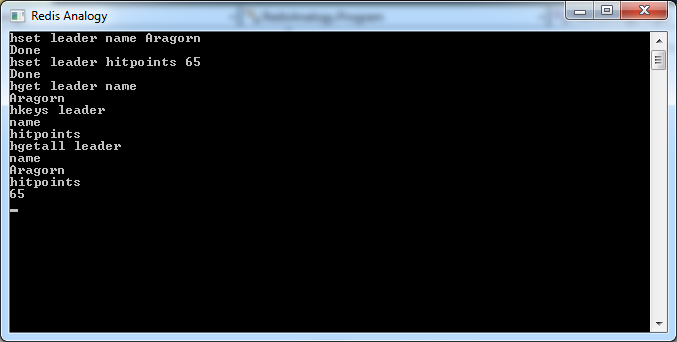
Hashes are like dictionaries in themselves. Rather than mapping a value directly to a key, hashes map values onto a field of a key. This allows you to represent objects with a number of attributes (e.g. a customer having separate values for Name, Age, etc).

With HSET, we can assign a value to a key-field, as shown in the screenshot above. Like with Lists, this operation creates the Hash if it doesn’t already exist. Here’s the HSET implementation:

                                case "hset":
                                    {
                                        string key = tokens[1];
                                        string field = tokens[2];
                                        string value = tokens[3];
                                        Dictionary<string, string> hash = null;

                                        // create/get hash

                                        if (!store.ContainsKey(key))
                                        {
                                            hash = new Dictionary<string, string>();
                                            store[key] = hash;
                                        }
                                        else
                                            hash = store[key] as Dictionary<string, string>;

                                        // set field in hash

                                        if (hash != null)
                                        {
                                            hash[field] = value;
                                            Console.WriteLine("Done");
                                        }
                                        else
                                            Console.WriteLine("Invalid data type!");
                                    }
                                    break;

The code is very similar to that of LPUSH, with the difference that the key now maps to a dictionary (the hash), and the value is assigned to a field on that hash. Think of it as: key -> field -> value.

After using HSET to set a value, we can retrieve it with HGET:

                                case "hget":
                                    {
                                        string key = tokens[1];
                                        string field = tokens[2];

                                        if (store.ContainsKey(key))
                                        {
                                            var hash = store[key] as Dictionary<string, string>;

                                            if (hash != null)
                                            {
                                                if (hash.ContainsKey(field))
                                                    Console.WriteLine(hash[field]);
                                                else
                                                    Console.WriteLine("Field not found!");
                                            }
                                            else
                                                Console.WriteLine("Invalid data type!");
                                        }
                                        else
                                            Console.WriteLine("Key not found!");
                                    }
                                    break;

HKEYS can be used to retrieve all fields of a hash, given the key:

                                case "hkeys":
                                    {
                                        string key = tokens[1];

                                        if (store.ContainsKey(key))
                                        {
                                            var hash = store[key] as Dictionary<string, string>;

                                            if (hash != null)
                                            {
                                                foreach (var field in hash.Keys)
                                                    Console.WriteLine(field);
                                            }
                                            else
                                                Console.WriteLine("Invalid data type!");
                                        }
                                        else
                                            Console.WriteLine("Key not found!");
                                    }
                                    break;

HGETALL, on the other hand, gets all fields of a hash and their corresponding values:

                                case "hgetall":
                                    {
                                        string key = tokens[1];

                                        if (store.ContainsKey(key))
                                        {
                                            var hash = store[key] as Dictionary<string, string>;

                                            if (hash != null)
                                            {
                                                foreach (var kvp in hash)
                                                {
                                                    Console.WriteLine(kvp.Key);
                                                    Console.WriteLine(kvp.Value);
                                                }
                                            }
                                            else
                                                Console.WriteLine("Invalid data type!");
                                        }
                                        else
                                            Console.WriteLine("Key not found!");
                                    }
                                    break;

Let’s test out our hash functionality:

redis-analogy-hashes

Sets

redis-imaptalk-sets

Sets in Redis are the mathematical kind: all items in a set are distinct, and multiple sets may be combined via standard set operations (union, intersection and difference).

Use SADD to add one or more items to a set. If the set does not exist, it will be created automatically. Here’s the SADD implementation:

                                case "sadd":
                                    {
                                        string key = tokens[1];
                                        var members = tokens.Skip(2); // sadd key member [member ...]
                                        HashSet<string> set = null;

                                        // create/get set

                                        if (!store.ContainsKey(key))
                                        {
                                            set = new HashSet<string>();
                                            store[key] = set;
                                        }
                                        else
                                            set = store[key] as HashSet<string>;

                                        // add member to set

                                        if (set != null)
                                        {
                                            foreach (var member in members)
                                                set.Add(member);

                                            Console.WriteLine("Done");
                                        }
                                        else
                                            Console.WriteLine("Invalid data type!");
                                    }
                                    break;

SMEMBERS gives you all the members of the set:

                                case "smembers":
                                    {
                                        string key = tokens[1];

                                        if (store.ContainsKey(key))
                                        {
                                            var set = store[key] as HashSet<string>;

                                            if (set != null)
                                            {
                                                foreach (var member in set)
                                                    Console.WriteLine(member);
                                            }
                                            else
                                                Console.WriteLine("Invalid data type!");
                                        }
                                        else
                                            Console.WriteLine("Key not found!");
                                    }
                                    break;

Standard set operations (union, intersection and difference) require two sets. If either doesn’t exist, these operations will return an empty set rather than giving any kind of error. In Redis, these operations may work on multiple sets at once; but in these examples we’re going to limit the scenario to two sets at a time for the sake of simplicity.

Set union (SUNION) returns all distinct items in the specified sets:

                                case "sunion":
                                    {
                                        List<HashSet<string>> sets = new List<HashSet<string>>();

                                        var key1 = tokens[1];
                                        var key2 = tokens[2];

                                        // let's assume the keys exist and are the correct type

                                        var set1 = store[key1] as HashSet<string>;
                                        var set2 = store[key2] as HashSet<string>;

                                        // get union

                                        var union = set1.Union(set2);
                                        foreach(var member in union)
                                            Console.WriteLine(member);
                                    }
                                    break;

Set intersection (SINTER) returns those items which are common to both sets:

                                case "sinter":
                                    {
                                        List<HashSet<string>> sets = new List<HashSet<string>>();

                                        var key1 = tokens[1];
                                        var key2 = tokens[2];

                                        // let's assume the keys exist and are the correct type

                                        var set1 = store[key1] as HashSet<string>;
                                        var set2 = store[key2] as HashSet<string>;

                                        // get intersection

                                        var union = set1.Intersect(set2);
                                        foreach (var member in union)
                                            Console.WriteLine(member);
                                    }
                                    break;

Finally, set difference (SDIFF) returns those items which are in the first set but which are not in the second:

                                case "sdiff":
                                    {
                                        List<HashSet<string>> sets = new List<HashSet<string>>();

                                        var key1 = tokens[1];
                                        var key2 = tokens[2];

                                        // let's assume the keys exist and are the correct type

                                        var set1 = store[key1] as HashSet<string>;
                                        var set2 = store[key2] as HashSet<string>;

                                        // get intersection

                                        var union = set1.Except(set2);
                                        foreach (var member in union)
                                            Console.WriteLine(member);
                                    }
                                    break;

Let’s test that out:

redis-analogy-sets

Sorted Sets

redis-imaptalk-sortedsets

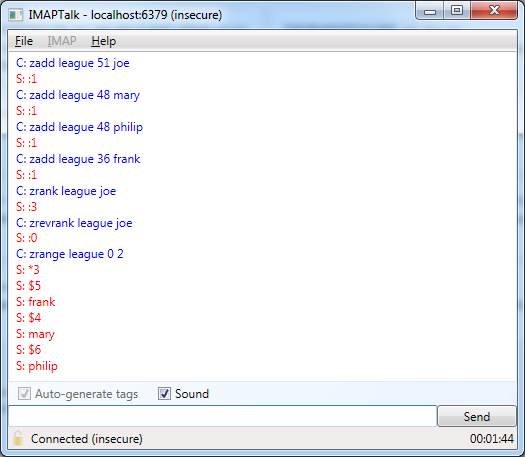
Sorted Sets in Redis are similar to sets, but their members are sorted by a score. This may be used for any kind of ordering from the latest 5 comments to the top 5 posts with most likes.

We can represent a Sorted Set similarly to a hash, using the scheme key -> score -> value. However, there are two main differences from a hash:

  • For each score, there may be multiple values; these are sorted lexicographically.
  • The scores are ordered (sorted).

The implementation of a Sorted Set in .NET is not as trivial as the other data types, and requires a combination of collections. While a simple representation could be made by combining a SortedDictionary (score -> values) with a SortedSet (distinct and sorted values), this would not allow all Sorted Set commands to be supported (e.g. ZRANK can find the index of a given value, requiring a reverse lookup).

Sorted Sets are thus beyond the scope of this article, which is intended to provide a simple mapping between Redis data types and .NET collections.

Summary

This article explained how the Redis data types work, and showed how some of their operations may be implemented using standard .NET collections. A typical mapping could be:

  • Strings – strings
  • Lists – Lists
  • Hashes – Dictionaries or ConcurrentDictionaries
  • Sets – HashSets
  • Sorted Sets – a custom data structure

Source Code

The source code for this article is available on BitBucket.

A Framework for Application Settings

It is a very common practice to store settings in config keys within the AppSettings section of an App.config file. These settings then need to be read and converted to the appropriate type. One must also take care to cater for situations where the key is not found, or the value is invalid. This article provides a structured approach to this practice. Feel free to review and use the accompanying source code.

Update 2015-02-28: I made a minor improvement to ReadAsync() suggested by Stephen Cleary, who I thank for the code review.

Update 2015-03-03: Some people have asked why we actually need AppSettings any more, given that there are alternatives such as .NET Settings or custom configuration sections. They are correct. However I still see a lot of projects using AppSettings, and this article is intended to provide a better way to deal with those AppSettings.

Update 2015-11-12: If you want to use this in your own code, check out my .NET Settings Framework project which is based on this article and provides NuGet packages that you can just drop into your projects.

The Problem

I’ve seen a lot of production code that reads values from config keys in App.config that looks something like this:

            // set a default, just in case the key is not found or the conversion fails

            int timeout = 3000;

            // retrieve the value for the desired key

            string timeoutStr = ConfigurationManager.AppSettings["timeoutInMilliseconds"];

            // check whether the key was actually found; if not, the default value is retained

            if (timeoutStr != null)
            {
                // attempt to convert to the desired type
                //   -> if it succeeds, the default value is replaced with the retrieved value
                //   -> if it fails, the default value is retained

                bool converted = int.TryParse(timeoutStr, out timeout);
            }

Aside from the bloat due to comments and braces (which were both necessary to make this example clear), you can see that we essentially have four lines of code just to read an integer setting from App.config.

What’s really bad is that there will essentially be four lines of code for every setting, all doing essentially the same thing for different settings. That isn’t very DRY.

A Basic Solution

One of my earlier attempts at solving this problem involved a utility class which took care of reading the settings and converting them to the appropriate type, using a specific method per type:

    public class ConfigKey
    {
        private string key;

        public ConfigKey(string key)
        {
            this.key = key;
        }

        public int GetAsInt(int defaultValue = 0)
        {
            int value = defaultValue;

            string valueStr = ConfigurationManager.AppSettings[this.key];

            if (valueStr != null)
            {
                bool converted = int.TryParse(valueStr, out value);
            }

            return value;
        }

        public bool GetAsBool(bool defaultValue = false)
        {
            bool value = defaultValue;

            string valueStr = ConfigurationManager.AppSettings[this.key];

            if (valueStr != null)
            {
                bool converted = bool.TryParse(valueStr, out value);
            }

            return value;
        }

        // ...
    }

This approach was pretty decent, as it made it very easy to read settings and specify optional default values:

            int timeout = new ConfigKey("timeoutInMilliseconds").GetAsInt(3000);
            bool enabled = new ConfigKey("enabled").GetAsBool(false);

The only problem with this class is that while removes the bloat and duplication from the actual logic, it is full of duplication itself: you need a method per type to perform the type-specific conversion.

A Generic Approach

The duplication in the ConfigKey class is solved by using a generic conversion method:

        public T Get<T>(T defaultValue = default(T)) where T : IConvertible
        {
            T value = defaultValue;

            string valueStr = ConfigurationManager.AppSettings[this.key];

            if (valueStr != null)
            {
                try
                {
                    value = (T)Convert.ChangeType(valueStr, typeof(T));
                }
                catch(Exception)
                {
                    return defaultValue;
                }
            }

            return value;
        }

The usage changes as follows:

            int timeout = new ConfigKey("timeoutInMilliseconds").Get<int>(3000);
            bool enabled = new ConfigKey("enabled").Get<bool>(false);

That’s good enough for reading settings from App.config.

Dependency injection

In order to unit test our ConfigKey class, it’s best if we abstract out the dependency on App.config. In particular, we want to separate the part that reads the settings (reader) from the part that does the conversion and returns the value (provider).

For this, we need two interfaces. First, IConfigKeyReader is responsible to read the value of a setting from a source (e.g. App.config):

    public interface IConfigKeyReader
    {
        string Read(string key);
    }

Secondly, IConfigKeyProvider does all the rest: given a key, it returns a value (by internally using the IConfigKeyReader, which is not immediately evident from the interface):

    public interface IConfigKeyProvider
    {
        T Get<T>(string key, T defaultValue = default(T)) where T : IConvertible;
    }

The IConfigKeyReader implementation for reading from App.config is extremely simple:

    public class AppSettingReader : IConfigKeyReader
    {
        public string Read(string key)
        {
            return ConfigurationManager.AppSettings[key];
        }
    }

The IConfigKeyProvider for App.config settings is almost the same as the code we had in the previous section, with one important exception: it no longer depends directly on ConfigurationManager. Instead, it depends on the IConfigKeyReader which is injected in the constructor. This reader can be mocked in unit tests.

    public class ConfigKeyProvider: IConfigKeyProvider
    {
        private IConfigKeyReader reader;

        public ConfigKeyProvider(IConfigKeyReader reader)
        {
            this.reader = reader;
        }

        public T Get<T>(string key, T defaultValue = default(T)) where T : IConvertible
        {
            T value = defaultValue;

            string valueStr = reader.Read(key);

            if (valueStr != null)
            {
                try
                {
                    value = (T)Convert.ChangeType(valueStr, typeof(T));
                }
                catch (Exception)
                {
                    return defaultValue;
                }
            }

            return value;
        }
    }

You’ll also notice that we can now use a single instance of this AppSettingProvider to retrieve all our settings, rather than create a different ConfigKey for each setting. This approach is pretty handy if you’re using an IoC container to inject utility classes into your class constructors.

At this point we can throw away our old ConfigKey class, and instead use the new classes as follows:

            var reader = new AppSettingReader();
            var provider = new ConfigKeyProvider(reader);

            int timeout = provider.Get<int>("timeoutInMilliseconds", 3000);
            bool enabled = provider.Get<bool>("enabled", false);

Unit tests

Thanks to the separation between reader and provider, it is now easy to unit test our provider code while mocking our reader code. The reader will be source-specific and depends on external factors (e.g. files or databases) so it doesn’t make sense to unit test that. But we can unit test our provider, which handles the conversion and default values, and which will be reused whatever the reader (in fact notice the names used in the code above: AppSettingReader is specific to App.config AppSettings, but ConfigKeyProvider is used for any config key).

In the example unit test below, I’m using Moq to create a mock IConfigKeyReader, and thus test that the provider code works as expected:

        [TestMethod]
        public void Get_IntAvailableWithDefault_ValueReturned()
        {
            // arrange

            var key = "timeoutInMilliseconds";

            var reader = new Mock<IConfigKeyReader>();
            reader.Setup(r => r.Read(key)).Returns("5000");

            var provider = new ConfigKeyProvider(reader.Object);

            // act

            var expected = 5000;
            var actual = provider.Get<int>(key, 3000);

            // assert

            Assert.AreEqual(expected, actual);
        }

For the sake of brevity I won’t include the other unit tests here, but you can find them in the source code accompanying this article.

Database settings

The separation between reader and provider that we achieved in the previous section means that we can reuse the provider code (responsible for conversion and default values) regardless of the source of the settings. This means that anyone can write, for example, a DbSettingReader class which implements IConfigKeyReader and retrieves settings from a database. Its implementation would depend on the database structure so there won’t be any single standard implementation.

However, there is one improvement to our framework that we can make to facilitate reading settings from external sources such as databases. In particular, nowadays it is quite easy to query a database asynchronously without having to block the application. So it makes sense to add support for async methods in our interfaces so that anyone writing a DbSettingReader can then provide an asynchronous implementation.

IConfigKeyReader now becomes:

    public interface IConfigKeyReader
    {
        string Read(string key);

        Task<string> ReadAsync(string key);
    }

We now need to update our AppSettingReader implementation accordingly. Since reading AppSettings from App.config isn’t asynchronous, we can use Task.FromResult() to help satisfy the contract:

    public class AppSettingReader : IConfigKeyReader
    {
        public string Read(string key)
        {
            return ConfigurationManager.AppSettings[key];
        }

        public Task<string> ReadAsync(string key)
        {
            var value = this.Read(key);
            return Task.FromResult(value);
        }
    }

The provider code also needs to be updated to support asynchrony. First the interface:

    public interface IConfigKeyProvider
    {
        T Get<T>(string key, T defaultValue = default(T)) where T : IConvertible;

        Task<T> GetAsync<T>(string key, T defaultValue = default(T)) where T : IConvertible;
    }

The changes necessary to ConfigKeyProvider are a little more radical:

    public class ConfigKeyProvider : IConfigKeyProvider
    {
        private IConfigKeyReader reader;

        public ConfigKeyProvider(IConfigKeyReader reader)
        {
            this.reader = reader;
        }

        public T Get<T>(string key, T defaultValue = default(T)) where T : IConvertible
        {
            string valueStr = reader.Read(key);

            return this.ConvertValue<T>(valueStr, defaultValue);
        }

        public async Task<T> GetAsync<T>(string key, T defaultValue = default(T)) where T : IConvertible
        {
            string valueStr = await reader.ReadAsync(key).ConfigureAwait(false);

            return this.ConvertValue<T>(valueStr, defaultValue);
        }

        private T ConvertValue<T>(string valueStr, T defaultValue)
        {
            if (valueStr != null)
            {
                try
                {
                    return (T)Convert.ChangeType(valueStr, typeof(T));
                }
                catch (Exception)
                {
                    return defaultValue;
                }
            }
            else
                return defaultValue;
        }
    }

I opted to move the conversion code to a method shared by the async and non-async methods, and then call separate reader code in them. I intentionally avoided having Get() call GetAsync().Result as it can result in deadlocks.

Technically the best approach would have been to drop the synchronous Get() method altogether and force the use of the asynchronous version. However, I realise there are times when people actually want to call the synchronous version, such as in Console applications or in constructors (although there are workarounds for both – see Async Console Programs and “Can constructors be async?“).

Conclusion and Source Code

This article has presented a simple framework that can be used to read application settings without having to bloat actual program logic. It supports reading AppSettings from an App.config file out of the box, and can easily be extended to support other sources (e.g. databases). It makes it easy to provide default values, works nicely with dependency injection, and can also be used asynchronously.

Check out the source code at the Gigi Labs Bitbucket repository. Feel free to use this code as you like, and let me know if you think it can be improved.

Automating a WinForms login form using SendKeys

This article describes how you can fill in form fields and invoke buttons from code using SendKeys, without directly interacting with the UI. The initial examples do this from the same application, but it is later shown how to do this UI automation from a separate application.

sendkeys-login-initial2

In this article, we’re going to use a simple login form as an example. It contains what you’d normally expect: fields to enter the username and password, and a Login button. Additionally, it contains an Automate button at the top which we’ll use to execute our automation code.

You’ll notice that I already have something in the Automate button’s click event handler:

            SendKeys.Send("username");

If you try this, you might expect that something gets written in the username field. But alas, nothing happens. That’s because SendKeys is limited to sending keystrokes to the focused control on the currently active application. Therefore, to actually send text to the username field, we first have to focus it.

We can try forcing focus on the username field:

            this.usernameField.Focus();
            SendKeys.Send("username");

…and indeed that works. But that won’t quite work if we’re automating the UI from a second application, since it has no idea about the fields present in our login form.

Therefore, another way is to actually send TAB keys to navigate to the desired control, before sending actual text. Special keys such as TAB and ENTER are represented by special codes such as {TAB} and {ENTER} (refer to the SendKeys documentation for a full list). Thus we can achieve the same effect like this:

            SendKeys.Send("{TAB}username");

And likewise, we can fill in the whole form, and finally invoke the Login button by first giving it focus and then sending an ENTER key:

            SendKeys.Send("{TAB}username{TAB}password{TAB}{ENTER}");

So you can see that the result is just what we expected:

sendkeys-login-loggedin

Naturally, keep in mind that tabbing to the desired control is entirely dependent on the tab index of the controls. If that changes, your automation code will have to change accordingly. It might not be an ideal approach, but it’s just about the best you can do for SendKeys if you want an application to send keystrokes to another.

Speaking of which, so far we’ve taken the shortcut of doing everything within the same application, in which case giving focus to controls directly is just fine. Let us now create a second Windows Forms application, and see how we can use it to automate our login form’s UI.

Actually, all we need is a simple form with a button, whose Click event handler will execute our automation code:

sendkeys-login-automatorstub

Now as I said before, SendKeys works only with the currently active application. If we want to automate our login form, we’ll need some code to find it from the list of running applications, and activate it. This StackOverflow answer has some code that takes care of this.

The first thing we need to do is find the process we want to automate. For that we need the name of the process. If it’s already running, you can find it in the Task Manager:

sendkeys-login-taskmanager

Notice how if you’re running directly from Visual Studio, the process will contain a “.vshost” before the file extension.

We can now get the process we want (Process is in the System.Diagnostics namespace):

            Process p = Process.GetProcessesByName("WinFormsLogin.vshost").FirstOrDefault();

Note that we omit the .exe extension from the process name above.

Once that is done, we need to bring that process to the foreground using some code from the answer linked above. So first, import the Win32 SetForegroundWindow() function (DllImport requires the System.Runtime.InteropServices namespace):

[DllImport ("User32.dll")]
static extern int SetForegroundWindow(IntPtr point);

Once we have this, we bring the process to the foreground, and send any keystrokes we need:

            Process p = Process.GetProcessesByName("WinFormsLogin.vshost").FirstOrDefault();

            if (p != null)
            {
                IntPtr h = p.MainWindowHandle;
                SetForegroundWindow(h);
                SendKeys.SendWait("{ENTER}");
            }

And there you go, the Automator application invokes the automation button on the Login application:

sendkeys-login-acrossapps

Now you’ll notice I’m kind of cheating here: I’m just sending the ENTER key to activate the Automate button in the Login form (which happens to have a tab index of zero, i.e. it’s the first thing to be focused). The applications you want to automate won’t normally have an Automate button. But just as you can send an ENTER key from one application to another, you can send other keys. We can thus do our automation anyway:

            Process p = Process.GetProcessesByName("WinFormsLogin.vshost").FirstOrDefault();

            if (p != null)
            {
                IntPtr h = p.MainWindowHandle;
                SetForegroundWindow(h);
                SendKeys.Send("{TAB}username{TAB}password{TAB}{ENTER}");
            }

Great! You can use SendKeys for simple automation of Windows Forms applications by sending keystrokes – even across applications. If you want to automate Microsoft Word or anything of the sort, this won’t work, although there are alternatives. If you’re doing more serious stuff (e.g. WPF) there are entire APIs you can look at.