This article shows how to develop the basis of a client/server multiplayer game. The clients move around the playing field and their movements are broadcasted to all other clients via the server. This is done using the Publish/Subscribe (or Observer) pattern. The software is developed using Akka .NET, and the network communications implementation is based on Akka.Remote.
The source code for this article is available at the Gigi Labs BitBucket Repository.
Prerequisites
In this article, we’re going to develop a client/server application. In our solution, we’ll have two different console applications for client and server respectively. We’ll also have a third project: a class library containing message classes used by both. The client and server projects will reference this class library.
We’re going to use Akka .NET and its related Akka.Remote component in both client and server. These can be installed via NuGet.
Install-Package Akka
Install-Package Akka.Remote
Server
The server is actually the simplest part of this application. We have one actor which is a direct implementation of the Publish/Subscribe pattern. This ServerActor keeps track of subscribers (which are remote client actors in this case) using their respective subscriber GUIDs.
    public class ServerActor : TypedActor,
        IHandle<SubscribeMessage>,
        IHandle<UpdateLocationMessage>,
        IHandle<UnsubscribeMessage>
    {
        private Dictionary<Guid, IActorRef> subscribers;

        public ServerActor()
        {
            this.subscribers = new Dictionary<Guid, IActorRef>();
        }

        public void Handle(SubscribeMessage message)
        {
            this.subscribers[message.SubscriberGuid] = Sender;
        }

        public void Handle(UpdateLocationMessage message)
        {
            this.Broadcast(message);
        }

        public void Handle(UnsubscribeMessage message)
        {
            // remove subscription

            if (this.subscribers.ContainsKey(message.SubscriberGuid))
                this.subscribers.Remove(message.SubscriberGuid);

            // broadcast removal to everyone else

            this.Broadcast(message);
        }

        private void Broadcast<T>(T message) where T : class
        {
            foreach (var subscriber in this.subscribers.Values)
                subscriber.Tell(message);
        }
    }
Subscription and unsubscription are simple add/remove operations on the subscriber dictionary. When a client moves in the playing area, he sends an update to the server in the form of an UpdateLocationMessage. This is then broadcasted to all subscribers (in this case also to the sender) so that they can update the position of the client that moved.
The messages will be covered in the next section.
The server program does nothing more than create the ActorSystem, and an instance of the ServerActor within it:
        static void Main(string[] args)
        {
            var configManager = ConfigurationManager.AppSettings;
            string actorSystemName = configManager["actorSystemName"];

            Console.Title = $"{actorSystemName} - Server";

            try
            {
                using (var actorSystem = ActorSystem.Create(actorSystemName))
                {
                    var server = actorSystem.ActorOf(
                        Props.Create<ServerActor>(), "ServerActor");

                    string serverActorAddress = configManager["serverActorAddress"];
                    var remoteServerActor = actorSystem.ActorSelection(serverActorAddress);

                    Console.ReadLine();
                }
            }
            catch (Exception ex)
            {
                Console.WriteLine(ex);
            }
        }
In the server’s App.config, we need to use HOCON to set up Akka.Remote, mainly defining the port at which the server will listen:
<?xml version="1.0" encoding="utf-8" ?>
<configuration>
  <configSections>
    <section name="akka" type="Akka.Configuration.Hocon.AkkaConfigurationSection, Akka" />
  </configSections>

  <startup>
    <supportedRuntime version="v4.0" sku=".NETFramework,Version=v4.6.1" />
  </startup>

  <appSettings>
    <add key="actorSystemName" value="PubSubGame" />
  </appSettings>

  <akka>
    <hocon>
      <![CDATA[

        akka
        {
            actor
            {
                provider = "Akka.Remote.RemoteActorRefProvider, Akka.Remote"
            }

            remote
            {
                helios.tcp
                {
                    port = 7482
                    hostname = localhost
                }
            }
        }

      ]]>
    </hocon>
  </akka>
</configuration>
Common Messages
The message classes in the class library project, “GameMessages”, are required by both client and server because they are the means by which basic publish/subscribe interactions occur.
    public class SubscribeMessage
    {
        public Guid SubscriberGuid { get; }

        public SubscribeMessage(Guid subscriberGuid)
        {
            this.SubscriberGuid = subscriberGuid;
        }
    }
The SubscribeMessage is sent by the client when it starts. Through it, the server sets up an association between SubscriberGuid and the client’s IActorRef (with a dictionary entry). Although this association is not needed for message broadcast, it is necessary to remove the subscriber with that GUID when he unsubscribes.
    public class UnsubscribeMessage
    {
        public Guid SubscriberGuid { get; }
        public short LastX { get; }
        public short LastY { get; }

        public UnsubscribeMessage(Guid subscriberGuid,
            short lastX, short lastY)
        {
            this.SubscriberGuid = subscriberGuid;
            this.LastX = lastX;
            this.LastY = lastY;
        }
    }
The UnsubscribeMessage could in most cases be just a subscriber GUID. However, for our game, we are also including the last position of the client in the game area when he left the game. In this way, the other clients can update their view of the playing area by removing the client that left.
    public class UpdateLocationMessage
    {
        public char Avatar { get; }
        public short OldX { get; }
        public short OldY { get; }
        public short NewX { get; }
        public short NewY { get; }

        public UpdateLocationMessage(Guid subscriberGuid,
            char avatar, short oldX, short oldY, short newX, short newY)
        {
            this.SubscriberGuid = subscriberGuid;
            this.Avatar = avatar;
            this.OldX = oldX;
            this.OldY = oldY;
            this.NewX = newX;
            this.NewY = newY;
        }
    }
On startup and whenever a client moves, he sends an UpdateLocationMessage. In our case, this includes the new location of the client, his previous location, and an arbitrary character representing that client (avatar). The clients receiving this update will erase the client from the previous location, and draw him in the new location using the provided avatar.
Client Overview
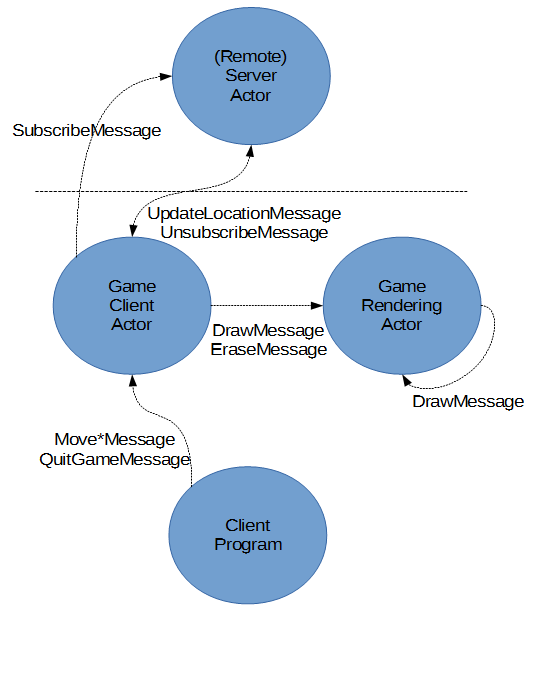
The client application is split up into three components.
- The main program logic sets up the ActorSystem and handles input from the console.
- The GameClientActor is responsible for communicating with the server. It sends messages to the server as a result of input coming from the main program logic, but also receives updates from the server. In both cases, updates are forwarded to the GameRenderingActor so that they can be drawn on the playing area in the console.
- The GameRenderingActor draws the playing area in the console. It keeps this view up to date as a result of the messages it receives from the GameClientActor.
Client – Main Program Logic
The main program for the client first takes care of setting up the ActorSystem, together with a GameClientActor and a GameRendererActor:
        static void Main(string[] args)
        {
            var configManager = ConfigurationManager.AppSettings;
            string actorSystemName = configManager["actorSystemName"];
            char avatar = configManager["avatar"][0];

            Console.Title = $"{actorSystemName} - Client";
            Console.OutputEncoding = Encoding.UTF8;
            Console.CursorVisible = false;

            try
            {
                using (var actorSystem = ActorSystem.Create(actorSystemName))
                {
                    short currentX = 40;
                    short currentY = 12;
                    Guid subscriberGuid = Guid.NewGuid();

                    var gameRendererActor = actorSystem.ActorOf(
                        Props.Create<GameRenderingActor>(), "GameRenderingActor");

                    var gameClientActor = actorSystem.ActorOf(
                        Props.Create<GameClientActor>(gameRendererActor,
                            currentX, currentY, subscriberGuid, avatar),
                        "GameClientActor");

                    HandleInput(gameClientActor);
                }
            }
            catch (Exception ex)
            {
                Console.WriteLine(ex);
            }
        }
Once the ActorSystem is set up, the client enters a game loop, which runs indefinitely until the ESC key is pressed or the client application is killed.
        static void HandleInput(IActorRef gameClientActor)
        {
            while (true)
            {
                var key = Console.ReadKey(intercept: true);

                switch (key.Key)
                {
                    case ConsoleKey.LeftArrow:
                        gameClientActor.Tell(new MoveLeftMessage());
                        break;
                    case ConsoleKey.RightArrow:
                        gameClientActor.Tell(new MoveRightMessage());
                        break;
                    case ConsoleKey.UpArrow:
                        gameClientActor.Tell(new MoveUpMessage());
                        break;
                    case ConsoleKey.DownArrow:
                        gameClientActor.Tell(new MoveDownMessage());
                        break;
                    case ConsoleKey.Escape:
                        gameClientActor.Tell(new QuitGameMessage());
                        return;
                }
            }
        }
Since what we have here is an IActorRef of the GameClientActor rather than a direct instance, we need to communicate with it by sending messages (as opposed to calling methods on it directly).
Each of the messages used by HandleInput() is an empty class, so they are not shown here for brevity.
Although these messages could go into the “GameMessages” shared class library, I opted to put them directly in the client project because the server does not need to know about them. I consider it good practice to keep classes only within the context in which they are needed, as I believe it minimises dependencies (and therefore coupling), though your mileage may vary.
Client – GameRenderingActor
The GameRenderingActor is capable of drawing the state of clients in the playing area by doing only one thing: drawing a single character at a given location in the console window.
    public class GameRenderingActor : TypedActor,
        IHandle<DrawMessage>,
        IHandle<EraseMessage>
    {
        public void Handle(DrawMessage message)
        {
            Console.SetCursorPosition(message.X, message.Y);
            Console.Write(message.Char);
        }

        public void Handle(EraseMessage eraseMessage)
        {
            var x = eraseMessage.X;
            var y = eraseMessage.Y;
            char @char = ' '; // overwrite with space to erase whatever is drawn

            var drawMessage = new DrawMessage(x, y, @char);
            Self.Tell(drawMessage);
        }
    }
As a matter of fact, it knows how to process an EraseMessage (to clear a client’s former position) and a DrawMessage (to draw a client’s current position). These messages include a position (X and Y), and DrawMessage also includes the character to draw (typically the client’s avatar).
The EraseMessage is translated into a DrawMessage (via a message to self) where the character to be drawn is a space. This effectively erases whatever was previously drawn.
In case you’re wondering, the ‘@’ symbol is used because char is a C# reserved word, and you can’t name a variable using a reserved word. The ‘@’ symbol allows you to work around this restriction.
Client – GameClientActor – Setup
The GameClientActor is relatively large because it maintains client state and at the same time coordinates between all the other components in the system (client main program, GameRenderingActor, and the server).
    public class GameClientActor : TypedActor,
        IHandle<UpdateLocationMessage>,
        IHandle<UnsubscribeMessage>,
        IHandle<MoveLeftMessage>,
        IHandle<MoveRightMessage>,
        IHandle<MoveUpMessage>,
        IHandle<MoveDownMessage>,
        IHandle<QuitGameMessage>
    {
        private IActorRef gameRenderingActor;
        private ActorSelection remoteServerActor;

        // client actor state
        private short currentX;
        private short currentY;
        private Guid subscriberGuid;
        private char avatar;

        public GameClientActor(IActorRef gameRenderingActor, short initialX,
            short initialY, Guid subscriberGuid, char avatar)
        {
            this.gameRenderingActor = gameRenderingActor;

            string serverActorAddress = ConfigurationManager
                .AppSettings["serverActorAddress"];
            this.remoteServerActor = Context.ActorSelection(serverActorAddress);

            this.currentX = initialX;
            this.currentY = initialY;
            this.subscriberGuid = subscriberGuid;
            this.avatar = avatar;

            this.Subscribe();
        }

//...

    }
The top of the class declaration makes it immediately evident what messages the GameClientActor is capable of processing (which is one of the reasons why I prefer the IHandle<> approach over ReceiveActors). These include movement/quit messages coming from user input from the main program logic, but also UpdateLocationMessages and UnsubscribeMessages coming from the server.
The constructor takes care of initialising client game state, based on what is passed in from the main program logic. However, the GameClientActor must also keep references to the other actors it talks to, i.e. the GameRenderingActor and the ServerActor running remotely on the server.
When all this state is set up, the client subscribes with the server and sends it an initial location update so that other clients may know it exists. These operations are done thanks to the following two helper methods:
        private void Subscribe()
        {
            // send subscribe message

            var subscribeMessage = new SubscribeMessage(subscriberGuid);
            remoteServerActor.Tell(subscribeMessage, Self);

            // send initial location

            SendLocationUpdate(0, 0);
        }

        private void SendLocationUpdate(short oldX, short oldY)
        {
            var updateLocationMessage = new UpdateLocationMessage(subscriberGuid,
                avatar, oldX, oldY, currentX, currentY);
            remoteServerActor.Tell(updateLocationMessage);
        }
Something very important to note here is that we’re including Self as a second parameter when sending the SubscribeMessage. That’s because of this code in the ServerActor:
        public void Handle(SubscribeMessage message)
        {
            this.subscribers[message.SubscriberGuid] = Sender;
        }
I’ve found that if you want to use a reference to Sender, you need to pass the sender as a second parameter when sending the original message. If you don’t, Sender defaults to some weird dead letter thingy. I don’t know if this is by design or some bug, but keep it in mind because it can bite you.
Client – Configuration
The client configuration is a little bit different from that of the server.
  <appSettings>
    <add key="avatar" value="X" />
    <add key="actorSystemName" value="PubSubGame" />
    <add key="serverActorAddress" value="akka.tcp://PubSubGame@localhost:7482/user/ServerActor" />
  </appSettings>
We can specify an avatar character that will be drawn to represent this client at its position. We will change this for each instance of the client that we run, so that we can distinguish between them.
We also need to set up the endpoint of the remote ServerActor in order to be able to communicate with it.
  <akka>
    <hocon>
      <![CDATA[

        akka
        {
            loglevel = ERROR

            actor
            {
                provider = "Akka.Remote.RemoteActorRefProvider, Akka.Remote"
            }

            remote
            {
                helios.tcp
                {
                    port = 0
                    hostname = localhost
                }
            }
        }

      ]]>
    </hocon>
  </akka>
Client connections normally don’t need to be bound to a specific port. Instead, by setting the port to 0, we let the operating system give us an available port of its own choosing for the client socket. This is perfectly fine because client connections are outgoing; so unlike server sockets, they don’t need to listen for connections on a particular port, and are not subject to firewall restrictions.
Note that we’re setting loglevel pretty high here. That’s so the typical Akka .NET output doesn’t mess with our drawing of the playing area.
Client – GameClientActor – Movement
A lot of the movement code in GameClientActor is the same: keep a copy of the old position, update the state with the new position, and then send a location update to the server with both the old and the new position. Thus a common helper method is used:
        private void MoveAndSendLocationUpdate(Action move)
        {
            short oldX = currentX;
            short oldY = currentY;

            move();

            this.SendLocationUpdate(oldX, oldY);
        }
The move action is simply a tweak in the location state. It is different for each movement message, and thus passed in to the helper method:
        public void Handle(MoveLeftMessage message)
        {
            this.MoveAndSendLocationUpdate(() => currentX--);
        }

        public void Handle(MoveRightMessage message)
        {
            this.MoveAndSendLocationUpdate(() => currentX++);
        }

        public void Handle(MoveUpMessage message)
        {
            this.MoveAndSendLocationUpdate(() => currentY--);
        }

        public void Handle(MoveDownMessage message)
        {
            this.MoveAndSendLocationUpdate(() => currentY++);
        }
The QuitMessage is a special case, as we need to send an UnsubscribeMessage to the server instead:
        public void Handle(QuitGameMessage message)
        {
            short oldX = currentX;
            short oldY = currentY;

            var unsubscribeMessage = new UnsubscribeMessage(subscriberGuid,
                oldX, oldY);
            remoteServerActor.Tell(unsubscribeMessage);
        }
Client – GameClientActor – Messages from Server
When a location update is received from the server, the GameClientActor passes instructions to the GameRenderingActor to erase the old position of the client that sent the update, and redraw it at its new position:
        public void Handle(UpdateLocationMessage message)
        {
            var eraseMessage = new EraseMessage(message.OldX, message.OldY);
            var drawMessage = new DrawMessage(message.NewX, message.NewY,
                message.Avatar);

            this.gameRenderingActor.Tell(eraseMessage);
            this.gameRenderingActor.Tell(drawMessage);
        }
The UnsubscribeMessage is handled similarly, but erases the old position only:
        public void Handle(UnsubscribeMessage message)
        {
            var eraseMessage = new EraseMessage(message.LastX, message.LastY);

            this.gameRenderingActor.Tell(eraseMessage);
        }
Let’s Run It!
Run one instance of the server. Then, run as many client instances as you like, each with a different avatar configuration. Press the arrow keys in each client console window to move your clients a little. When you move an avatar, you will see it move in all the other windows as well.

Possible Improvement
One thing you’ll notice is that when a new client joins, he won’t see the other clients until they have moved and broadcasted an update. This is a limitation of not keeping client state on the server, and there are many ways to fix this. It is left as an exercise.